Bench Setup
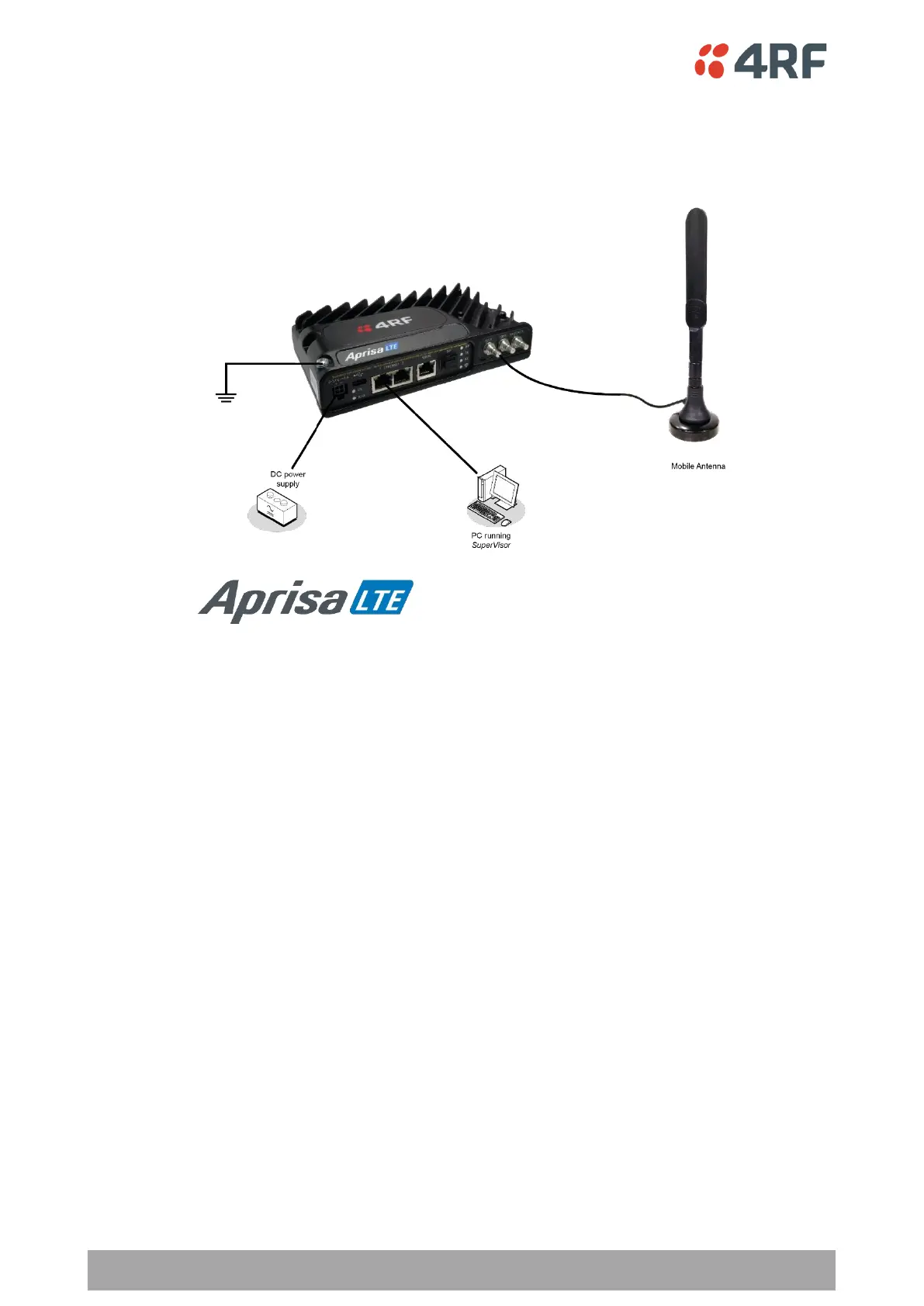
Before installing in the field, it is recommended that you bench-test the Aprisa LTE. A suggested setup for
basic bench testing is shown below:
Setup the bench equipment as follows:
• Connect the LTE earth point to a protection earth
• Install an activated SIM in the LTE see ‘Installing a SIM’ on page 44
• Connect the DC power source to the LTE power input
• A wireless broadband data plan must be added to your Aprisa LTE, which are available from cellular
operators such as Verizon, and AT&T and come with SIM card(s). Once you have an activated SIM,
insert it into the Aprisa LTE SIM 1 Slot
• Connect either separate antennas for LTE/GNSS and for Wi-Fi or a single combo antenna to the
appropriate QMA connectors on the LTE
• Turn the power source on
• Connect your PC to one of the Ethernet ports and login to SuperVisor with admin:admin
• Setup the correct SIM slot and APN name to use in SuperVisor > Cellular settings
Test the setup by verifying internet connectivity:
• Check the SuperVisor > Monitoring page that the LTE is connected
• Check the LTE internet connectivity by trying a ping using the SuperVisor heath test on ‘Cellular >
Carrier/Redundancy’ on page 85.
• On PC that is connected to either Wi-Fi or wired Ethernet port, ping a well know internet addresses
for example:
▪ IPv4 connectivity, try ping to 8.8.8.8 (google DNS server)
▪ IPv6 connectivity, try ping to 2001:4860:4860::8888 (google DNS server)
▪ DNS connectivity, try to ping 4rf.com
▪ Try browsing the internet from the configuration PC


 To Next Page