CHAPTER 4
134
Editing Video
Using Monitor window controllers
The Monitor window contains similar controllers for the Source and Program views. You use
a controller to view and find frames in a clip or video program. Many of the controls work like
the tape transport controls on a video deck. The controllers serve the following purposes:
•
Use the Source controller (under the Source view) to play or view the frames of a source clip
and to specify the clip’s
source In and Out points
which define the portion of the clip that will
be added to the program. (The first frame that will be added is the source In point and the last
frame that will be added is the source Out point.)
•
Use the Program controller (under the Program view) to play or view the video program in
the Timeline and to specify a clip’s
program In and Out points
, which define where the clip’s
source In and Out points are located on the Timeline.
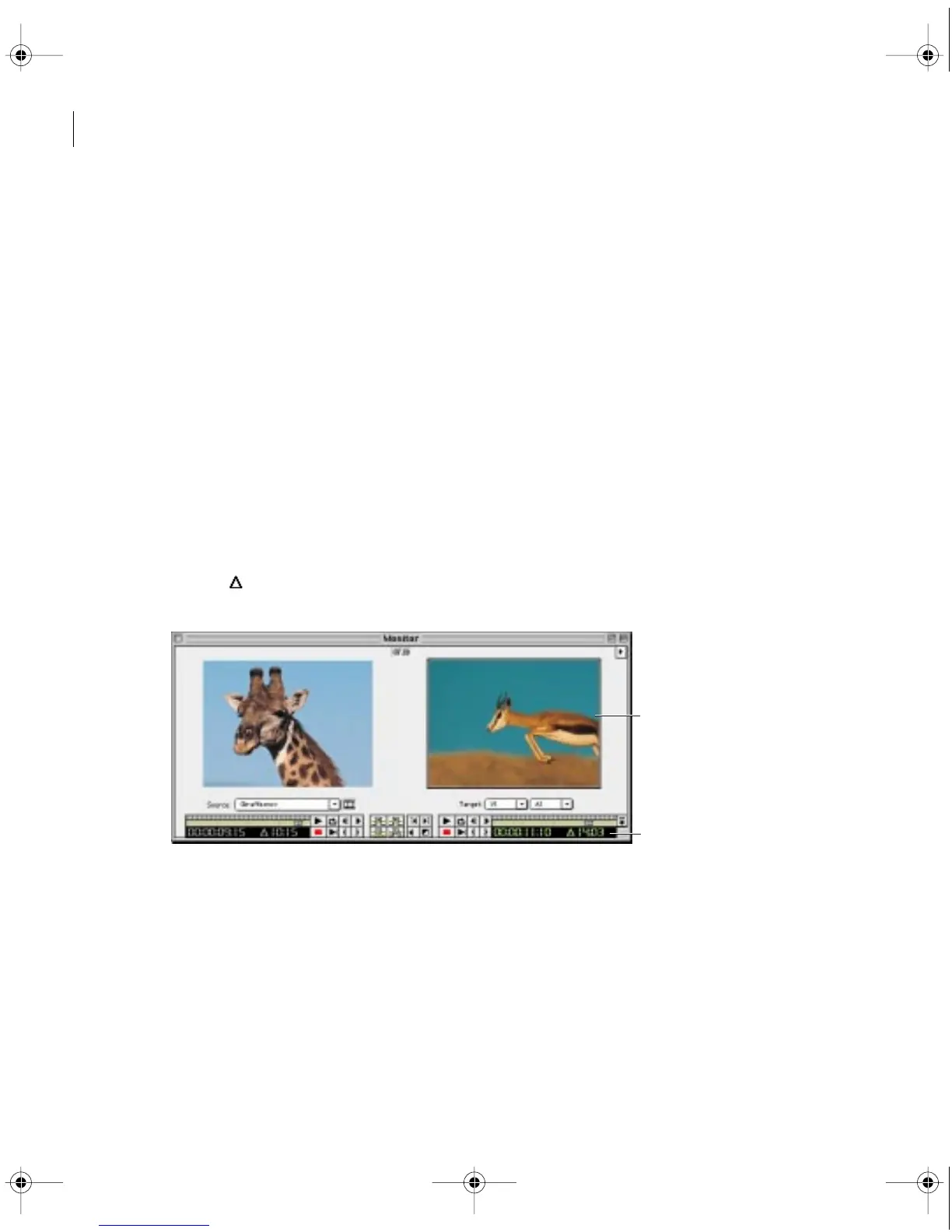
When you want to use a controller to navigate a clip or the program, first make sure the correct
controller is active. When a controller is active, its timecode readout is green, and the view
above it is outlined with the highlight color set for your computer. The number at the bottom
left of each controller is the current time position for that view. The number preceded by a delta
symbol ( ) at the bottom right of each controller is the time difference between the In point
and the Out point of the currently displayed source clip or video program.
Program view active, indicated by highlighted border (A) and green numbers (B).
A
B
c00.book for PS Page 134 Tuesday, March 31, 1998 1:28 PM



 To Next Page