Getting to know your telephone
8AL91432ENAD ed01.1 13/94
1.5.2 Call management screen
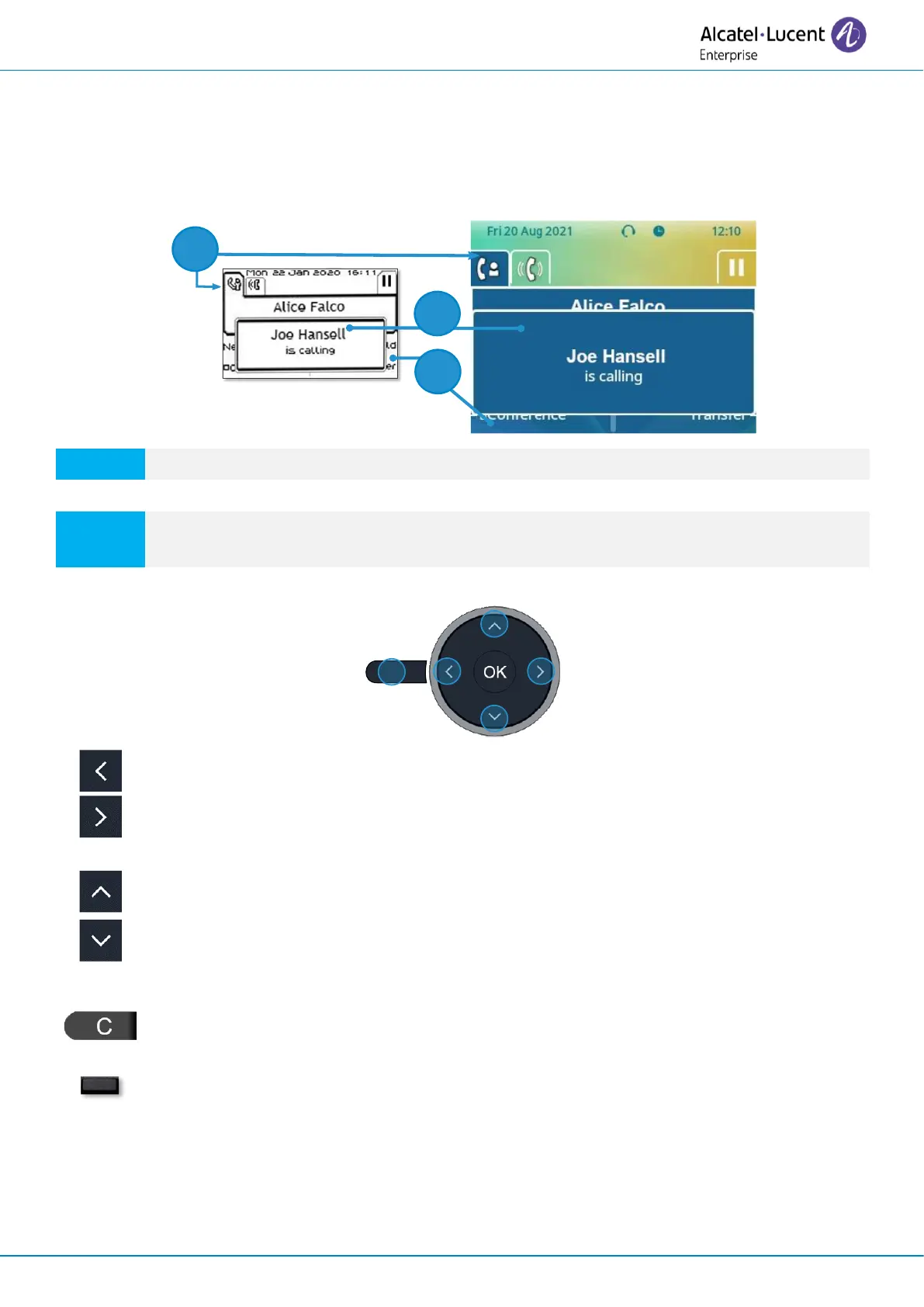
Call management screen displays all information about current calls and lets you access to available
features during conversation.
1.5.2.1 Description
Tabs: incoming call icon, call in progress, call on hold, …
Notification (popup) of incoming call.
Softkeys: actions available depending on the call status (when presentation screen is
not displayed).
Left-right navigator
Each tab corresponds to a call, the status of which is symbolized by its icon (in progress,
call on hold, arrival of new call). When a call is in progress, use the left-right navigator to
look at calls on hold or incoming calls.
Up-down navigator
All features are accessible while the call is displayed on the screen. Use the Up and
Down arrows to move up or down a page. These functions (transfer, conference, etc.)
are directly related to the status of the call consulted. For example, the transfer function
will not be available between a call in progress or on hold and an incoming call.
Back/Exit key
Use to switch to the main screen during conversation to access some functions, for
example, searching by name.
Press the key in front of the label to select the corresponding feature.
Calls can also be managed from the Perso page.
While the call is in progress, press the Back/Exit key and display the Perso page. Calls in progress or
waiting calls are displayed on the different line keys. It is then possible to converse with the contact
of your choice by pressing the key associated to the contact.




 To Next Page