Allworx Verge IP Phone Series User Guide
866.ALLWORX * +1 585 421 3850 Page 13
www.allworx.com
Version: D Revised: June 1, 2017
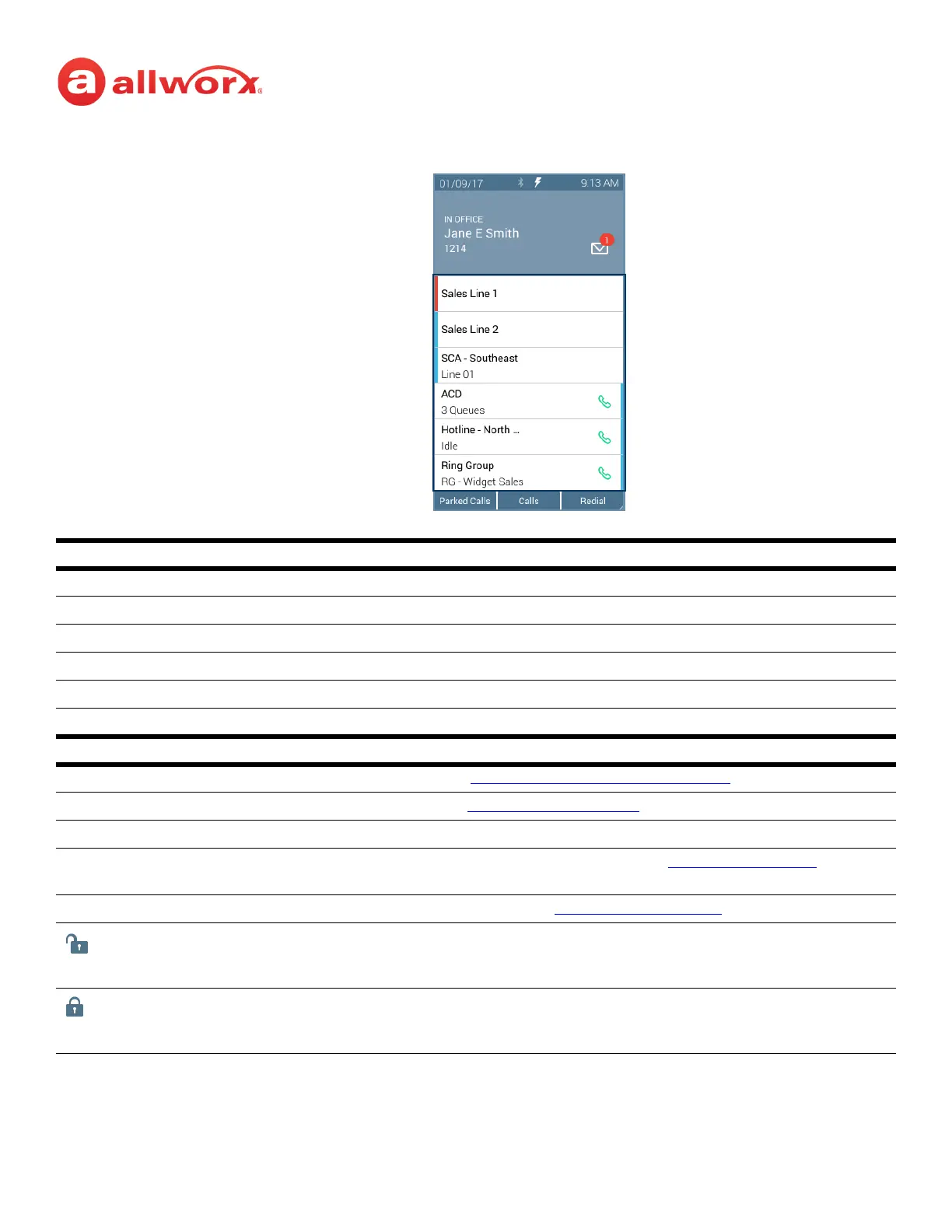
Verge IP phone screen Appearance programmable button examples:
Appearance LED Programmable Button
solid blue Call Appearance, Line Appearance, Shared Call Appearance only. Appearance is idle.
solid green active call.
flashing green (fast) incoming call.
flashing green (slow) active call on hold.
flashing green/red active call temporarily held for Conference Call.
solid red Line Appearance and Shared Call Appearance only. Another phone is using the Line Appearance.
Soft Keys Available
Parked Calls opens the Parked Calls screen. See “
Park a Call/Park Monitor” on page 18 for more information.
Calls opens the Call History screen. See “
Call History” on page 25 for more information.
Redial call the last number in the call history.
Settings opens the Settings screen to configure the Verge IP phone. See “Settings” on page 65
for more
information.
Sleep place the Verge IP phone into sleep mode. See “
Sleep Mode” on page 9 for more information.
(available only if the Personal Contacts are set to Restricted and are locked in the phone settings
menu) indicates the Personal Contacts are available. Press the lock the access to the Personal
Contacts.
(available only if the Personal Contacts are set to Restricted and are locked in the phone settings
menu) indicates the Personal Contacts are unavailable. Press to open the Contacts log in screen
and assigned credentials to access Personal Contacts.
Call Status Area
Soft Keys
Line Appearance - in use by another user
Line Appearance - idle
Shared Call Appearance - idle
ACD Appearance
Queue Appearance - idle
Ring Group
Call Appearance - idle
Call Appearance - idle
Call Appearance - idle



 To Next Page