Allworx
®
Verge™ IP Phone Series User Guide
Page 60 866.ALLWORX * +1 585 421 3850
www.allworx.com
Version: D Revised: June 1, 2017
4.16 Hot Desk
Users can temporarily log in to a shared phone, and then the Allworx system directs the calls to the
shared phone and users can place outgoing calls using the updated caller ID. Users can initiate the
login using a Hot Desk button, if a Hot Desk programmable button is available or by selecting the Hot
Desk Login option from the Verge IP phone Settings menu.
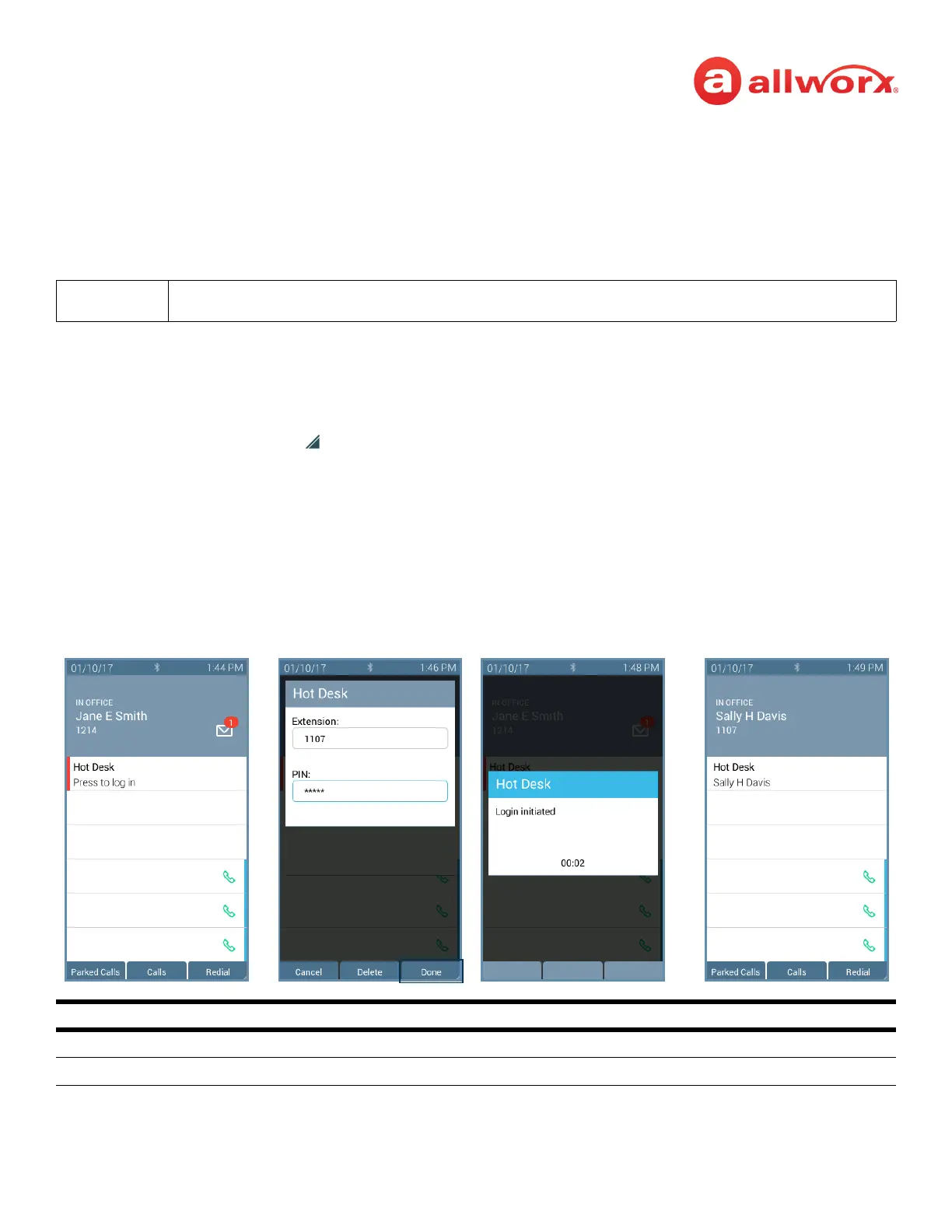
To Hot Desk into another phone:
1. Do one of the following to access the Hot Desk log in screen:
• Press the Hot Desk programmable button, if available.
• Press the More ( ) function button, and then the Settings soft key. Use the up or down
navigation and the Select buttons to choose the Hot Desk setting.
2. Enter the Allworx assigned extension and PIN number in the respective fields.
3. Press the Done soft key. To reenter the extension, press the Clear soft key. The Verge IP phone
displays the presence and the caller ID name/number on the phone screen.
The buttons configured on the Verge IP phones do not change when a new user logs in.
Hot Desk Programmable Button LED
solid red phone is available for Hot Desk log in.
not lit Hot Desk feature is in use.
Press the Hot Desk
programmable
button, if available.
Enter the user extension
and Allworx PIN. Press
Done.
Verge IP phone
updates per the Hot
Desk request.
Allworx user is hot
desked to Verge IP
phone.



 To Next Page