Allworx
®
Verge™ IP Phone Series User Guide
Page 14 866.ALLWORX * +1 585 421 3850
www.allworx.com
Version: D Revised: June 1, 2017
3.3 Place a Call
When activating the handset, headset or speaker phone, the Call Appearance is the default line in use.
If necessary, press another appearance type. To place a call, do one of the following:
• Lift the handset or press the headset ( ) or speaker phone ( ) function button, and then dial
the extension or phone number. If necessary, press the cell phone ( ) soft key.
• Dial the extension or phone number to automatically activate the speaker phone or headset. If
necessary, press the cell phone ( ) soft key.
• Press a Contact programmable button to place a call directly to that phone number.
• Press a BLF programmable button to place a call directly to that extension.
• Press the Contact function button or the Calls soft key, and then use the:
a. (optional) keypad buttons to perform a search, and then press the Call soft key.
b. up/down navigation buttons to highlight the listing, and then press the Call soft key.
While dialing a phone number or extension:
• If the number dialed matches the dial plan, the call is placed.
• If the number dialed does not match the dial plan, hang up and dial the number again.
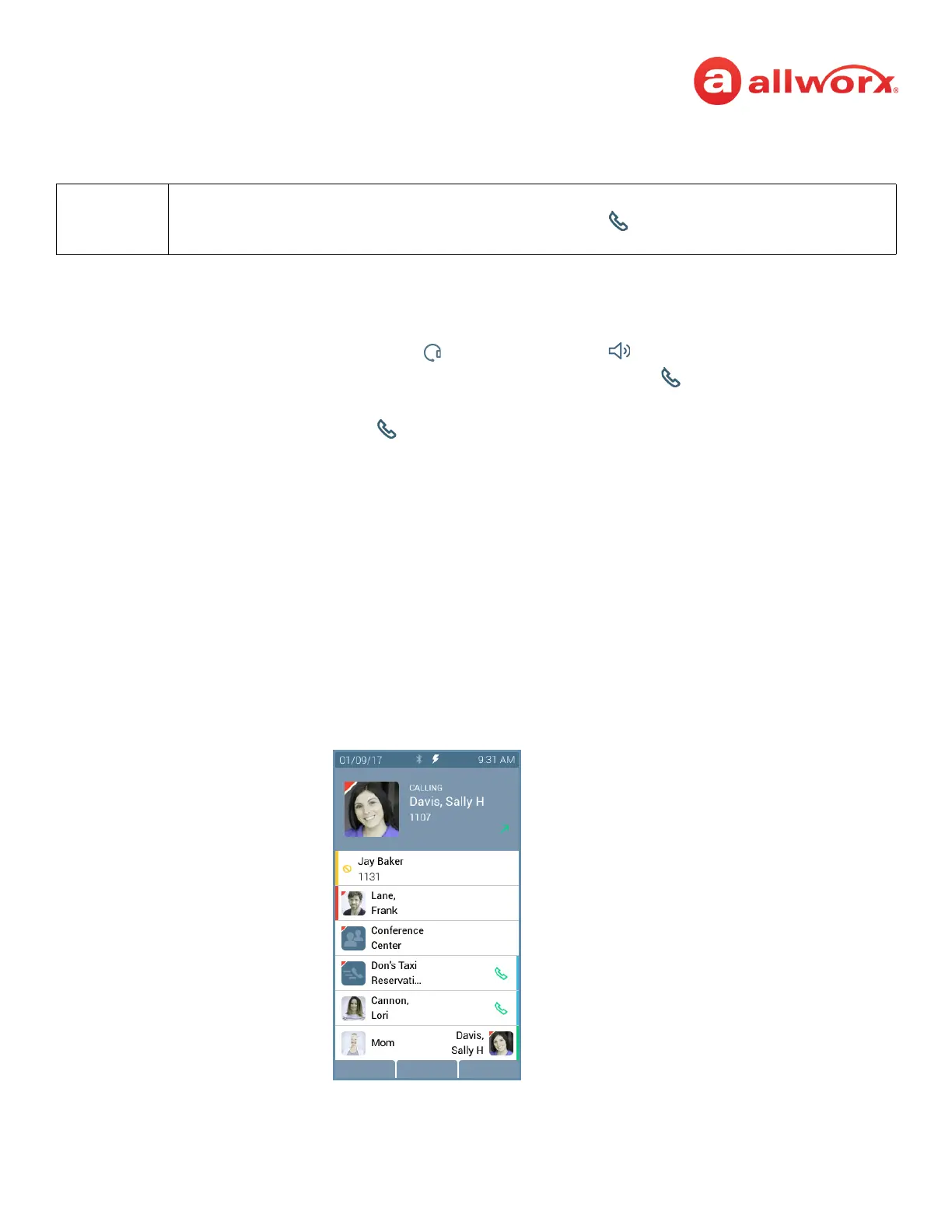
Verge IP phone placing a call example:
If enabling the Cell Phone Dialing setting on the Verge IP phone, using a Call Appearance or Shared Call
Appearance programmable button requires pressing the send ( ) soft key. Cell Phone Dialing mode is
not available on calls using the Line Appearance programmable button.
Call Status area
• Contact image/Allworx user badge
• Call status (CALLING -> ACTIVE CALL)
• Caller or Contact ID name / number
• Call status icon
Soft Keys
Call Appearance Programmable Button
Status - Appearance is ringing (green fast flashing).
BLF - DND active
User Contact - busy
System Contact
Public Contact
Personal Contact
Call Appearance - idle
Call Appearance - idle
Personal Contact



 To Next Page