Allworx
®
Verge™ IP Phone Series User Guide
Page 32 866.ALLWORX * +1 585 421 3850
www.allworx.com
Version: D Revised: June 1, 2017
4.1.1 Sharing Contacts
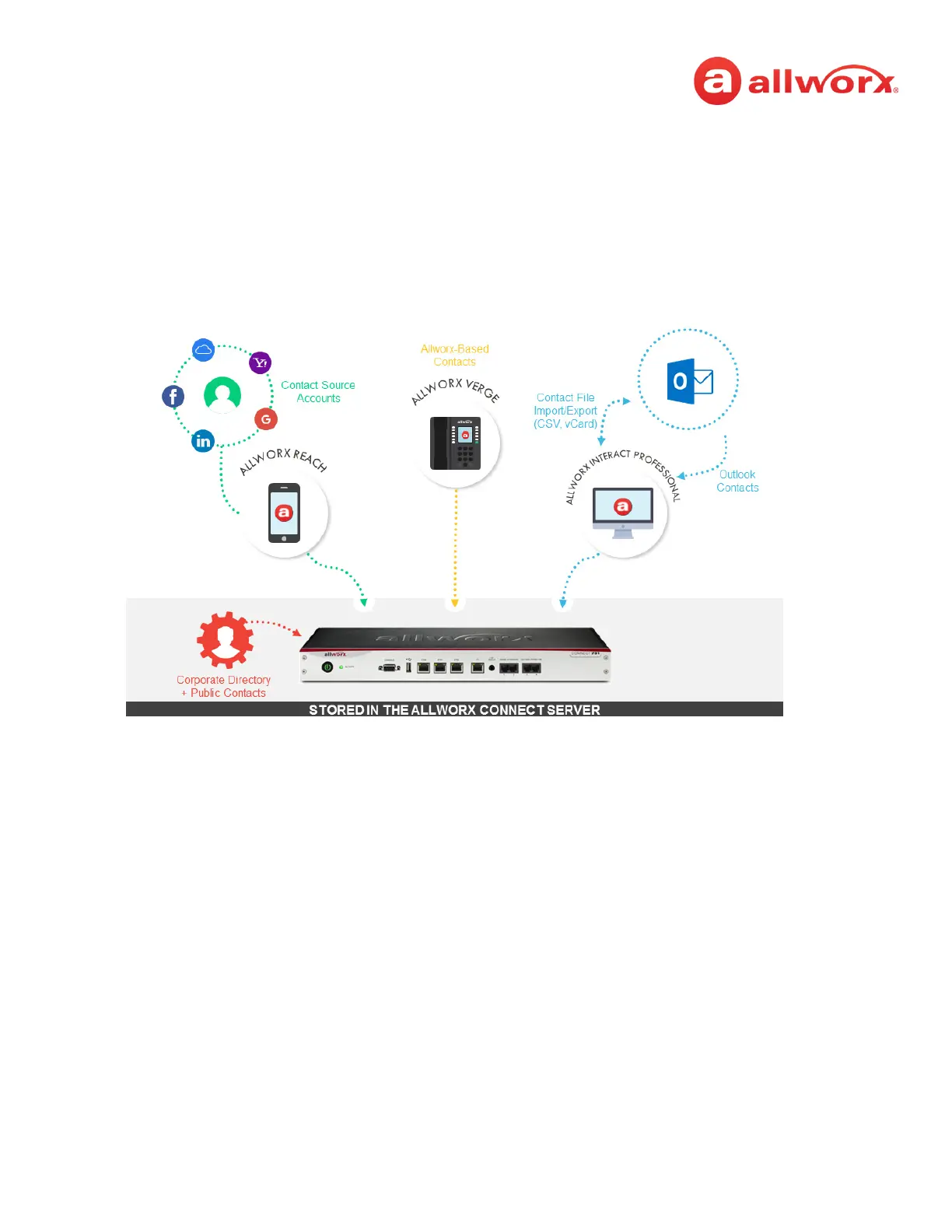
The Allworx system shares the User, System, and Public Contact types with all of the Allworx user’s
connected Allworx phones, Reach devices, and the Interact application. Within the Reach and Interact
Professional applications, Allworx users control sharing and synchronizing the Personal Contacts to the
devices assigned to the Allworx user. See the Reach for iOS, Reach for Android, or the Interact and
Interact Professional User Guide for more information about sharing Personal Contacts.
Visual example of sharing contacts using a Connect server:
4.1.2 Contact Privacy
Allworx users control sharing and synchronizing the Personal Contacts to the devices assigned to the
Allworx user on the Settings > Phone Preferences > Display > Personal Contacts, screen:
• Unrestricted - Contact matches are displayed and require phone log in to view or modify
details. Login is valid until the user leaves the Contacts screen.
• Restricted - Contact matches are displayed and after authentication via soft key to see personal
contacts including Contact programmable buttons. Log in is valid until user logs out via soft
button on Contacts screen or automatically logged out when the phone is rebooted or enters
Sleep mode. Contact lock status always displays on the Verge IP phone series status bar.
4.1.3 Data Protection
Only the Allworx user has access to their personal contacts; the Allworx Server Administrator cannot
access the personal contacts. Allworx users can prevent others from see the personal contacts on their
Verge IP phone by restricting access. This requires the Allworx PIN to unlock the Verge IP phone.



 To Next Page