Allworx
®
Verge™ IP Phone Series User Guide
Page 28 866.ALLWORX * +1 585 421 3850
www.allworx.com
Version: D Revised: June 1, 2017
To manage the Presence or DND setting:
1. Press the Presence ( ) function button.
2. Do one of the following:
a. Use the up/down navigation buttons to highlight the new Presence state, and then press
the Select button to accept the change.
b. Press the DND/End DND soft key. The DND turns on or off, respectively.
The Phone Status area changes to yellow and displays the appropriate icons
3.15 Call Handoff
Seamlessly transition a call between the Verge IP phone and a Reach device. Allworx Verge IP phone
users with one or more Reach devices can migrate a call on the Allworx system from the Allworx Verge
IP phone to the Reach device using the Call Handoff soft key, and vice versa using the Reach action
icon, without disruption to the audio. Allworx users can hand off all calls except for the following:
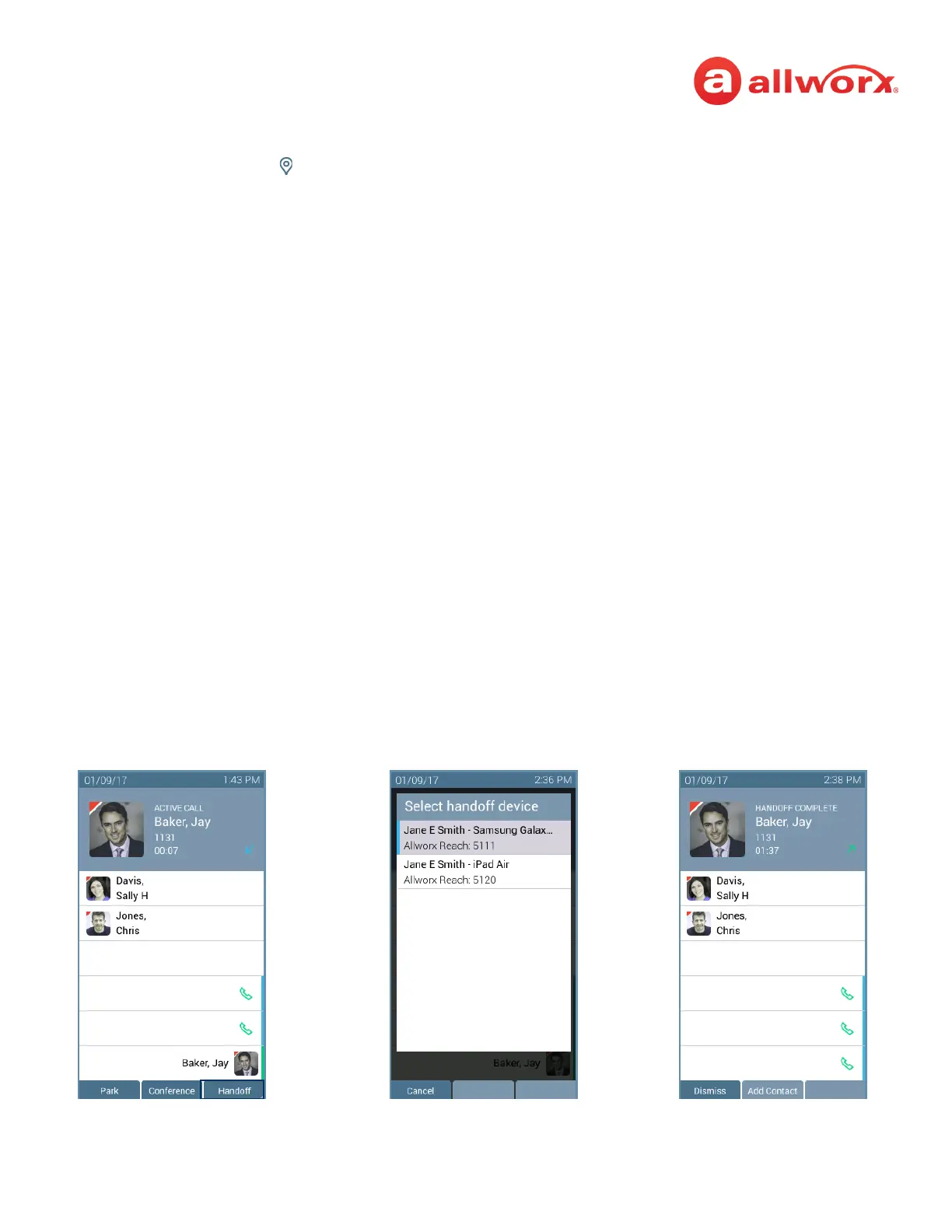
Verge IP phone screen Call Handoff example:
Call Types Call Conditions
• ACD or Queue Appearance • Calls being recorded
• Call Supervision • Destination devices set to Do Not Disturb
• Bluetooth Appearance • Calls on hold
• Phone-hosted conferences • Devices registered on difference servers (does not support multi-site)
Call Handoff Complete
Active Call - Press the
Handoff soft key.
Select handoff device -
(optional) if more than one
Reach device is available



 To Next Page