Allworx Verge IP Phone Series User Guide
866.ALLWORX * +1 585 421 3850 Page 27
www.allworx.com
Version: D Revised: June 1, 2017
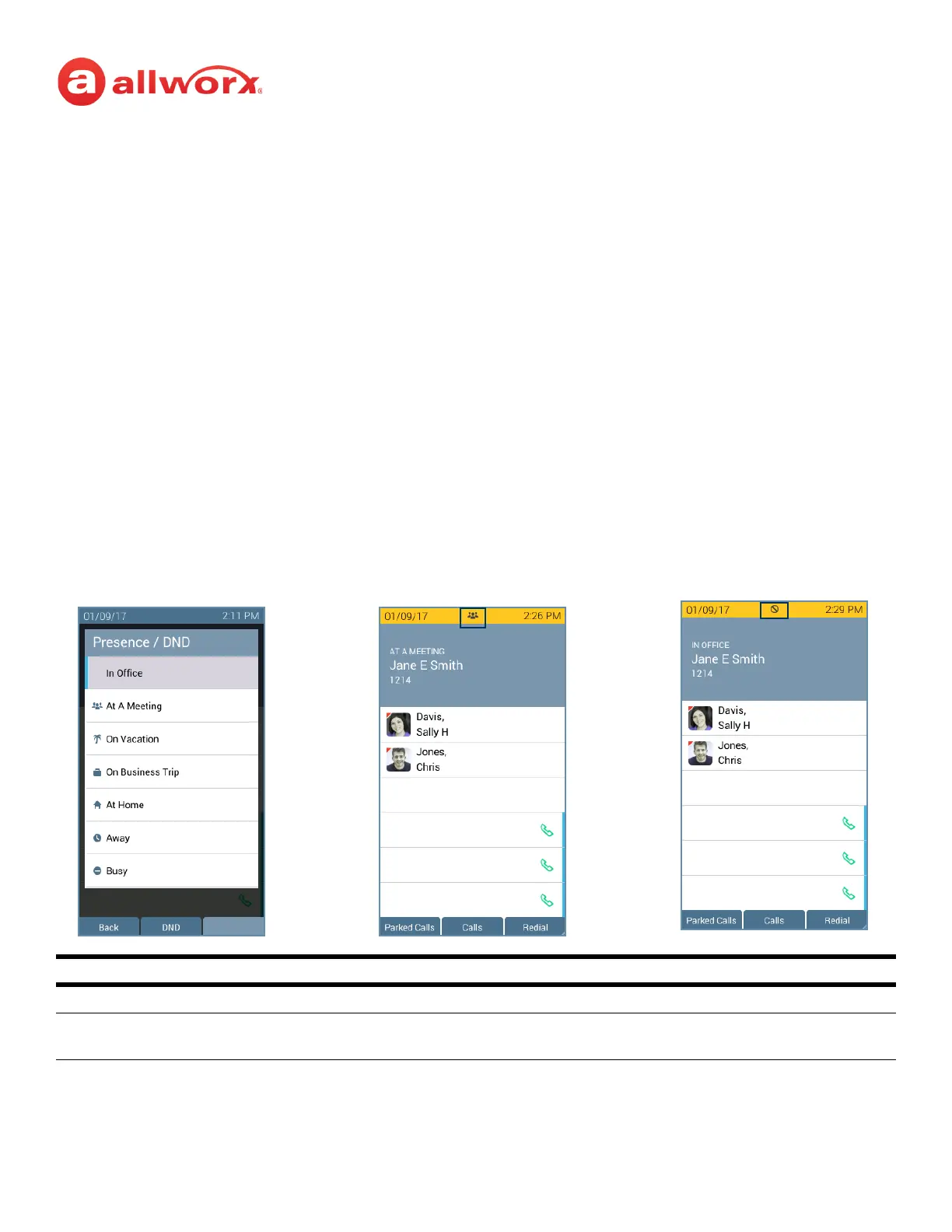
3.14 Presence / DND Setting
Identifies the Allworx User availability and uses the call route based on the setting selected. All setting
options, except In Office, display a yellow bar and Presence or DND icon in the phone status area. After
changing the status, the Verge IP phone screen status changes and all inbound calls follow the call
route for the new Presence state.
The Presence setting changes due to:
• Allworx Verge IP phone users manually configure the setting.
• automatic updates for users logged into Interact Professional using Interact Sync and the
Outlook application.
• automatic updates for users that control the presence setting with a selected schedule.
The DND setting causes the Verge IP phone not to ring for subsequent incoming calls. However, the
Allworx user can continue to send call.
Verge IP phone screen Presence and DND examples:
Soft Keys
Back soft key return to the previous screen.
DND or End DND
Soft key
activates or de-activates the DND setting.
Presence icon DND active iconSet Presence/DND Screen
Phone Status Yellow Background
User Unavailable



 To Next Page