Allworx Verge IP Phone Series User Guide
866.ALLWORX * +1 585 421 3850 Page 19
www.allworx.com
Version: D Revised: June 1, 2017
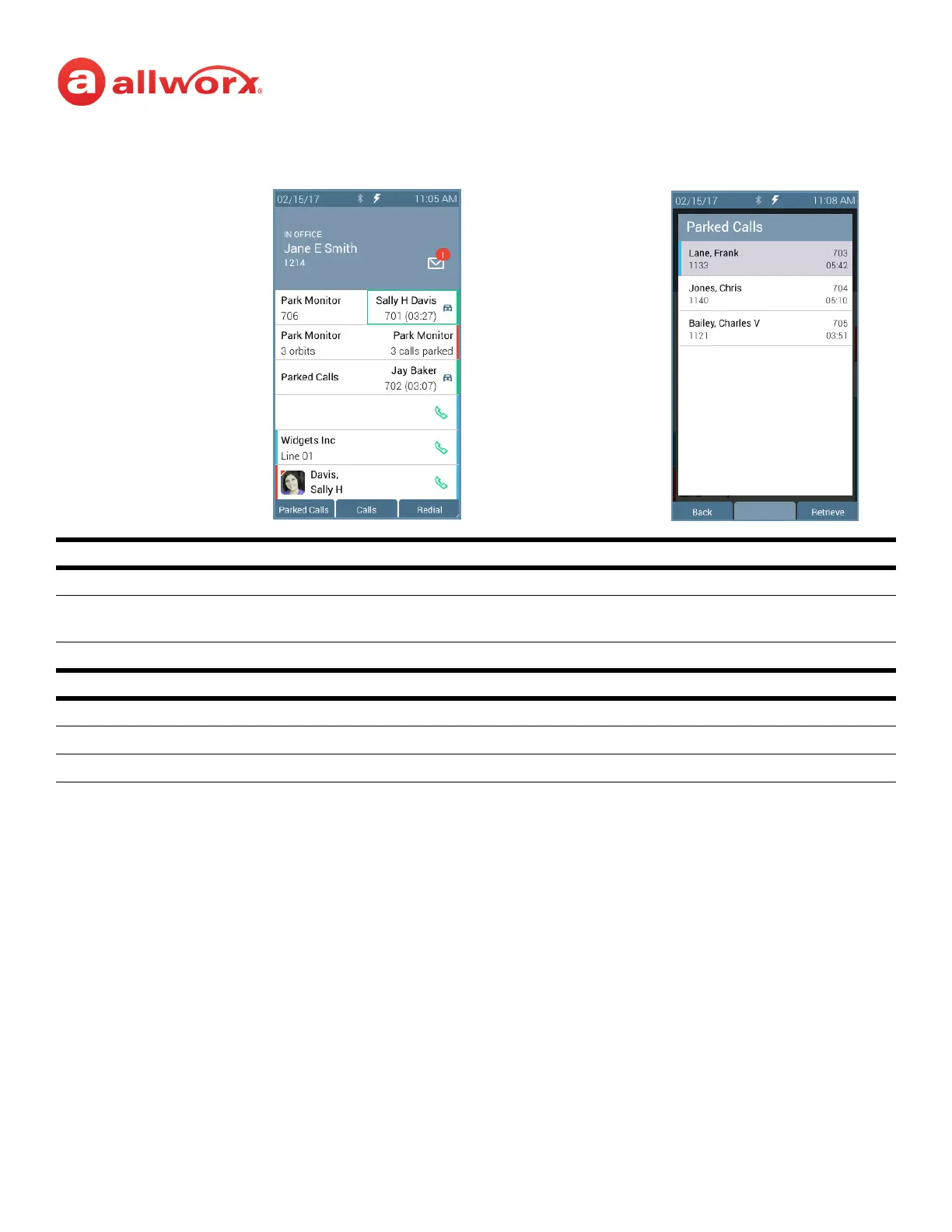
Verge IP phone Park example:
To park a call:
When placing the call into a parking orbit, the programmable button displays a green outline (see
example above). If another user places the call into a parking orbit, the Park Monitor programmable
button does not display a green outline (see example above). Press one of the following options:
• Park soft key - If the active call was on a:
• Call Appearance - the phone status area temporarily displays the call status and the
parking orbit number, and returns to the Idle screen.
• Line Appearance - the LED flashes green and the phone status area displays the Parking
Orbit Number and the park duration.
• Parked Calls soft key, if the user is on an active call and there is a second, incoming call.
• Park programmable button, if available.
Park Monitor Programmable Button LED
off (not lit) Parking Orbit is idle, no parked call.
flashing green call parked. If there is a flashing green box around the programmable button label, this phone
parked a call in the orbit.
solid red one or more calls parked in the assigned Parking Orbits.
Soft Keys Available
Parked Calls displays the calls held in the Parking Orbits.
Back return the Verge IP phone to the idle screen.
Retrieve selects the highlighted parked call.
Single Orbit Monitor
No Call Parked
Soft Keys
Multiple Orbit Monitor
No Calls Parked
Parked Calls
Press to retrieve a parked call.
Label changes to Park during an
active call.
Single Orbit Monitor
User Parked Call
Multiple Orbit Monitor
Calls Parked
Park Programmable Button Options Parked Call Listings
Single Orbit Monitor
Another user Parked Call



 To Next Page