Allworx Verge IP Phone Series User Guide
866.ALLWORX * +1 585 421 3850 Page 45
www.allworx.com
Version: D Revised: June 1, 2017
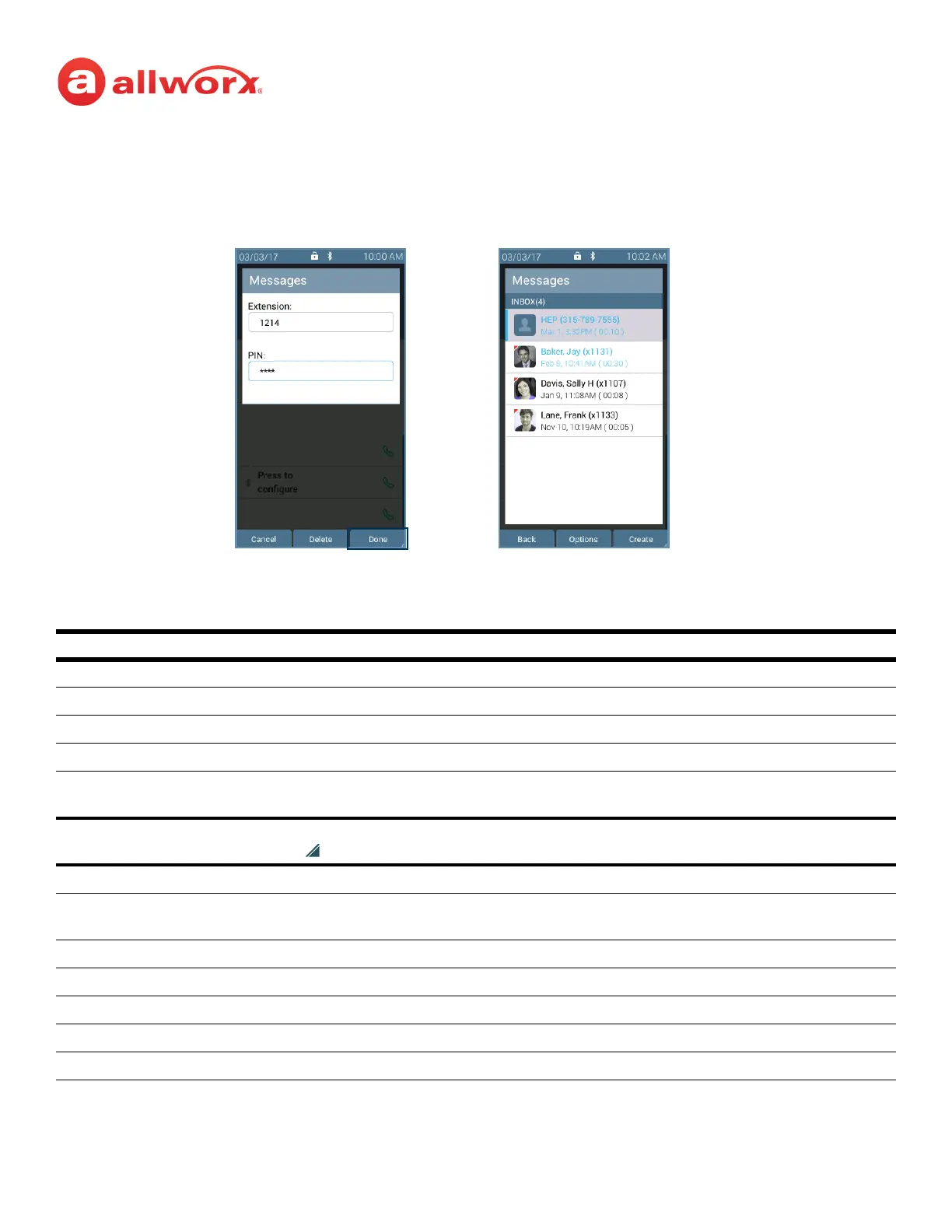
Verge IP phone Visual Message Center login example:
4. Scroll through the voicemail messages using the up/down navigation buttons. Press the Select
button to choose a voicemail listing. Manage the messages using the available soft keys below.
Soft Keys
Back returns to the Verge IP phone Idle screen. No Further action for the Allworx Message Center.
Options manage the voicemail listing - Reply, Forward, Mark as Saved, Mark as New, Delete
Create create a message to send within the Message Center to one or more recipients.
Select manage the current message.
Switch User check messages for another extension. Enter the correct extension > down navigation arrow >
Allworx PIN > Login soft key.
Each of the soft keys above has any combination of the following soft keys to provide control managing the voicemail
messages. Press the More soft key ( ) to see all soft keys associated with the message management action.
Back return to the previous screen.
Options enables selecting how to manage the voicemail - Reply (Allworx User Contacts only), Forward, Mark
as Saved, Mark a New, or Delete
Create make a new voicemail message to send.
Select chooses the highlighted Message listing and opens the ability to select additional message listings.
Switch User access another extension voicemail box.
Delete remove the message from the listings.
Clear All de-select all of the selected options.
After pressing the Messages
function button, enter the
assigned Allworx PIN and press
the Done soft key.
All messages display on the
Verge IP phone screen.
• New/unread - Blue text
• Read/Saved - Black text



 To Next Page