Allworx
®
Verge™ IP Phone Series User Guide
Page 66 866.ALLWORX * +1 585 421 3850
www.allworx.com
Version: D Revised: June 1, 2017
Follow the steps above to access the Bluetooth setting. If available, the Verge IP phone displays a list of
paired/connected Bluetooth devices, and an icon displays next to the connected device (if connected).
To pair and connect a Bluetooth mobile device:
1. Do one of the following:
• Follow the steps in “To access the setting options:” on page 65. Open Bluetooth.
• Locate and press the Bluetooth programmable button.
2. Press the Turn on soft key. A list of previously paired/connected devices displays. If necessary,
press the Scan soft key to search for additional, unpaired Bluetooth devices.
3. (Optional) Press the Turn off soft key to turn the Verge IP phone Bluetooth radio off.
4. Press the up/down navigation buttons to highlight the Bluetooth device, and then press the
Select button to connect the Bluetooth device to the Verge IP phone.
5. Accept the request on the Bluetooth mobile device.
6. Press the Yes soft key on the Verge 9312 IP phone.
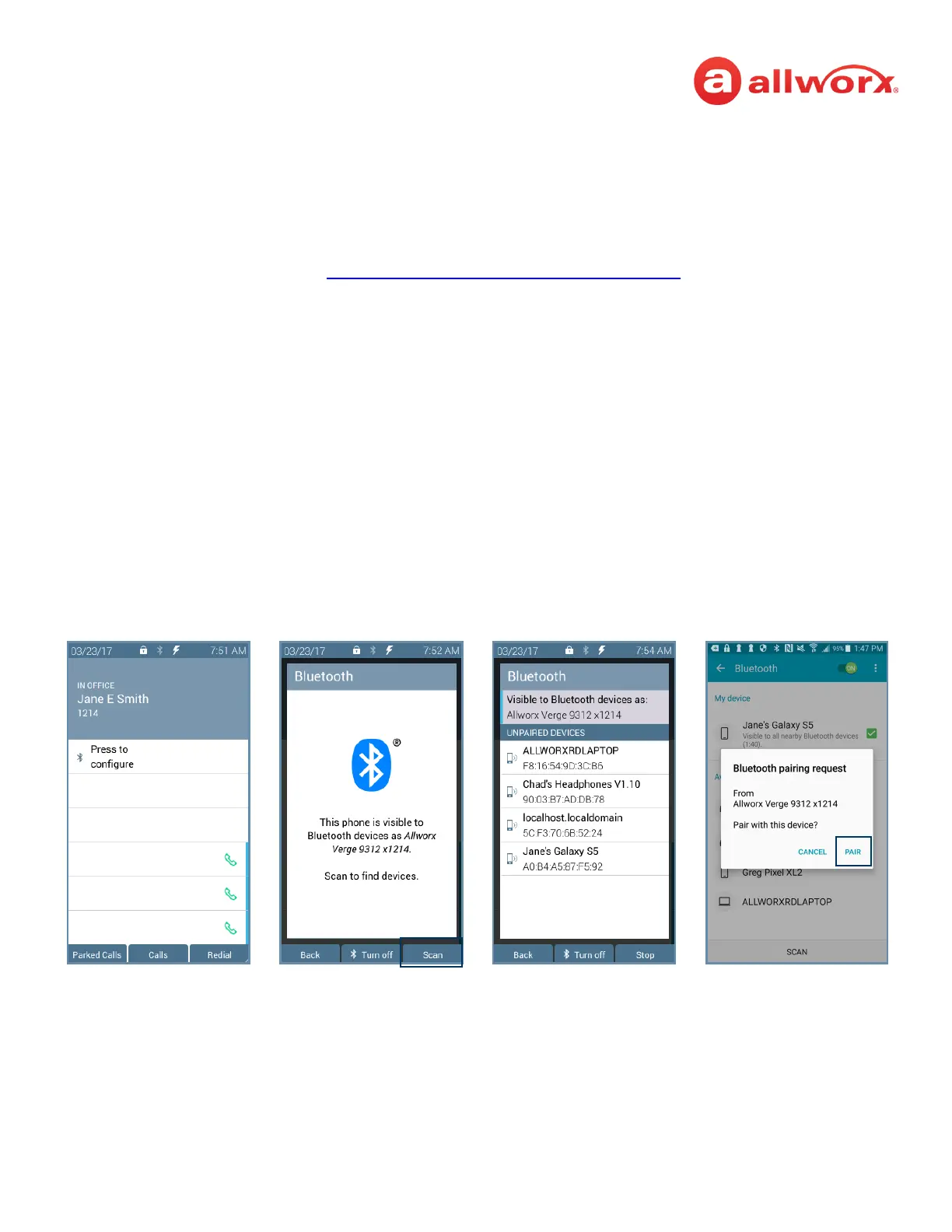
Verge 9312 IP phone Bluetooth mobile device configuration example:
Press the Bluetooth Hands-Free
programmable button.
Press the Turn on soft key,
and then the Scan soft key.
Highlight and select the
Bluetooth device.
Accept the request on the
Bluetooth mobile device.



 To Next Page