Methods and Users 4-15
Editing a
Programmed Pause
If you have inserted a programmed pause in the PCR portion of your method, you can
edit the parameters of the pause at any time.
6 Press F2 (Accept).
The Insert-Delete-More-Edit screen appears showing the programmed pause you
inserted.
Note You can insert only one pause in each cycle.
7 Press F4 (More) to return to the Create/Edit screen.
To insert a programmed pause: (continued)
Step Action
1 Hld 4 Tmp
25 Cycles
2 Holds
94.0
94.0
5:00 0:30
55.0
0:30
72.0
0:30
72.0
7:00
4.0
F1 F3 F4 F5F2
MoreDeleteInsert
Edit
0:30
Pause
To edit a programmed pause:
Step Action
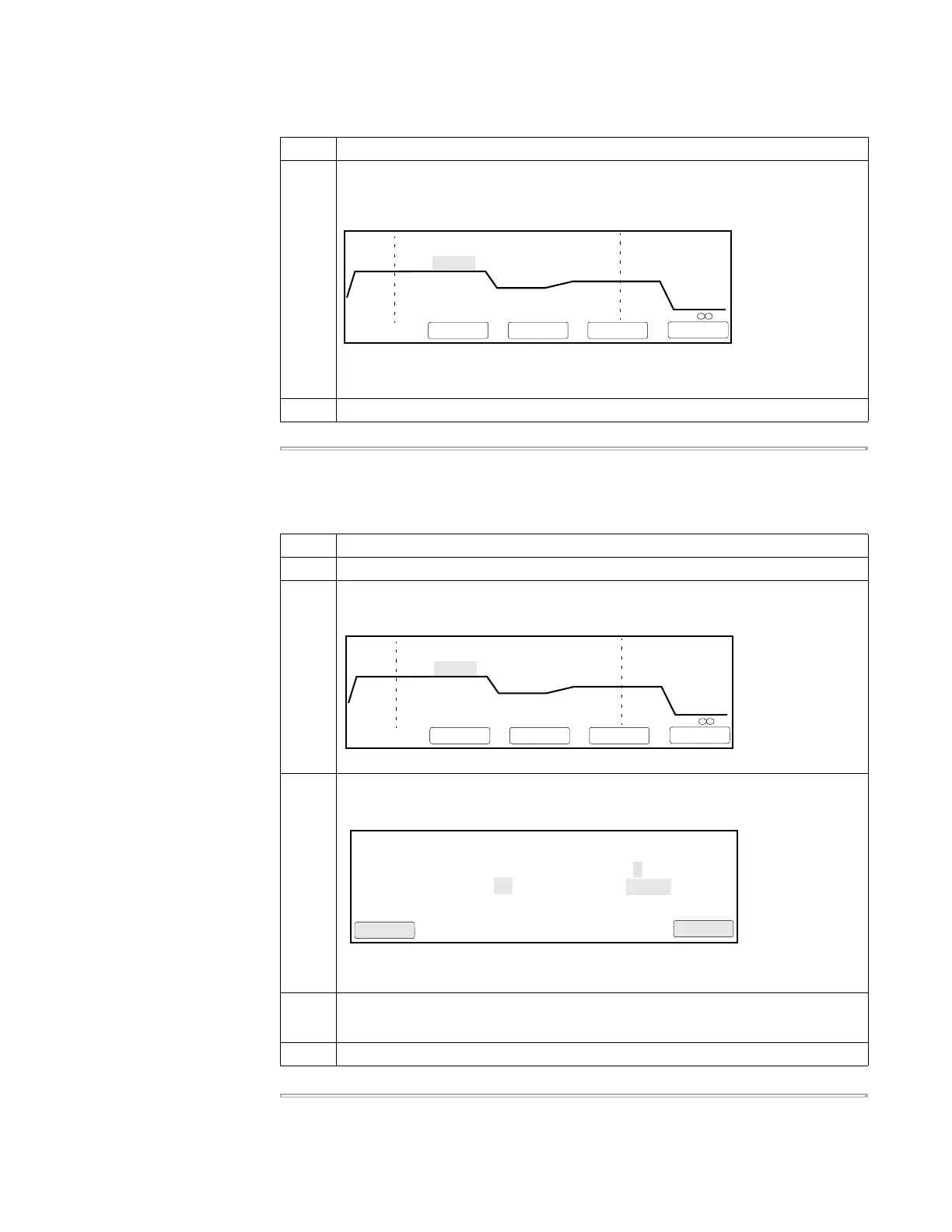
1 From the Create/Edit screen, use the arrow keys to highlight the word Pause.
2 Press F4 (More).
The Insert-Delete-More-Edit screen appears.
3 Press F5 (Edit).
The Defined Programmed Pause screen appears.
The fields that can be changed are highlighted in the illustration here.
4 Make your changes to any fields, then press F1 (Accept)
The Insert-Delete-More-Edit screen appears again.
5 Press F4 (More) to return to the Create/Edit screen.
1 Hld 4 Tmp
25 Cycles
2 Holds
94.0
94.0
5:00 0:30
55.0
0:30
72.0
0:30
72.0
7:00
4.0
F1 F3 F4 F5F2
MoreDeleteInsert
Edit
0:30
Pause
Define Programmed Pause
Start first pause at cycle 1 of 25.
Pause every 25 cycles for 00:30.
F1 F3 F4 F5F2
Accept Cancel



 To Next Page