BIOS CONFIGURATION
33
3.4 Designating Drives as Hot Spares
Any unused disk drive that is not part of a RAID set can be desig-
nated as a hot spare. The “Quick Volume/Raid Setup” conguration
will add the spare disk drive and automatically display the appro-
priate RAID level from which the user can select. For the “Raid Set
Function” conguration option, the user can use the “Create Hot
Spare” option to dene the hot spare disk drive.
When a hot spare disk drive is being created using the “Create Hot
Spare” option (in the Raid Set Function), all unused physical de-
vices connected to the current controller appear:
Choose the target disk by selecting the appropriate check box.
Press Enter key to select a disk drive, and press Yes in the “Cre-
ate Hot Spare” to designate it as a hot spare.
• Dene volume sets,
• Modify volume sets,
• Modify RAID level/stripe size,
• Dene pass-through disk drives,
• Modify system functions and
• Designate drives as hot spares.
3.3 Conguring Raid Sets and Volume Sets
You can congure RAID sets and volume sets with McBIOS RAID
manager automatically. Using “Quick Volume/Raid Setup” or manu-
ally using “Raid Set/Volume Set Function”. Each conguration
method requires a different level of user input. The general ow of
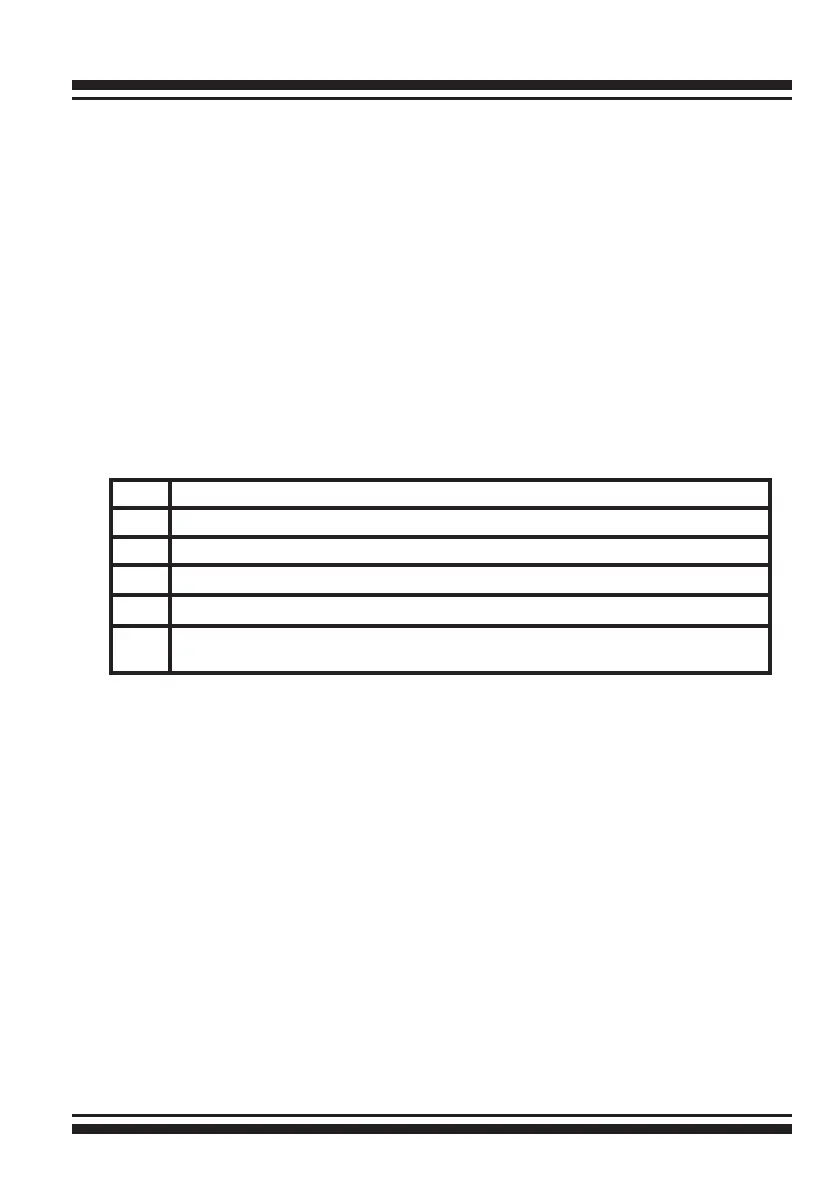
operations for RAID set and volume set conguration is:
Step Action
1 Designate hot spares/pass-through drives (optional).
2 Choose a conguration method.
3 Create RAID sets using the available physical drives.
4 Dene volume sets using the space available in the RAID set.
5 Initialize the volume sets and use volume sets (as logical drives) in the
host OS.


 To Next Page