BIOS CONFIGURATION
47
to active the RAID set. After user selects this function, the RAID
state will change to “Degraded Mode” and start to work.
3.7.2.5 Create Hot Spare
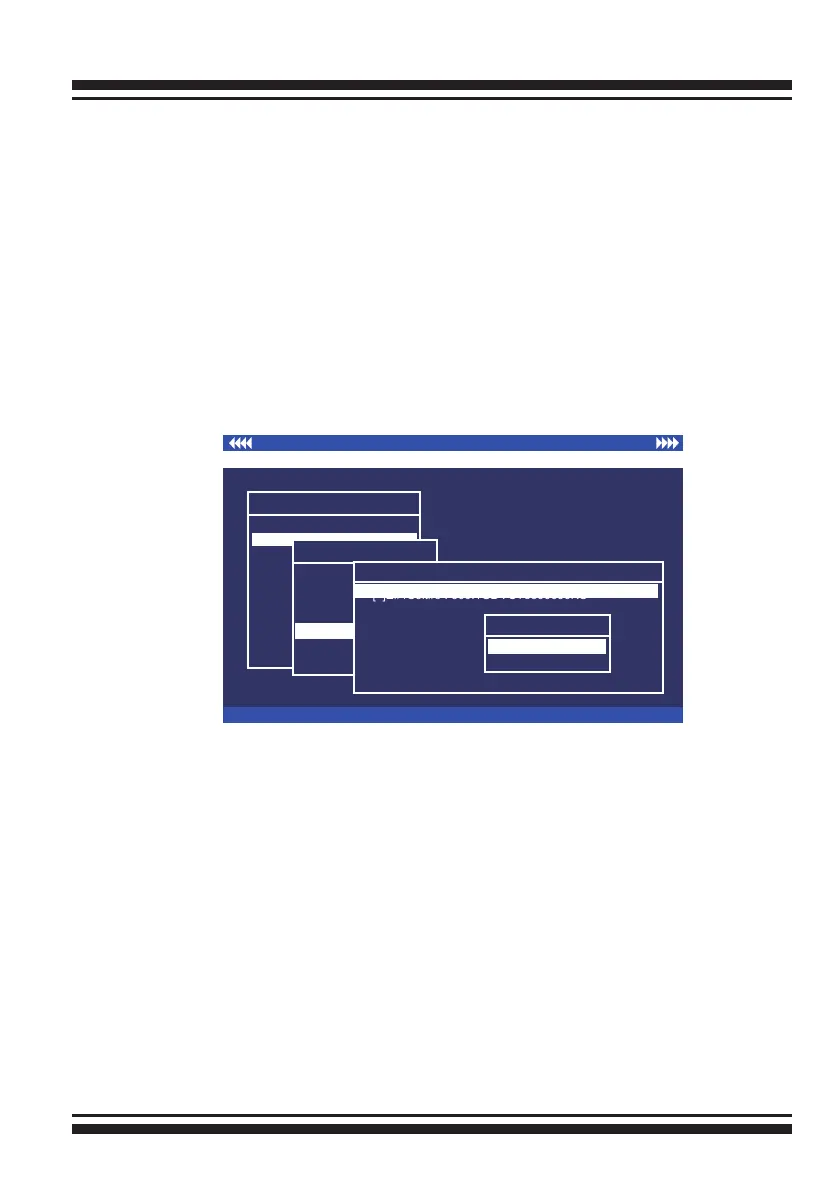
When you choose the “Create Hot Spare” option in the “Raid Set
Function”, all unused physical devices connected to the current
controller will result in the screen.
Select the target disk by clicking on the appropriate check box.
Press the Enter key to select a disk drive and press Yes key in
the “Create Hot Spare” to designate it as a hot spare.
The “Create Hot Spare” option gives you the ability to dene a
global hot spare.
I/O Port Addr : 28000000h, F2(Tab): Select Controller, F10: Reboot System
ArrowKey Or AZ:Move Cursor, Enter: Select, ESC: Escape, L:Line Draw, X: Redraw
Areca Technology Corporation RAID Controller
Main Menu
Quick Volume/Raid Setup
Raid Set Function
Volume Set Function
Physical Drives
Raid System Function
Ethernet Conguration
View System Events
Clear Event Buffer
Hardware Monitor
System information
Raid Set Function
Raid Set Function
Create Raid Set
Delete Raid Set
Expand Raid Set
Activate Raid Set
Create Hot Spare
Delete Hot Spare
Raid Set Information
Create Hot Spare
Select Drives For HotSpare, Max 3 HotSpare Supported
[ ]E#1Solt#3 : 500.1GB : ST3500630NS
[ ]E#1Solt#4 : 400.1GB : Hitachi HDT725040VLA360
[ ]E#1Solt#5 : 400.1GB : Hitachi HDT725040VLA360
[ ]E#1Solt#6 : 400.1GB : Hitachi HDT725040VLA360
[ ]E#1Solt#7 : 500.1GB : HDS725050KL360
[ ]E#1Solt#8 : 500.1GB : ST3500630NS
[*]E#1Solt#3 : 500.1GB : ST3500630NS
Creat HotSpare?
No
Yes
3.7.2.6 Delete Hot Spare
Select the target hot spare disk to delete by clicking on the ap-
propriate check box.
Press the Enter key to select a hot spare disk drive, and press
Yes in the “Delete Hot Spare” screen to delete the hot spare.



 To Next Page