EasyManua.ls Logo

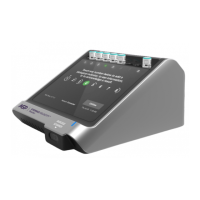
ASP Sterrad Velocity Reader - User Manual

ASP Sterrad Velocity Reader
82 pages
Print Icon
To Next Page IconTo Next Page
Loading...
Users Guide
AB11321031
AB11321031-50 January 2021.
© ASP 2021. All rights reserved.
Reader

Table of Contents

Questions and Answers

  • G
    gbradySep 1, 2025
    Why does ASP Laboratory Equipment say to remove the biological indicator and wait for warm-up?
    • E
      Emily MooreSep 1, 2025
      If the ASP Laboratory Equipment prompts you to remove the biological indicator and wait for the reader to complete its warm-up sequence, it is because the BI was placed in the reader too early, or the insertion sensor needs calibration. Wait for the warm-up to finish before inserting BIs. If no BIs are present, calibrate the insertion sensor after the warm-up.
  • K
    Kimberly KempSep 12, 2025
    What to do if a second Positive Control BI returns a negative result on ASP Laboratory Equipment?
    • M
      Melissa ReeseSep 12, 2025
      If a second Positive Control BI returns a negative result on the ASP Laboratory Equipment, it may be due to a faulty BI or improper storage. Stop using BIs from that lot and contact ASP.
  • S
    Stephen LewisAug 30, 2025
    What to do if the ASP Laboratory Equipment says the biological indicator has not been properly activated?
    • L
      laurendavisAug 30, 2025
      If the ASP Laboratory Equipment indicates that the biological indicator hasn't been properly activated, it means the growth medium hasn't moved into the growth reservoir or has excessive bubbles. Repeat the activation sequence, ensuring the growth medium is free of large bubbles and fills the reservoir. Reinsert the BI in the selected well, and do not cancel the sequence. Simply check the activation and follow the on-screen instructions.
  • B
    Brandy MendozaSep 13, 2025
    What to do if ASP Laboratory Equipment fails to scan the BI barcode?
    • A
      Amy SpencerSep 14, 2025
      If the ASP Laboratory Equipment fails to scan the BI barcode, it may be due to a faint or smudged barcode, material obscuring the barcode or scanner, a damaged barcode scanner, or a non-ASP BI. Verify the BI is an ASP validated BI, remove any obstructions, and try rescanning from different distances and angles. Do not place tape on the barcode as it can damage it. Check the BI for damage. If the issue persists, contact ASP.
  • A
    Angela SolisSep 13, 2025
    What to do if the BI liquid evaporates in ASP Laboratory Equipment?
    • L
      Lisa FisherSep 13, 2025
      If the BI liquid evaporates in the ASP Laboratory Equipment, it may be because the BI was incubated for longer than recommended or the media ampoule is cracked. Discard the BI according to your facility's policies and reprocess the load with a new BI. Inspect the BI for a cracked ampoule prior to processing, and do not process cracked BIs. Contact ASP.
  • M
    Melissa ReyesSep 18, 2025
    What to do if the reader touch screen does not illuminate on ASP Laboratory Equipment?
    • N
      Nicole MorenoSep 18, 2025
      If the touch screen on the ASP Laboratory Equipment reader does not illuminate, it may be due to a power failure or backlight failure. Check if the mains power is working and if the unit is plugged in. Unplug the power adapter, wait 30 seconds, and reinstall it. If the problem persists, contact ASP.
  • S
    Scott CopelandSep 23, 2025
    Why does ASP Laboratory Equipment void the biological indicator in well No. X and what to do?
    • D
      dstewartSep 23, 2025
      If an issue occurs causing the biological indicator in well No. X to be void on the ASP Laboratory Equipment, it may be due to vibration or turning of the BI while incubating. The BI is invalid, so reprocess the load with a new BI.
  • R
    Randy VegaAug 27, 2025
    What to do if the touch screen illuminates but is unresponsive on ASP Laboratory Equipment?
    • C
      Cheryl HawkinsAug 27, 2025
      If the touch screen on your ASP Laboratory Equipment illuminates but doesn't respond, and certain fields are unresponsive, ensure no BIs are actively incubating. Synchronize the time between the reader and the sterilizer. Unplug the power adapter, wait 30 seconds, plug it back in, and try the touch screen again. Clean the screen. If the issue continues, contact ASP.
  • E
    ellisonmarissaAug 26, 2025
    How to fix an ASP Laboratory Equipment reader that will not connect to the network?
    • M
      mcgeekennethAug 26, 2025
      If the ASP Laboratory Equipment reader won't connect to the network, remember that ASP ACCESS is required. Check the network cable connection and the reader's network settings in the Utilities Menu under Network Settings; perform a network test. Unplug the power adapter, wait 30 seconds, plug it back in, and test again. Allow 15 minutes after connecting to power for the boot-up process to complete. If the problem persists, contact ASP.
  • W
    william65Aug 25, 2025
    What to do if the barcode cannot be read by ASP Laboratory Equipment?
    • D
      darlenebuchananAug 26, 2025
      If the barcode on the ASP Laboratory Equipment can't be read, check the BI for barcode damage. After any active incubation cycles are complete, hard reboot the reader by unplugging the power adapter from the back of the reader, wait 30 seconds, then plug it back in. Try rescanning the barcode.

Summary

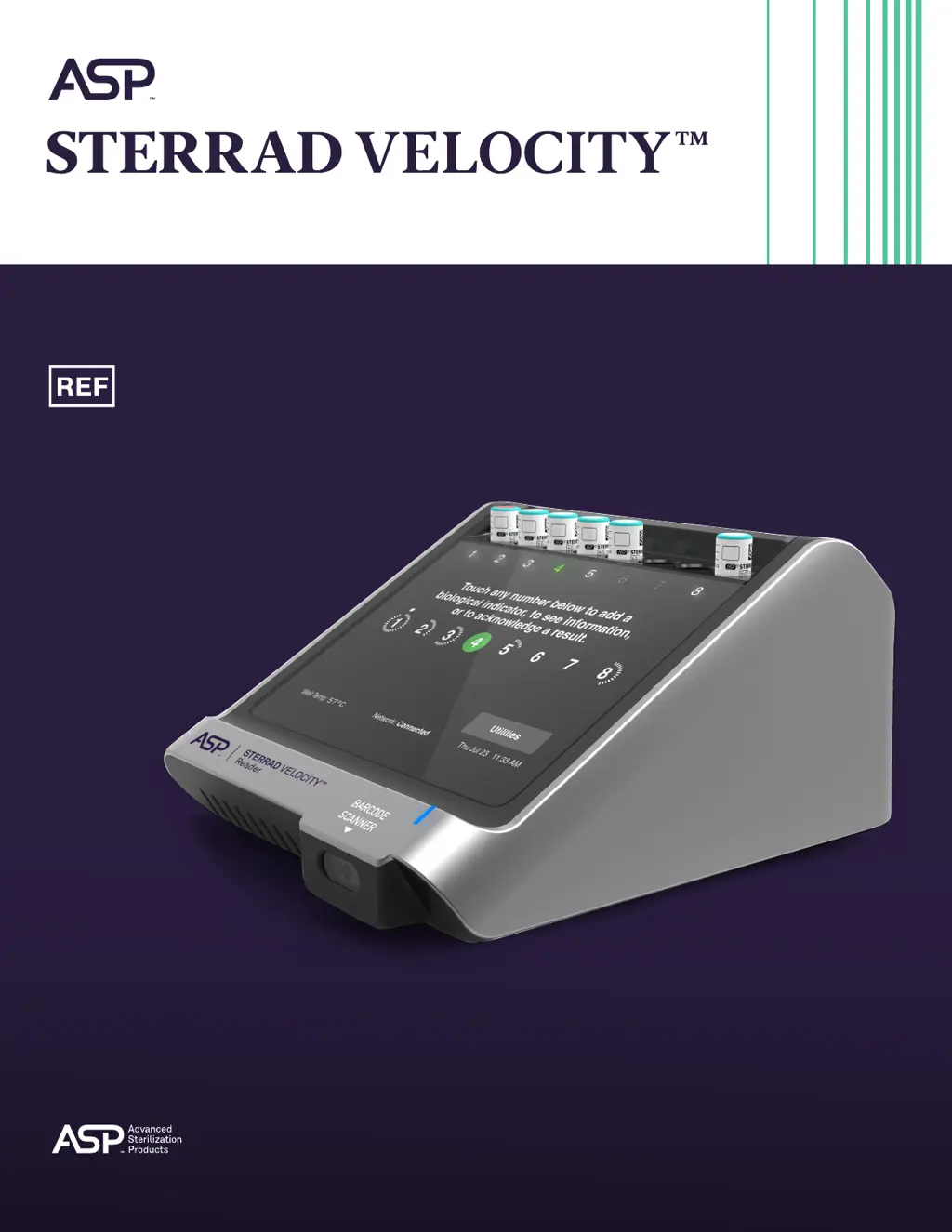
Introduction to the STERRAD VELOCITY Reader

How to Use This Guide

Instructions on how to navigate and use the user guide effectively.

Intended Use of the Reader

Defines the specific purpose and application of the STERRAD VELOCITY Reader.

STERRAD VELOCITY Reader Product Description

Provides an overview of the reader's main features, components, and design.

Indications for Use

Lists the STERRAD sterilization systems for which the reader is intended.

Safety Information for STERRAD VELOCITY Reader

Safety Symbols Explained

Explains the various safety symbols used throughout the user manual.

Warnings, Cautions, and Notes

Details critical safety information, potential hazards, and important operating notes.

Overview of the STERRAD VELOCITY Reader

STERRAD VELOCITY Reader Features

Describes the reader's main features, including touch screen and barcode scanner.

System Status Indicator

Explains the function and meaning of the reader's system status indicator light.

Biological Indicator Wells

Describes the eight incubation wells and their associated status indicators.

Barcode Scanner Operation

Explains how to use the built-in and external barcode scanners for data entry.

Operation of the STERRAD VELOCITY Reader

Instructions for Use

Provides step-by-step guidance on operating the reader for sterilization testing.

Adding a Positive Control BI

Step-by-step instructions for processing a positive control biological indicator.

Adding a Test BI

Step-by-step instructions for processing a test biological indicator.

Interpretation of Results

Explains how to interpret various test results and their implications.

Files and Data Management

System Information Files

Details the types of system information files generated by the reader.

History Files

Explains the structure and content of history files for BI reference.

Maintenance and Care

Care and Cleaning Procedures

Provides instructions for cleaning and maintaining the reader to ensure longevity.

Reader Disposal Guidelines

Provides guidelines for the proper disposal of the STERRAD VELOCITY Reader.

Access Levels and Administrator Tasks

Access Levels Explained

Outlines the different user access levels available for the reader's functionality.

Utilities Menu Functions

Describes the various functions and options available within the Utilities Menu.

System Configuration Settings

Covers settings like language, display brightness, and audio alerts.

ASP ACCESS Configuration

Details how to configure the network connection to ASP ACCESS.

Troubleshooting the STERRAD VELOCITY Reader

User Error Messages and Solutions

Lists common user error messages and provides suggested solutions for resolution.

System Error Messages

Explains system-generated errors and how to address them through ASP support.

Accessories and Additional Parts

STERRAD VELOCITY Reader Specifications

Users Network Connection Information

Compliance and Regulatory Standards

First Time Setup Guide

Network Setup

Guides through the initial network configuration process for the reader.

ASP ACCESS Setup

Details the steps for setting up the ASP ACCESS connection.

Date and Time Setup

Instructions for setting the reader's date, time, and time zone.

Administrator Setup

Covers the process of creating and managing administrator accounts.

Software License Agreement

ASP Sterrad Velocity Reader Specifications

General IconGeneral
TypeBiological Indicator Reader
Power Requirements100-240V, 50-60Hz
FunctionAutomated reading and interpretation of biological indicators used in sterilization processes
DisplayLCD
Power SourceAC Power

Related product manuals