CHAPTER 4 REFERENCE GUIDE
EFD1000 PRO MAX PFD Pilot’s Guide
Page 4-84
091-00005-002 ()
4.10.2 SV1 Full Screen
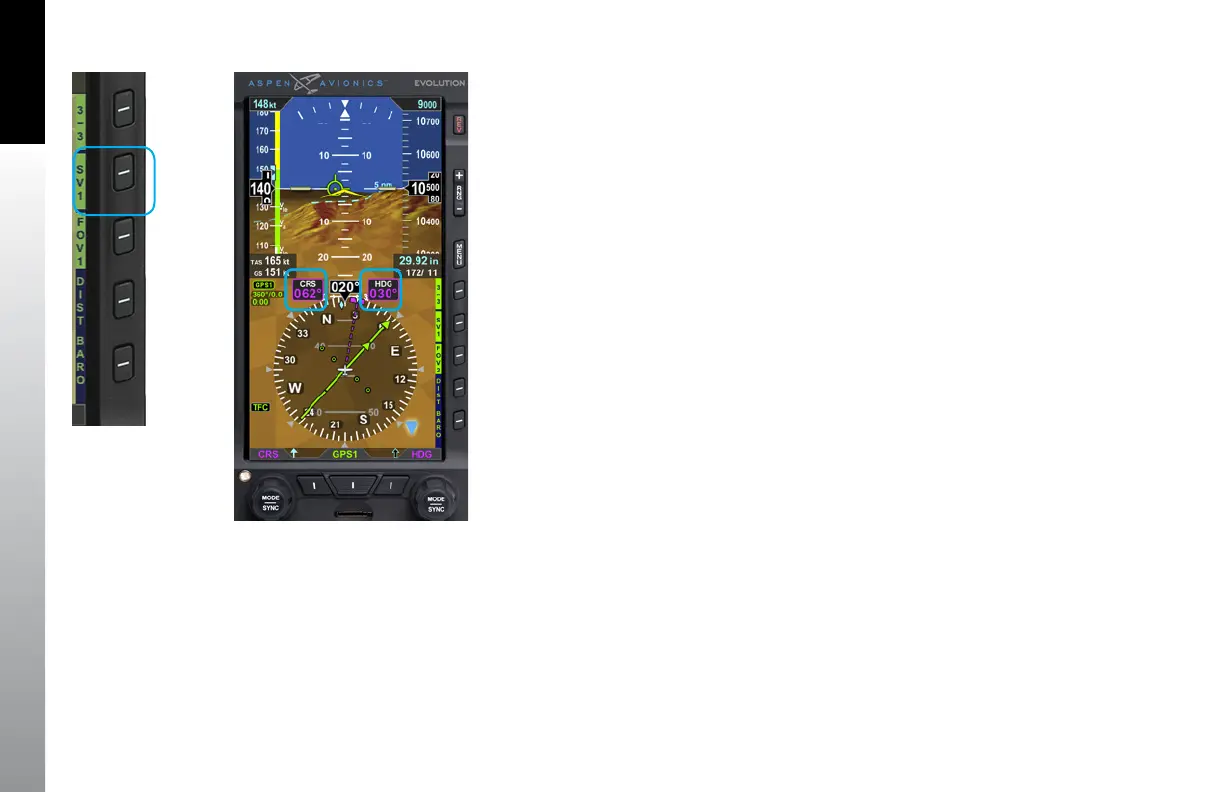
Pressing the SV Hot Key enables the ESV function and changes the SV Hot Key label to
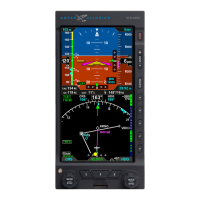
SV1 (Figure 4-126). SV1 (Synthetic Vision 1) Full Screen presents Synthetic Vision under
the entire primary flight data area of the PFD (Figure 4-127).
The CRS and HDG Fields are presented on SV1 whenever the Left or Right Knob is
rotated to set the desired course/heading value (Figure 4-127). After 10 seconds of
inactivity, the CRS/HDG Field is removed from view.
The Selected Heading Field with GPSS is presented on SV1 until the GPSS is disabled
by the pilot OAT and Map features on the HSI are not shown. Winds are shown in an
abbreviated style to maximize the screen area.
4.10.3 SV2 Split Screen
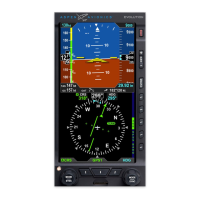
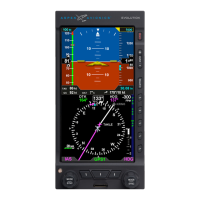
SV2 present Synthetic Vision on the Attitude Display portion of the PFD. The lower half
of the display presents the standard Nav Display, The Nav Display operated the same as
when SV is OFF and supports display of basemap items, Flight Plan, Traffic, NXRD, etc
(Figure 4-128).
4.10.4 SV3 Split Screen
SV3 present Synthetic Vision on the Attitude Display portion of the PFD. The lower
Navigation Display shows a high resolution terrain map overlaid with Terrain Coloring,
Obstacle Symbols and Traffic (Figure 4-129).
Figure 4-127
Synthetic Vision VIEW
Figure 4-126
SV1 Hot Key


 To Next Page