CHAPTER 7 APPENDICES
EFD1000 VFR PFD Pilot’s Guide
Page 7-8
091-00028-001 ( )
Lost or misplaced microSD card? Contact Jeppesen Customer Service (800-621-5377) or
email captain@jeppesen.com to purchase a replacement or additional microSD card(s)
pre-loaded with terrain data.
7.4.1. Loading the microSD Card into the EFD Unit
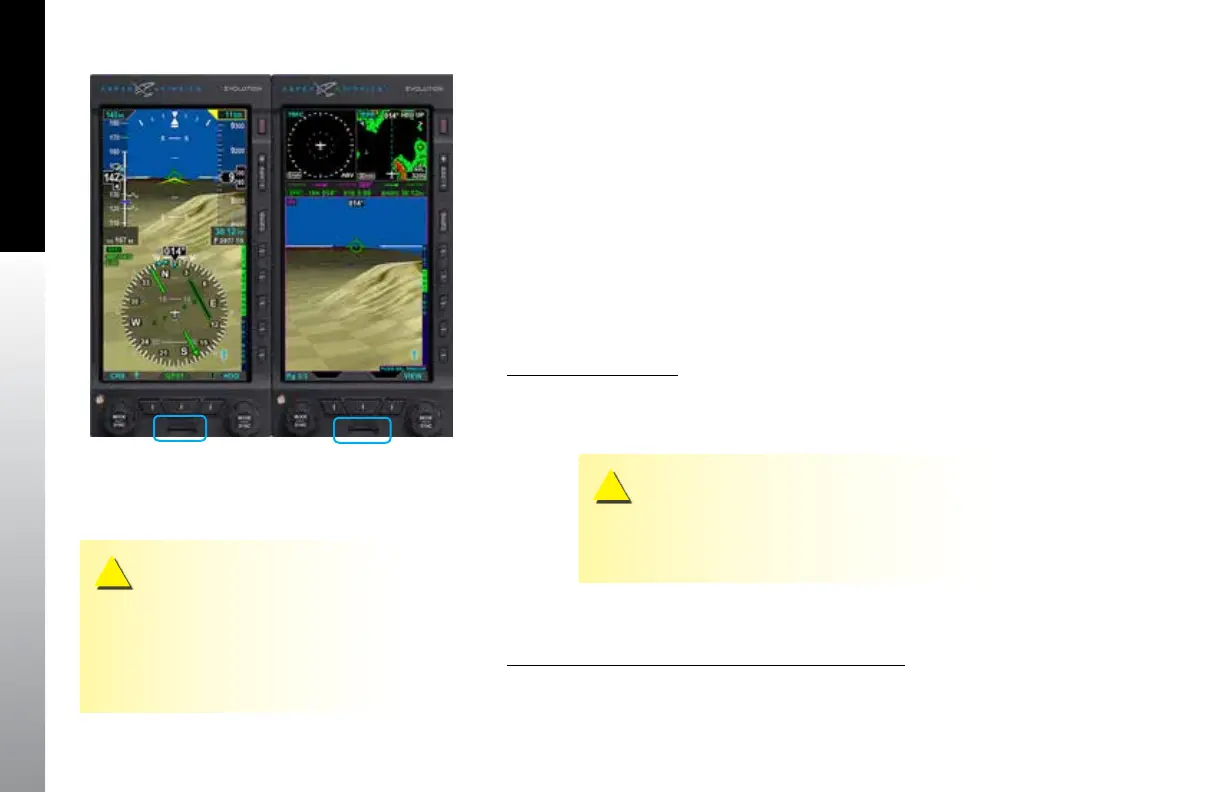
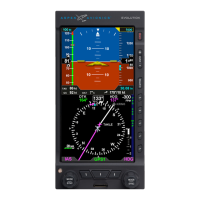
The microSD card slot on the EFD is a small horizontal slot located on the bottom
center part of the bezel (Figure 7-5). The slot is spring-loaded with an integral locking
mechanism. Pushing the card in once locks the card in place. Pushing it again releases
the locking mechanism for removal.
7.4.2. Card Installation Procedure and Operational Check
Installation Procedure
1. Remove the microSD card from the packaging
2. Slide the microSD card into the unit’s card slot (Figure 7-5) with the metal
contacts facing down.
CAUTION
Ensure the card label side is facing up and the metal contacts are
facing down towards the unit. Do not force the card. The card
only goes one way.
3. Press the card against the spring tension until it is fully inserted, then slowly
release the pressure. The card will lock into place
Operational Check after Installing the microSD card
1. Turn on the EFD unit(s) and check the Conrmation Screen for validity dates
of the Jeppesen Database and the Charts Database (Figures 7-6 and 7-7).
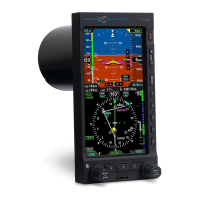
Figure 7-5
MicroSD Card Slot Locations
CAUTION
It is possible to jam the card between the bezel and
the outer edge of the card slot. If the card does not
slide in smoothly, something is wrong. Make sure
the card is in the card slot and oriented correctly
before fully inserting it into the bezel.


 To Next Page