CHAPTER 3 FLYING THE EFD1000 PRO PFD
EFD1000 VFR PFD Pilot’s Guide
Page 3-14
091-00028-001 ( ) EFD1000 VFR PFD Pilot’s Guide
Page 3-15
091-00028-001 ( )
Display the Data Link Weather
1. Display the 2/2 Hot Key Menu.
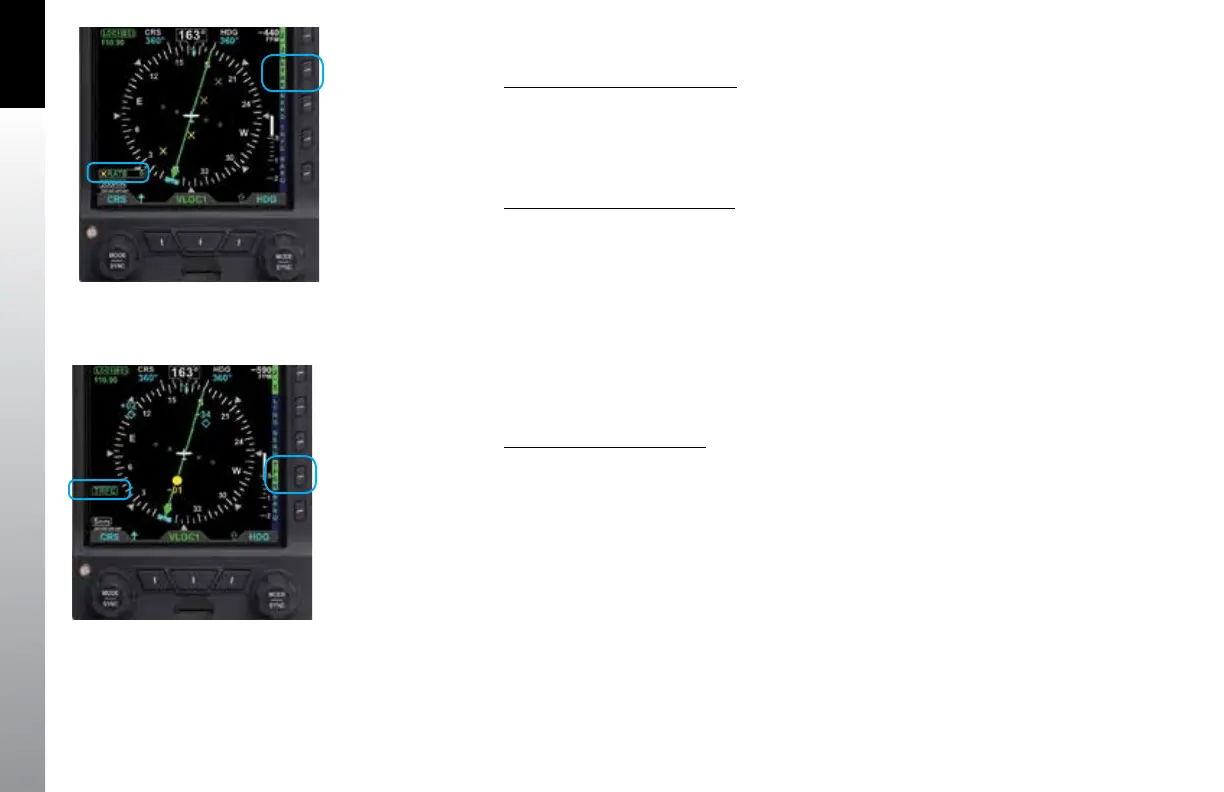
2. Press the NXRD Hot Key to turn Data Link Weather on (label turns inverse
green Figure 3-17).
Display the Lightning Overlay
1. Display the 2/2 Hot Key Menu.
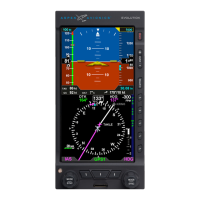
2. Press the LTNG Hot Key until the desired overlay is selected (LTNG, STRK, or
CELL). Figure 3-18 shows STRK selected.
We see the storms are still moving about as forecast and that our planned route still
looks like it will keep us well clear. We leave the Weather overlays turned on so we can
monitor them in-ight, and then zoom the map back to the 20nm range for departure.
Since the Albuquerque area is sometimes busy with trac, turn on the Trac overlay.
Display the Trac Overlay
1. Display the 2/2 Hot Key Menu.
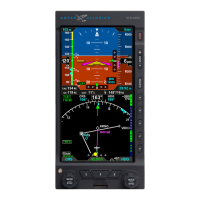
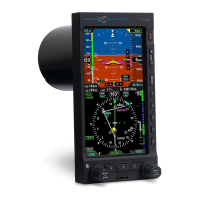
2. Press the TRFC Hot Key to select the desired Altitude Filter. The label turns
inverse green for TFCN (Normal), TFCU (Unrestricted), TFCA (Above), and
TFCB (Below). The TFRC annunciation displays in the lower left of the display
(Figure 3-19).
Figure 3-19
Trac Overlay On
(Trac Normal selected)
Figure 3-18
Lightning Overlay On Displaying WX-500 Strike Data


 To Next Page