Ch. 4. Tutorial: AC Mode in Air, Std. Scanner Sec. 4.3. Engaging the Surface
10.
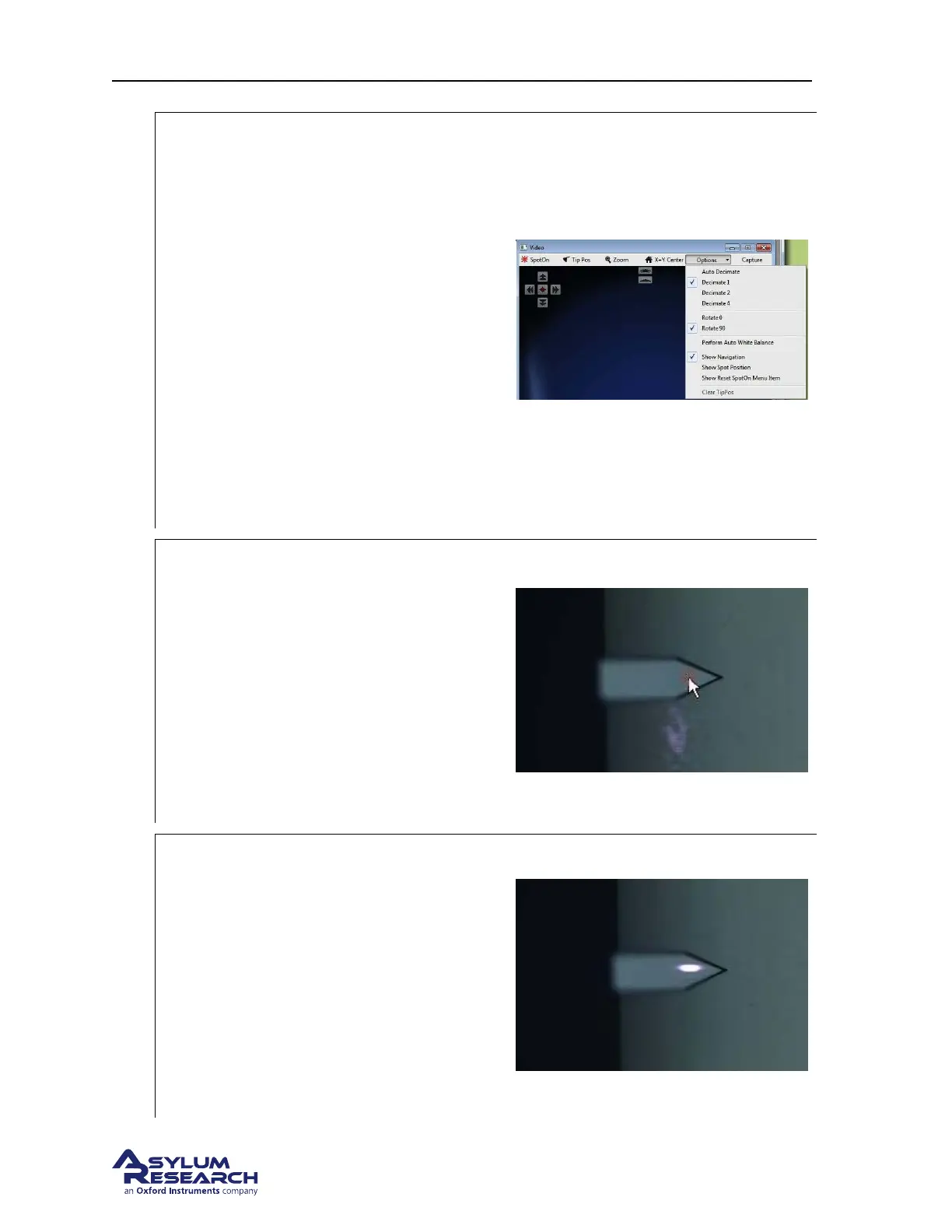
Optional image enhancement and zoom,
particularly useful for small cantilevers:
• If you want to see the image with more
resolution, select Decimate 1 from the
Options pull-down menu. This brings all
the pixels down from the video camera
but will slow the screen update rate.
• To the left of the Options menu is a
‘Zoom’ button. This button, once
clicked, will change the cursor into a
magnifying glass. Click on the
cantilever to get an enlarged view.
• Both of these items may improve your
ability to focus from the previous step.
If you do refocus, be sure to click ‘Set’
next to the ‘Focus on Tip’ button.
11.
Center laser spot on cantilever:
• Click on the ‘Spot On’ button at the top
left of the video window. The mouse
pointer will acquire some small red
lines.
• Now click on the center of the cantilever
(see figure to right).
• Alternately, right-click on the center of
the cantilever and then select the ‘Spot
On’ option.
12.
Observe spot on lever:
• Motors inside Cypher will now move to
bring the laser spot where you clicked.
• The spot position does not need to be
perfect here, only roughly centered on
the cantilever to produce a decent
reflected beam (measured by the Sum
signal in the Sum and Deflection Panel).
• If needed, the spot position will be fine
tuned in a later step.
support.asylumresearch.com Page 30


 To Next Page