Ch. 19. Air Temperature Controller Sec. 19.4. Operation
19.3.4. Power-up and Software Initialization
1. Turn the ATC power on.
2. Turn the ARC2 controller on.
3. Re-Start the AR SPM software and home the Cypher motors.
4.
Check connectivity:
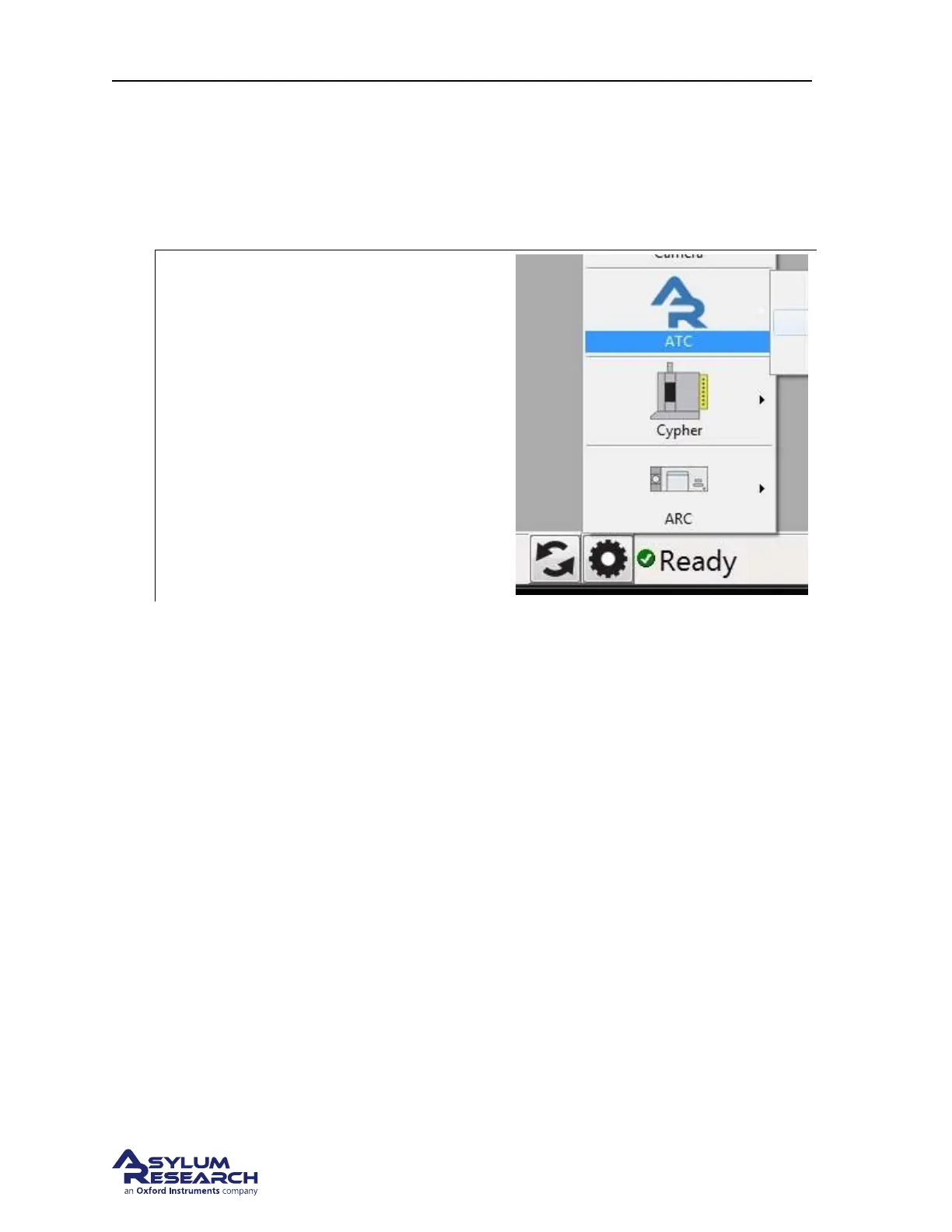
• In the status bar of the software, click
on the “gear” icon and confirm that the
ATC is indeed in the list of attached
instruments. If not, please check all the
cable connections and click on the
“recycle arrows” and then the “gear”
again.
19.4. Operation
With the ATC connected and software running, from the main menu bar select AFM controls ⊲ ATC to
open the ATC control panel. The control panel is broken into sections containing controls grouped
together based on function. Like all the other control panels in the software, a detailed explanation for
each menu item can be seen by clicking on the “?” button to the right of the item of interest.
The ATC control panel (
Figure 19.2 on page 211) allows you to control every aspect of ATC operation.
allow the user to adjust the conditions for both heating and air flow. There are two basic mode settings:
Manual Temperature control feedback operates based on values typed into the ATC panel. When the
AR SPM software is exited or restarted, temperature control quits. This mode is typically used for the
first few days when optimal parameters are being determined. Once these parameters are saved into
ATC firmware, auto mode will likely become the typical ATC setting.
Auto The ATC operates autonomously based on values stored in its firmware. It will continue operating
as long as the ARC2 controller is turned on, regardless of what the software is doing. This will likely
be the typical mode of ATC operation.
Please read on for more details.
BETA
Page 210


 To Next Page