28
➢ To check the sensors
1. Select the Check tab.
2. Tap the desired wheel position on the vehicle thumbnail. Hold the part of the
tablet marked with TPMS service symbol close to the tire sidewall near the
valve stem, and then tap the Trigger button.
3. The tablet will send low frequency signal to trigger the sensor.
4. Once the sensor is successfully triggered, the information of the sensor will be
displayed on the screen.
5. Tap Back to exit the function.
NOTE
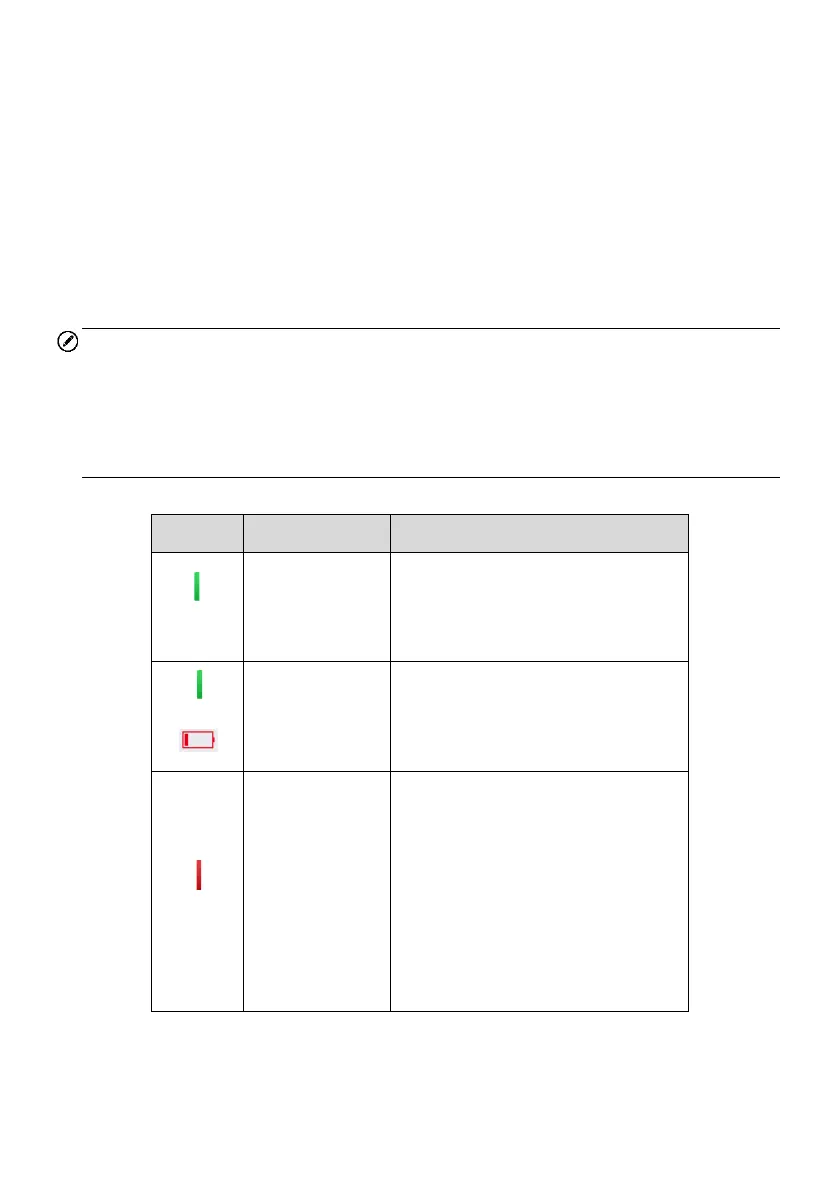
Once triggered, the wheel icons will display green or red indicating sensor status. Refer
to Table 4-2 Possible Results for Triggering on page 28 for details. And the sensor
position, sensor ID, tire pressure, tire temperature, sensor frequency, and sensor
battery information of the triggered sensor will display in the table on the right of the
screen.
Table 4-2 Possible Results for Triggering
TPMS sensor is successfully
activated and decoded. The table
on the right side of the screen
displays sensor information.
Successful
Sensor Read &
Low Battery
TPMS sensor is successfully
activated and decoded, but the
battery level of the sensor is low.
If the search period expires and no
sensor is activated or decoded,
the sensor may be mounted
incorrectly or cannot function. The
table on the right side of the
screen displays “Failed.”
If a sensor with a duplicate ID has
been read, the screen displays a
message “Sensor ID duplicated.”
In this case, repeat the test
procedure.



 To Next Page