72
three scales available for the Y axis: x1, x2, and x4.
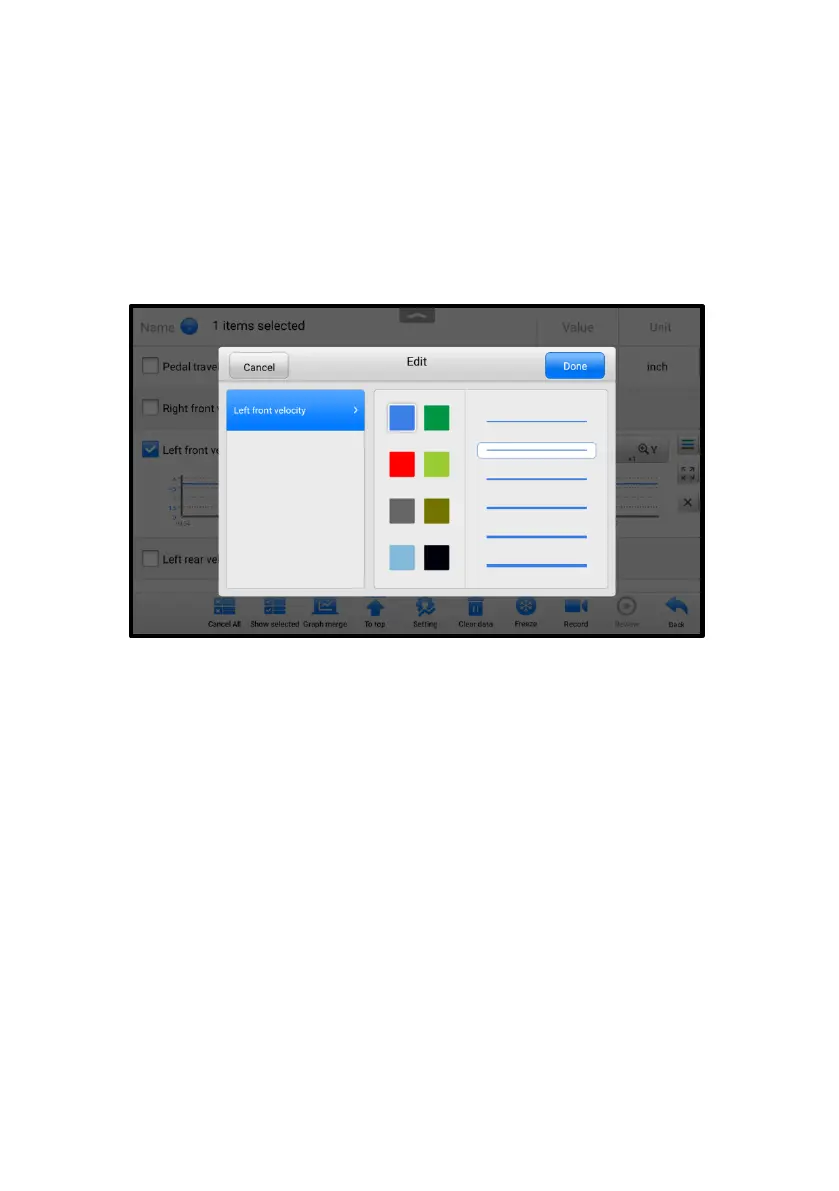
⚫ Edit Button — tap to open an edit window, in which you can set the waveform
color and line thickness displayed for the selected parameter.
⚫ Zoom-out Button — tap to exit full screen display.
⚫ Exit Button — tap to exit the waveform graph mode.
➢ To edit the waveform color and line thickness in a data graph
1. Select a parameter to display in Waveform Graph mode.
2. Tap the Edit button, and an edit window displays.
Figure 5-19 Waveform Edit Screen
3. The parameter is selected automatically in the left column.
4. Select a color from the middle column.
5. Select a line thickness from the right column.
6. Tap Done to save the setting and exit, or tap Cancel to exit without saving.
◆ Digital Gauge Mode — displays the parameters in the form of a digital gauge
graph.
B. Trigger Settings
On the Trigger Settings screen, you can set a standard range by filling in a
minimum value and a maximum value. When exceeding this range, the trigger
function will be executed and the device will automatically record and save the
generated data. You can review the saved live data by tapping the Review button
at the bottom of the screen.
Tap the drop-down button on the right side of the parameter name to open a
submenu. The Trigger button is the last one in the submenu. Tap to display the
Trigger Settings screen.



 To Next Page