Setting Communications 3-5
4. Click Install NiceLabel Printer Drivers.
5. Click Next>.
6. Select "I accept the terms in the license agreement" and click Next>.
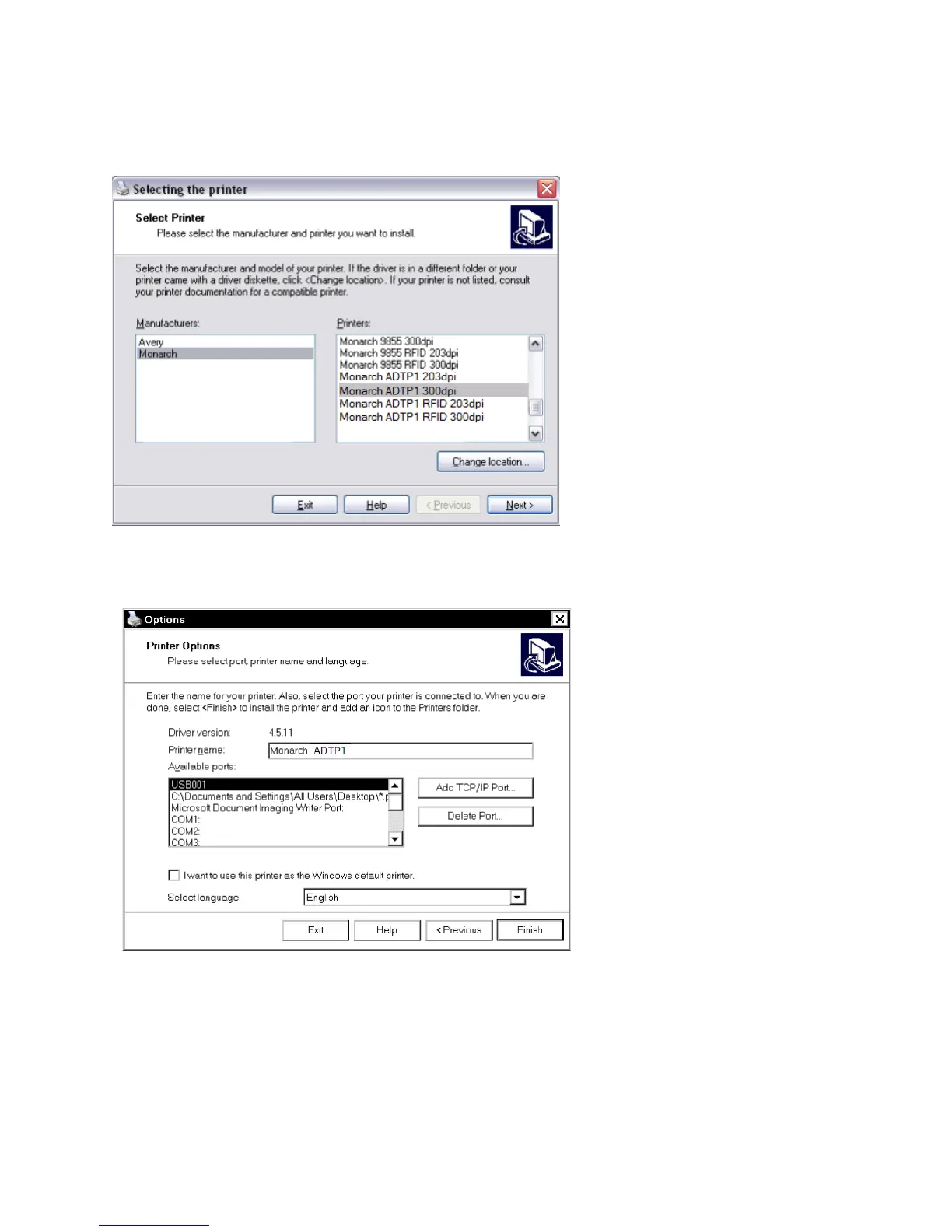
7. Select Monarch as the Manufacturer.
8. Select Monarch ADTP1 (203dpi or 300dpi based on your printhead) as the Printer.
9. Click Next>.
10. Select the first available USB port, for example, USB001. Click Finish.
11. When the installation is complete, exit NiceLabel.
The printer is now ready to receive data through the USB port as a Virtual Printer Port.








 To Next Page