Using Diagnostics 10-1
USING DIAGNOSTICS
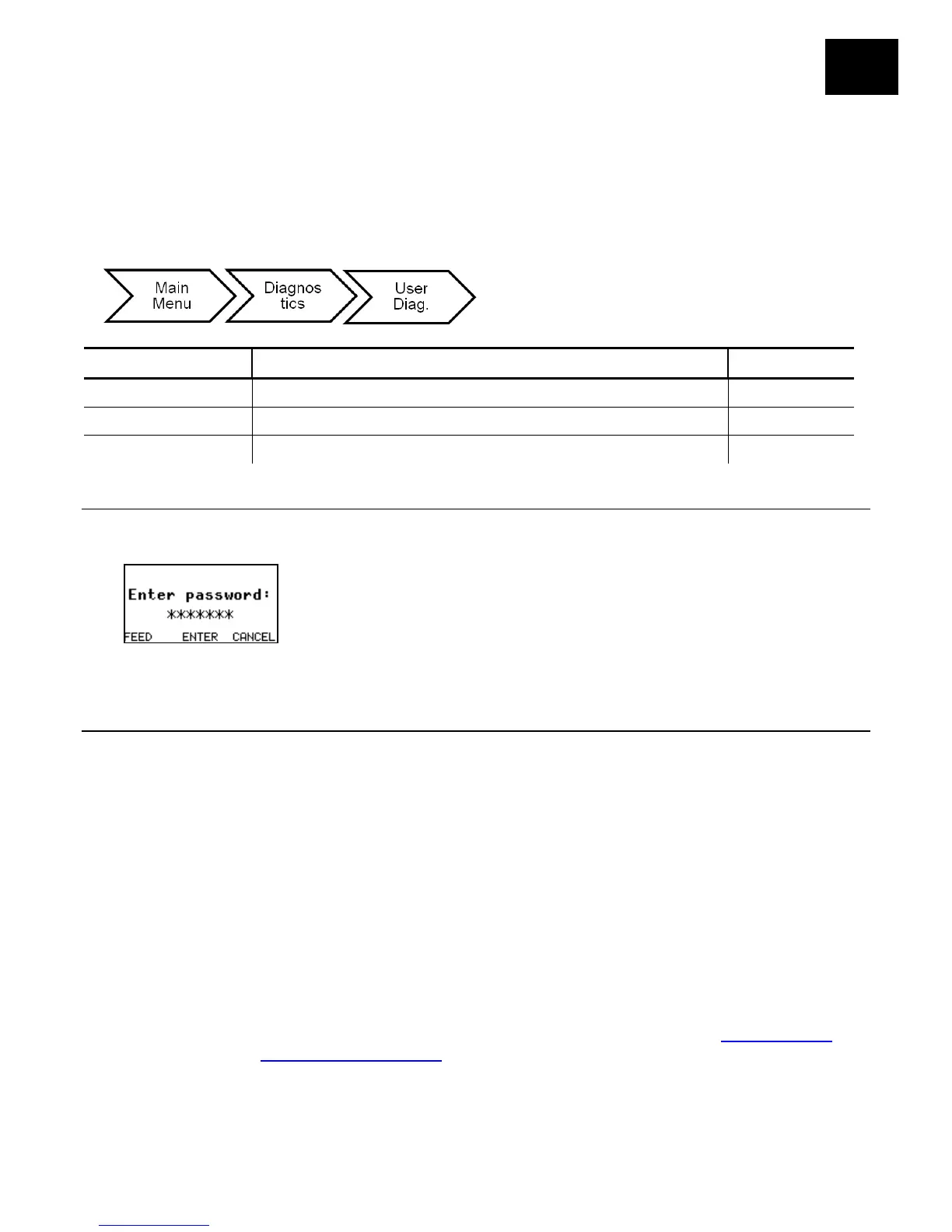
This chapter explains how to check supply quality and enable a password.
Note: For a complete list of printer error message, refer to the Packet Reference
Manual on our Web site.
The Service Diagnostics menu can only be accessed by a Service
Representative; it requires a separate password.
Version Firmware/Serial Number/RFID 1/RFID 2/ Easy Setup NA
Supply Quality NA NA
Password No/Yes No
Factory Set Password
A password is required to access the diagnostic functions.
Press Feed three times and then press Enter.
Checking the Versions
View the version number of the printer’s firmware, RFID module’s firmware, and RFID
inlay database. The printer’s serial number is also viewable.
Select To
Firmware View the printer’s firmware version.
Serial Number View the printer’s serial number.
RFID 1 View the RFID module’s version. This is the optional encoder.
RFID 2 View the RFID module’s version. This is the optional external reader.
Easy Setup View the database version number for the RFID inlay database,
d46ESXX.db. Check our web site for updates. See “
Updating the
RFID Inlay Database” for more information








 To Next Page