Troubleshooting 11-3
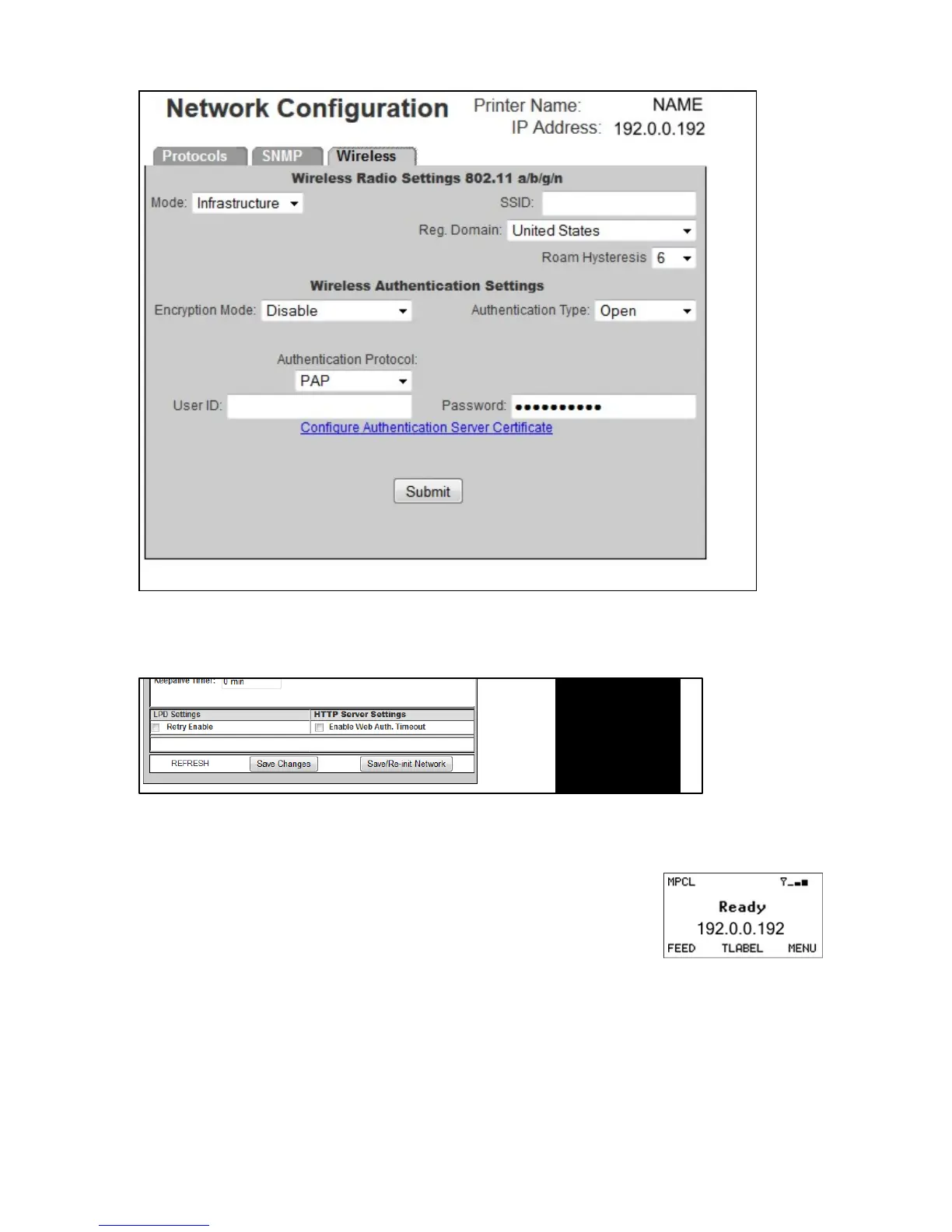
10. From the Wireless Tab, set the Mode, SSID, Encryption Mode, Authentication Type,
etc. Click Submit.
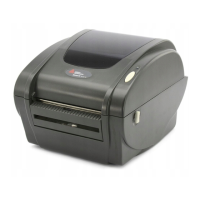
11. From the Protocols Tab, Click Save/Re-init Network. Any changes made on this
screen or other screens do not take effect until you click Save/Re-init Network. This
process takes a few minutes.
12. The MonarchNet2 screen should refresh and show the new printer’s name with a
wired connection.
13. Disconnect the Ethernet cable.
14. Turn off the printer. Wait two seconds, then turn on the
printer. You may need to cycle the printer’s power more
than once before a wireless connection is established.
15. Once an IP Address appears, Web back into the printer. Type access for the
password and click Submit. To verify the connection, click Virtual Panel Display, and
press Feed. The printer should feed a label.








 To Next Page