Encore Presentation System • User’s Guide 229
5. Menu Orientation
Frame Grab Menu
cê~ãÉ=bê~ëÉ=jÉåì
The Frame Erase Menu enables you to permanently erase a selected frame. This
“destructive” process (which locks the console) takes from 1 to 2 minutes (standard
systems), or from 20 to 30 seconds (“ES” systems).
Select a frame (in permanent memory) on the
Frame Grab Menu, then press {ERASE}:
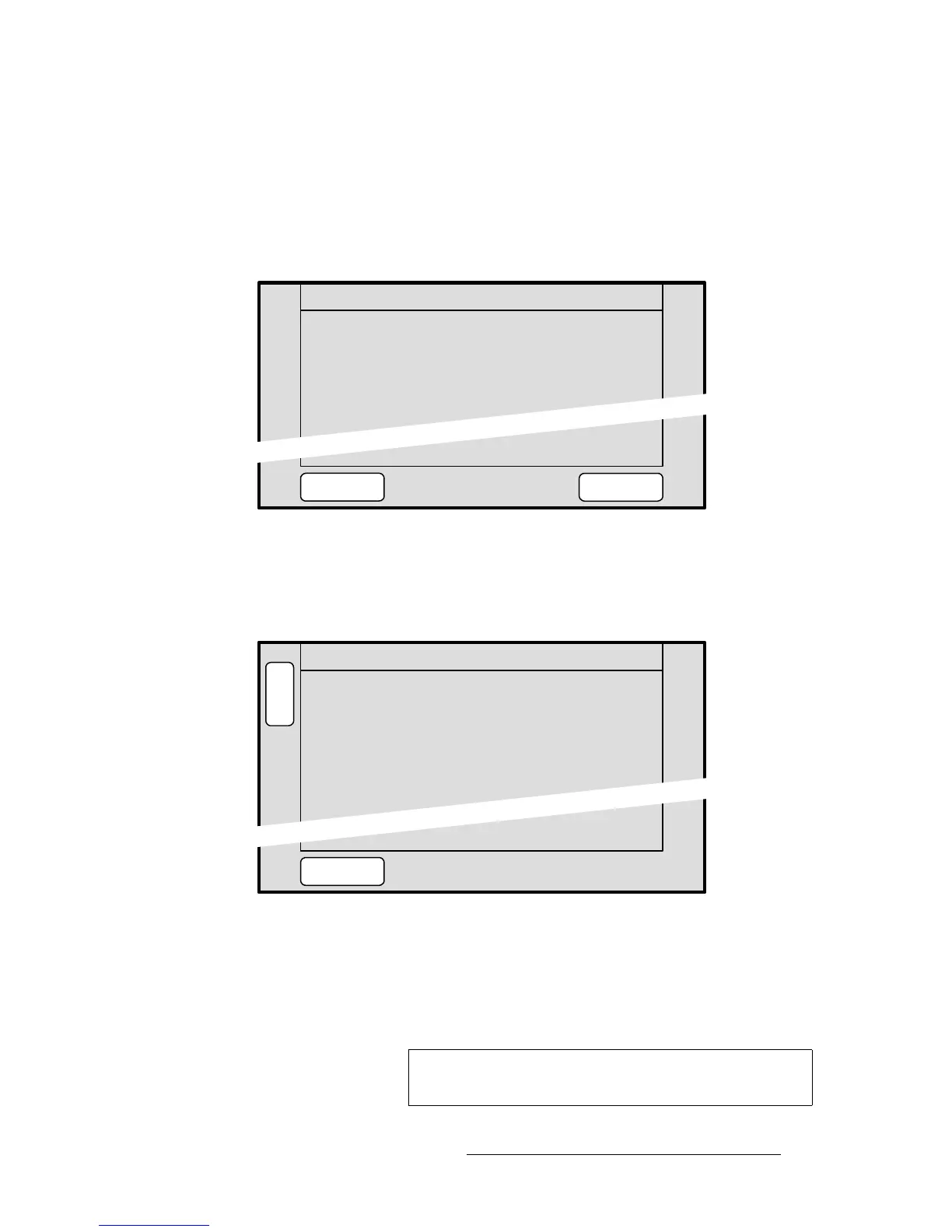
• With standard systems, the Frame Erase Menu appears:
Figure 5-75. Standard Frame Erase Menu (sample)
~ Press {YES} to erase the selected frame.
~ Press {NO} to cancel and return to the Frame Grab Menu.
• With “ES” systems, the Extended Frame Erase Menu appears:
Figure 5-76. Extended Frame Erase Menu (sample)
~ Saved Location — indicates the memory location whose frame you can
erase. Rotate the
ADJ knob to select a location.
~ Name — indicates the name of the frame at the selected location.
~ Press {ERASE} to erase the selected frame.
for 1 to 2 minutes.
FRAME ERASE
System controls will be locked
NOYES
Permanently erase image?
Name: [
B
A
C
K
FRAME GRAB ERASE
Saved Location 2
ERASE
SAVED_FG_2 ]
A
D
J
Caution
Use caution when erasing frames, as there is no “undo”
function or “confirmation” menu.


 To Next Page