AeroNav 900/880 Series Pilot’s Guide
89000039-010
Rev 1 May 2019 System Overview 1-53
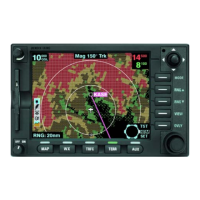
Icons will appear gray when WiFi/Bluetooth is on, the
startup dialog box is accepted and active but not
connected.
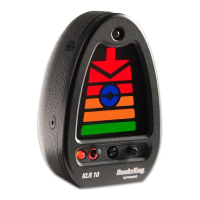
Icons will appear green when WiFi/Bluetooth is on, the
startup dialog box is accepted and connected.
WiFi and Bluetooth Active, Not Connected Icons
WiFi and Bluetooth Connected Icons
If the user selects “Ignore” or disables the Network or BT via the
options page, the gray logos above are depicted with a slash
through them indicating they are not connected due to being
actively disabled by the user.
The WiFi system can be configured as a client on an existing
network (e.g. using a Stratus
®
) or as a Wireless Access Point
(WAP) with a DHCP server, thus creating its own network. See
"Configuring WiFi" on page 7-72 for instructions on configuring
the WiFi on the AeroNav.
The factory default WiFi Network Configuration is a WAP with
SSID of “LIO_WIFI” and a PSK (password) of “abcdef1234”.



 To Next Page