Quick Start LB 983 NightSHADE II Operating Manual
62
To define a freehand shape circle the desired area with several clicks on the left mouse button
or hold it down completely (pencil mode). A double-click will end the procedure.
The painted shape will be connected automatically and the freehand shape will be closed by a
frame.
If you click on an area that has already been created, you will see “handles” around the edge of
the area. The area can be resized by dragging the “handles” to the desired size.
The shape can be moved to another position. To do this you have to move the
mouse to the boundary of the shape. The mouse pointer will be changed automati-
cally to a hand cursor. If the hand cursor is displayed press the left mouse button
and drag the shape to the required position.
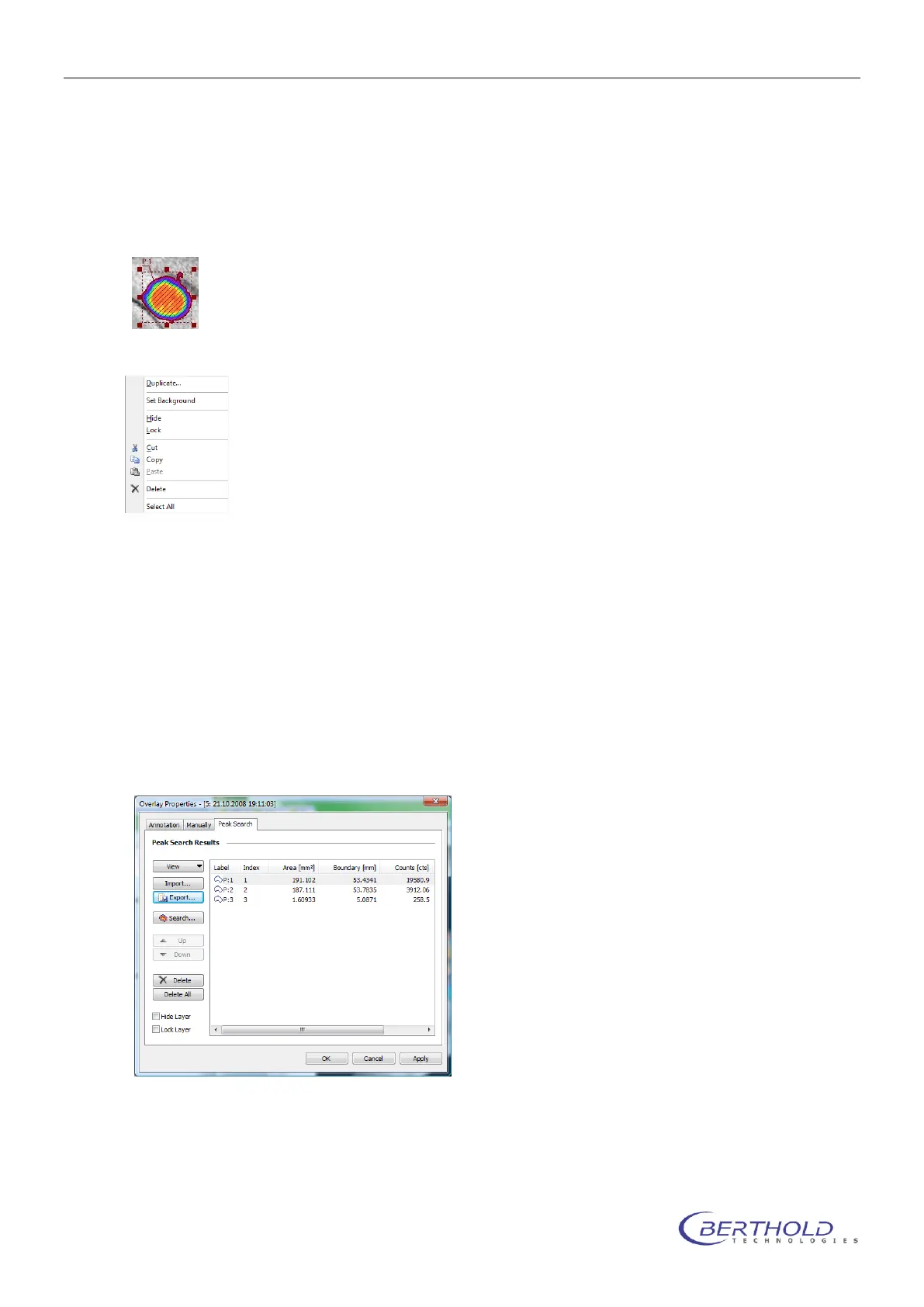
A context menu for all shapes is available. To open the context menu select the
shape and right-click inside the shape.
For editing the standard clipboard commands are available
To use the object for background subtraction select <Set as background>.
An object defined as background area is identified by a checkmark in front of the context menu
entry. In this case the average intensity of the area is defined as background and subtracted
from the intensities of the other areas in the report.
To create a copy of the current area select <Duplicate>.
To lock the whole layer, use the command <Lock>.
A locked area cannot be moved any longer unless it’s being unlocked through the “Overlay
Properties” <Lock Layer>.
The layer becomes invisible by selecting the command <Hide>.
To delete all areas refer to “Overlay Properties” <Delete All>.
Further commands for the area management are available via the contect menu of the area
items list.


 To Next Page