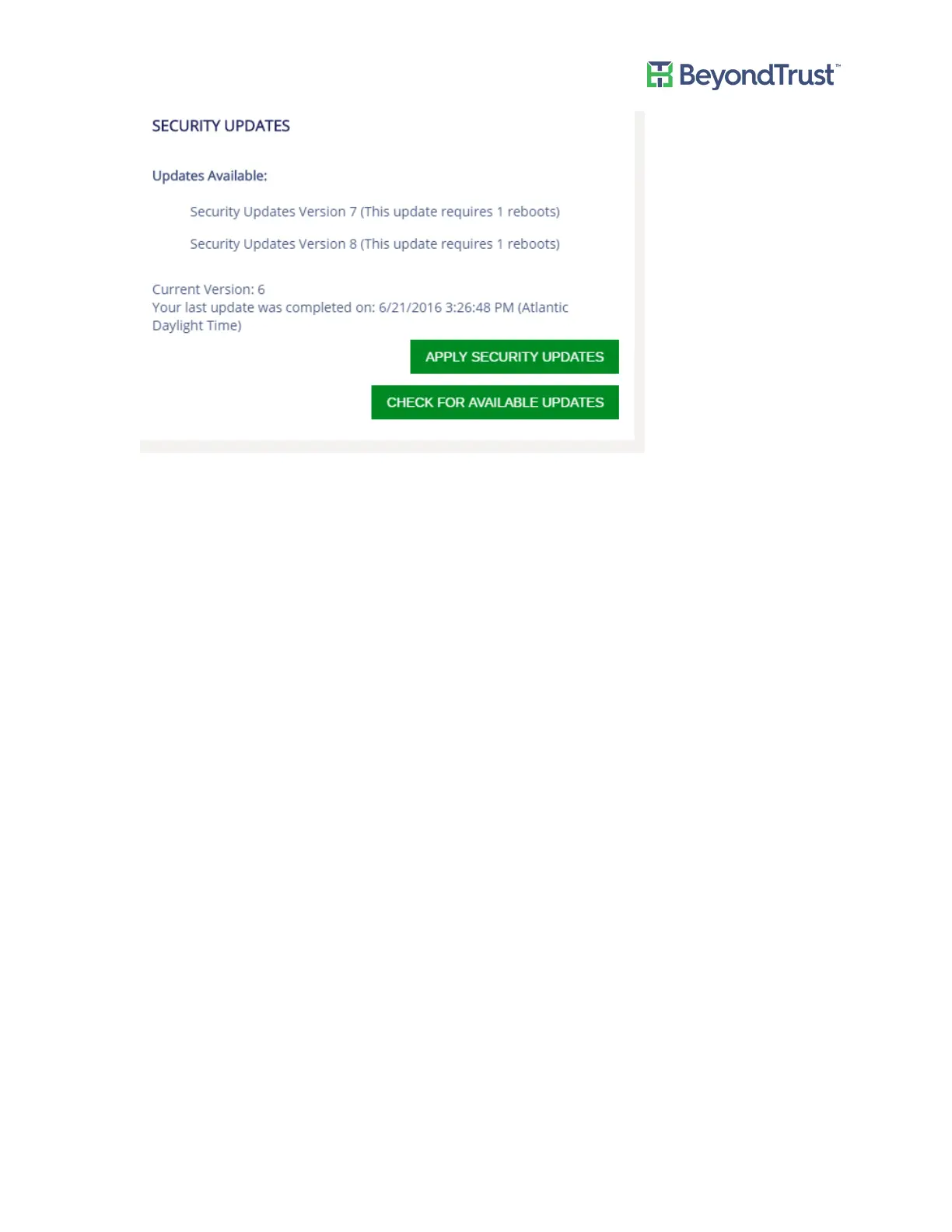
3. Click Apply Security Updates.
The update can take time depending on the packages being applied. Click Refresh at any time to update the
status.
Note: If a restart is required (depending on the patch), then the appliance will restart automatically. No
action is required on your part.
Note: Applying Security Updates For UVM Versions Earlier Than 1.3
If your UVM version is earlier than 1.3, then BeyondTrust Technical Support can send you the update package
installer to deploy on your appliance. After you run the installer package, the appliance web page is updated. The
Security Updates section will be available for you to track and manage your security updates.
Setting the Update Method
1. Log on to the appliance web site.
2. Select Maintenance from the menu, then select BeyondInsight Updates.
3. Select an update method.
– Connect to the Internet for licensing and updates. No proxy required - Select if there is an Internet
connection and no proxy server.
– Connect to the Internet for licensing and updates through a proxy server - Select if you are using a proxy
server.
– No Internet connection. (Requires performing manual updates.) - Select if the appliance does not have
an Internet connection.
4. After you select an update method, click Apply Changes.
Managing Your UVM
UVM Appliance User Guide 11 © 2018. BeyondTrust Software, Inc.


 To Next Page