Configuring Roles
Select Appliance Roles if you are deploying more than one UVM to scale BeyondInsight in larger networks.
Roles must be selected for at least one of the UVM appliances.
When you are selecting roles, any dependencies or conflicts that might exist between roles will be displayed. The
Apply Roles button is only available after dependencies or conflicts are resolved.
Using Role Templates
There are predefined role templates that you can choose. When you choose one, all dependent roles that need to
be activated will be. Any roles that are not required for the template will be turned off.
When you select a predefined template, you must enter information for some fields before the Apply Roles button
is available. The role is indicated in orange.
For example, if you select the Standalone Database role, then you must go to the SQL Server Role and enter the
database password.
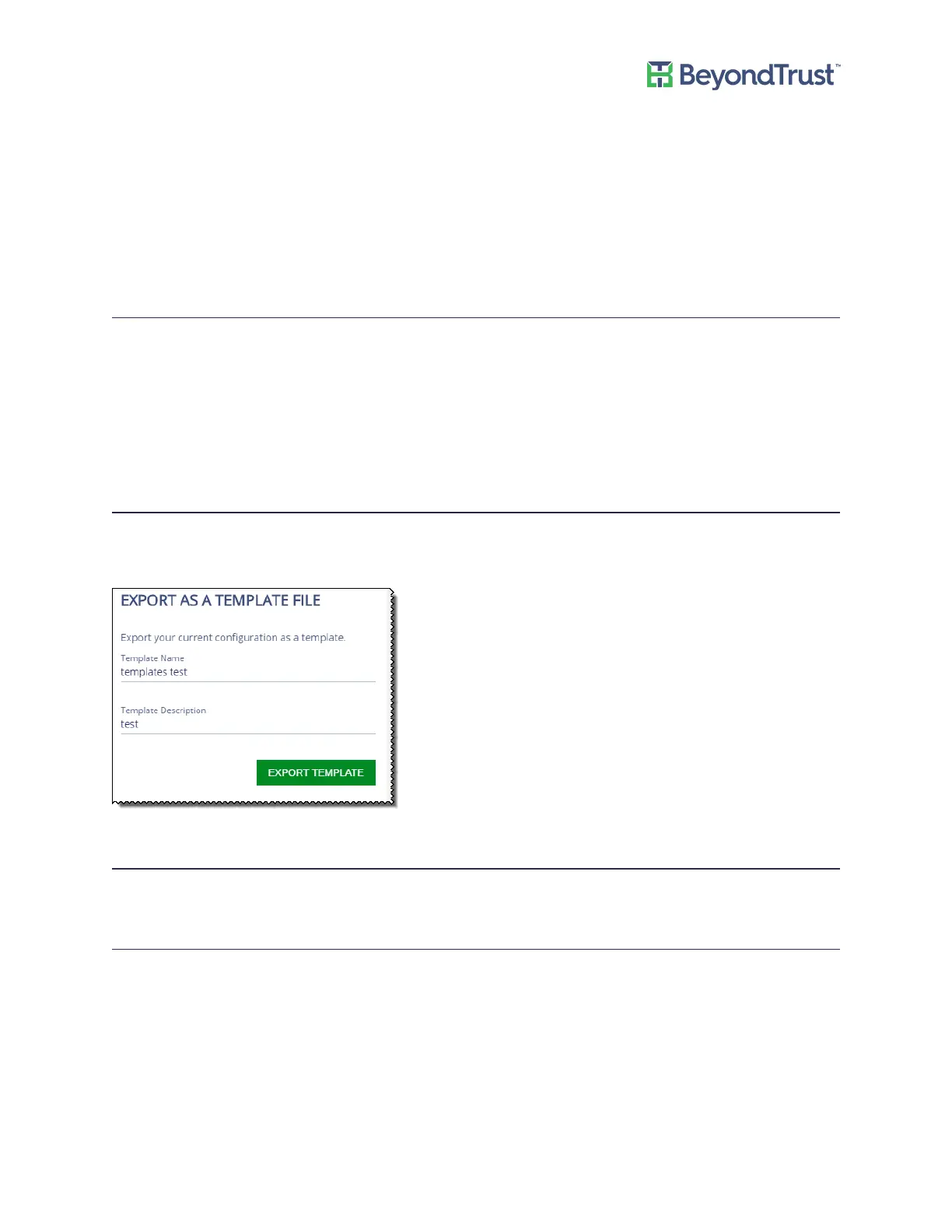
Saving Role Configuration
You can configure the roles that you need and save the settings to a configuration file. You can then upload the
template to the UVM.
Vulnerability Scanner Role Settings
Turn on the role to activate the Retina scanner agent.
Event Collector Role
On the Event Collector page, select the BeyondTrust service that will be responsible for sending events between
components (for example, Retina scanner agent, Retina Protection agent, and PowerBroker Endpoint Protection
Platform).
BeyondInsight AppBus Service and Event Server can be used for this communication. Event Server is preferred for
enterprises and can manage a greater load of data than AppBus.
The default port for the Event Server is 21690.
Configuring Roles
UVM Appliance User Guide 33 © 2018. BeyondTrust Software, Inc.


 To Next Page