Configuring PowerBroker Password Safe
To set up Password Safe on the appliance, you need to turn on the Password Safe role.
Note on Encryption
If you are using Password Safe, all credentials are stored in the database using AES 256 using RijndaelManaged
crypto provider. When FIPS is used, all UVM credentials stored in the database are encrypted using Triple DES
crypto provider.
Uploading SSL Certificate
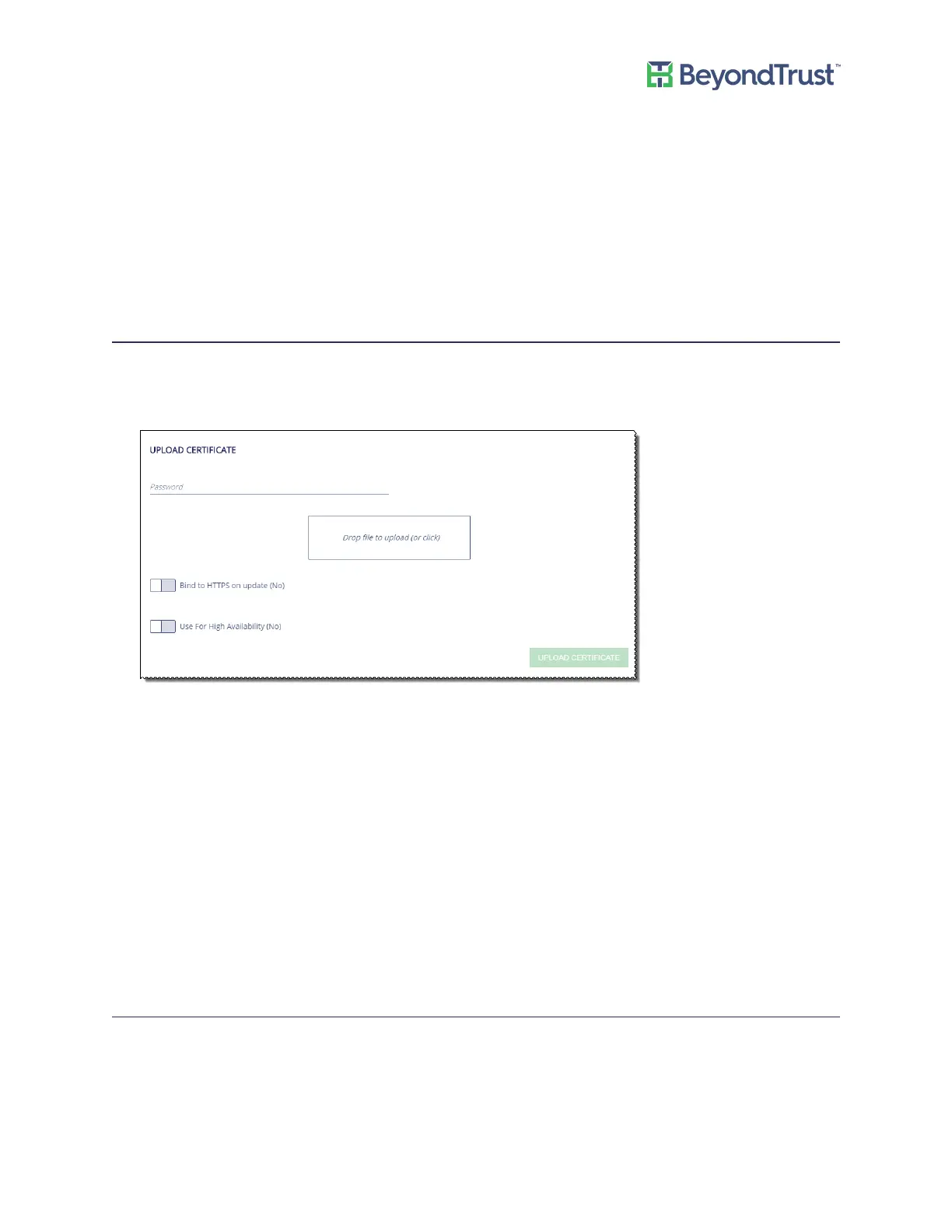
To upload an SSL certificate:
1. Select Security Settings from the Maintenance menu.
2. Go to Upload Certificate section.
3. Drop a file to upload.
4. Enter the password.
5. Select the following:
– Bind to HTTPS on update - Updates the bindings in IIS.
– Use for High Availability
6. Click Upload Certificate.
To generate an SSL certificate to match the appliance name:
1. Select Security Settings from the Maintenance menu.
2. Click Generate Certificate. The certificate will not be trusted by the client browser.
3. To export the client certificate, enter the password for the certificate and then click Export Certificate.
Archiving Password Safe Session Monitoring Events
You can transfer old session monitoring files off the appliance to another server for storage. Archive old files to
free up disk space on the appliance. You can view the archive files in Password Safe. For more information, refer to
the Password Safe Administration Guide.
Session monitoring files are archived in one of two ways:
Configuring PowerBroker Password Safe
UVM Appliance User Guide 37 © 2018. BeyondTrust Software, Inc.


 To Next Page