Accounts and Licensing Settings
Updating Product Serial Numbers
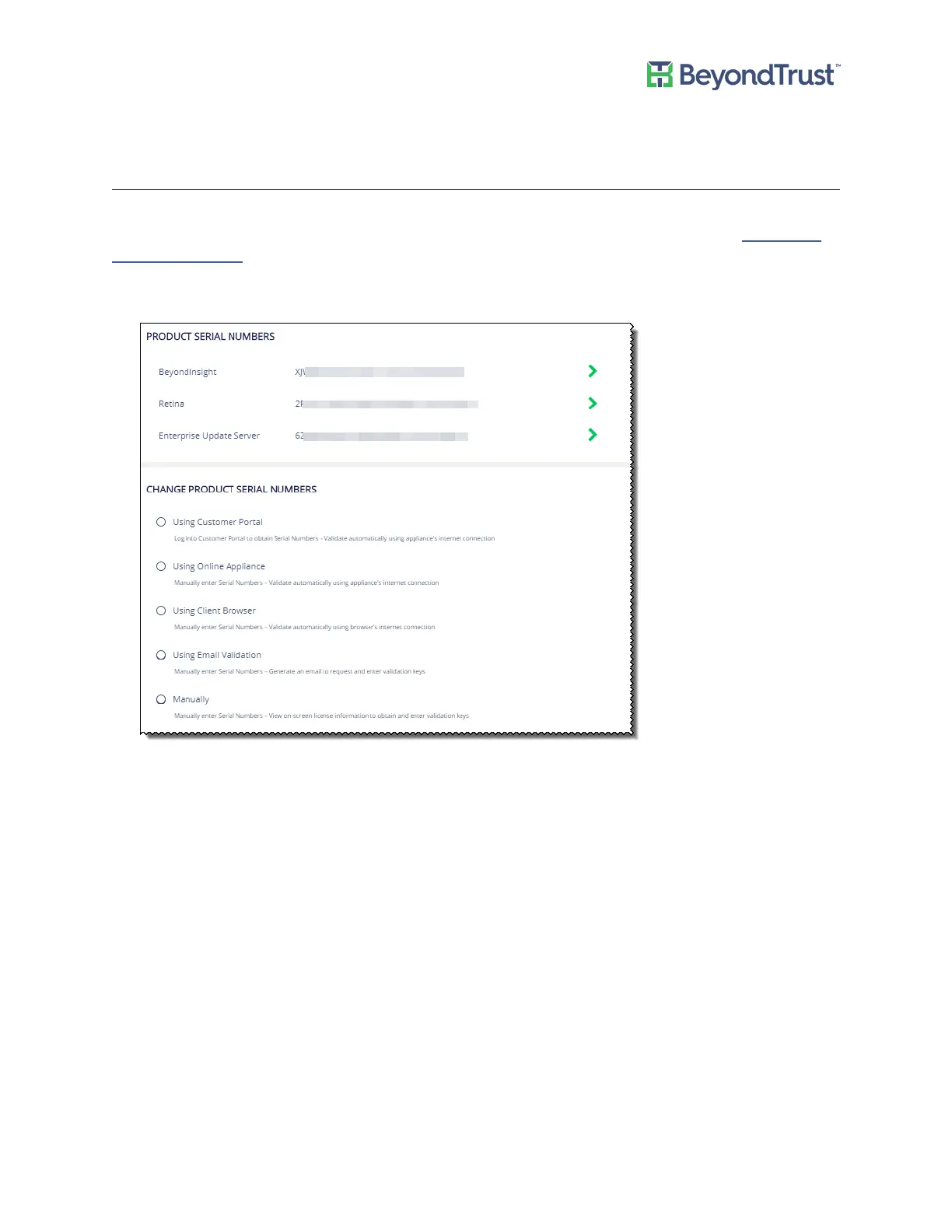
You can review your licensed BeyondTrust components. If components are not showing as licensed you might
need to refresh the BeyondInsight database cache to ensure the most recent license is applied. See Clearing the
BeyondInsight Cache.
To update the appliance serial number:
1. Select Accounts and Licensing from the Maintenance menu.
2. You can either retrieve the serial numbers and validate the license key automatically using your Internet
connection or enter this information manually:
– Using the Customer Portal - Enter your email address and Client Portal password and click Retrieve Keys.
Select the appropriate serial numbers from the list when populated and click Update Serial.
– Using Online Appliance - Enter the serial numbers and then click Update Keys.
– Using Client Browser - Manually enter the serial number provided when you purchased the product. To
access your serial number, log on to the Client Portal, and select Product Licensing > Managing Your
Serial Numbers. Click Get Offline License and follow instructions on obtaining the license key offline.
Manually enter the license key once it is received.
– Using Email Validation - Enter the serial numbers and click Retrieve Offline Validation Keys. An email is
sent to request and validate the keys.
– Manually - Manually enter the serial numbers.
3. Click Update Keys.
Accounts and Licensing Settings
UVM Appliance User Guide 18 © 2018. BeyondTrust Software, Inc.


 To Next Page