Network and RDP Settings
Configuring RDP
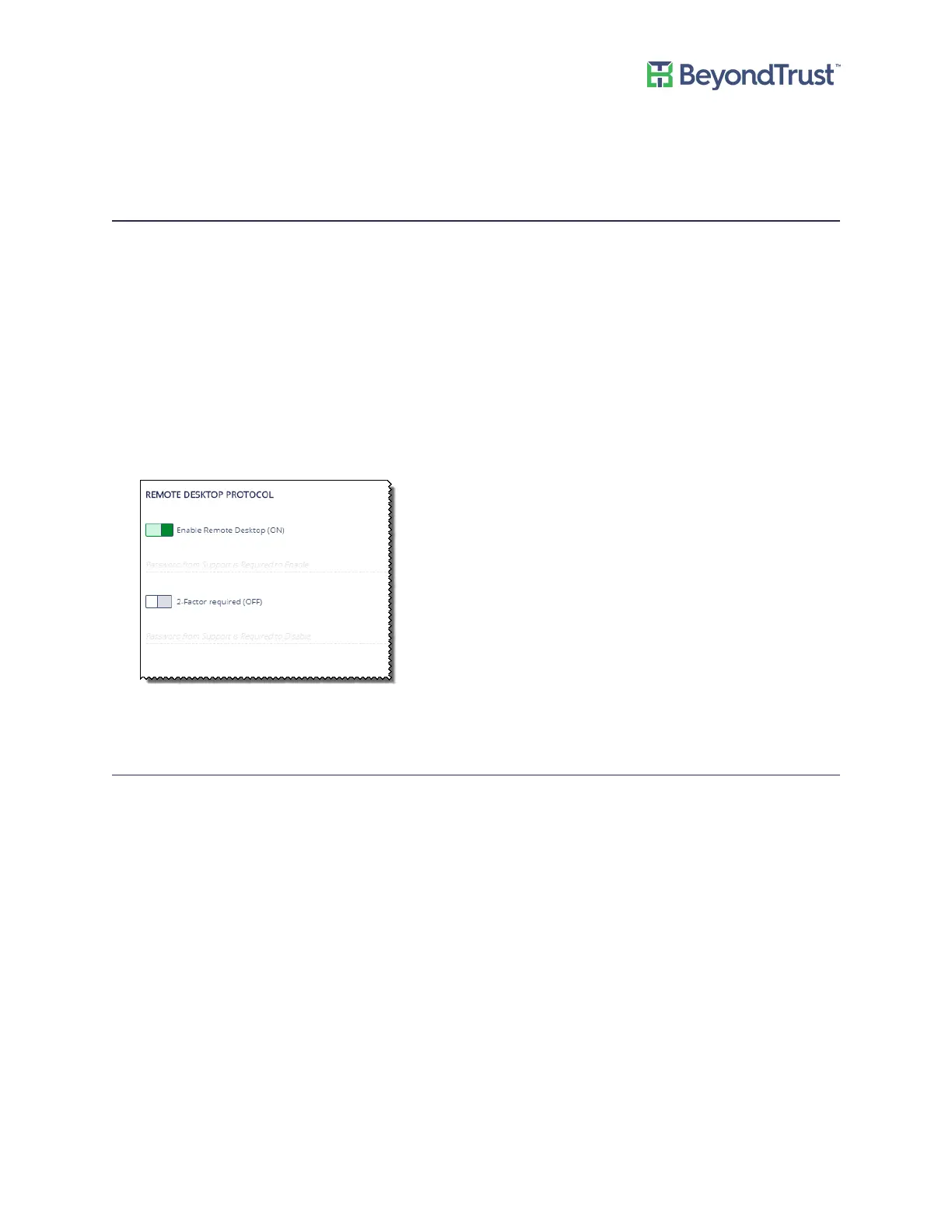
RDP access is turned off by default. RDP access is not required for daily use regardless of licensing or roles.
BeyondTrust Technical Support can turn on RDP access for troubleshooting.
To track RDP and 2-Factor activities, there are audit log entries in the Security Event logs.
1. Select Network and RDP Settings from the Maintenance menu.
2. Select the Enable Remote Desktop box.
3. Select 2-Factor required to turn on the settings to use two-factor authentication when using remote desktop.
Note that if you want to disable the 2-Factor authentication the temporary password from BeyondTrust is
required. After you enter the password, the 2-Factor Required box is cleared.
You need a password to access the UVM remotely. BeyondTrust Technical Support will generate a time-limited
password for you.
4. Click Save RDP Settings.
Setting an IP Address for the Appliance
You can get an IP address automatically using DHCP or manually configure the IP address.
1. Select Network and RDP Settings from the Maintenance menu.
2. Select a network card from the list.
3. Click the button to use DHCP to get the IP address. Otherwise, set the IP address information manually.
Network and RDP Settings
UVM Appliance User Guide 21 © 2018. BeyondTrust Software, Inc.


 To Next Page