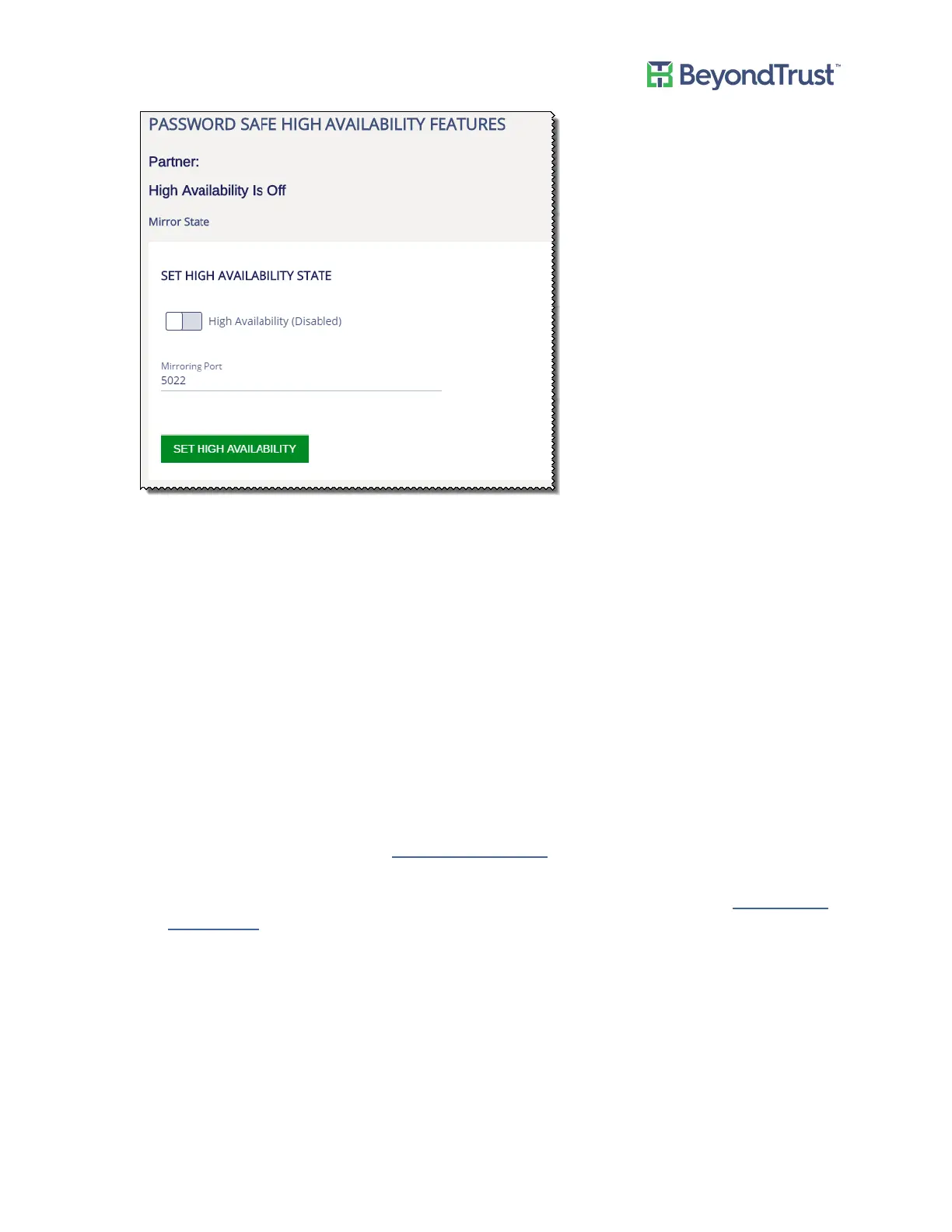
7. Set the following:
– Partner Contact Timeout – Enter the number of minutes that pass with no contact between the active
server and passive server. When the active receives no response from the passive, then the active
continues to start. If the passive has no contact with the active, the passive will start up as the active.
– Partner Failover Timeout – Enter the number of minutes that pass with no ping received from the
primary server. After this time, the passive switches to the active server.
– Reboot Blackout Window – On graceful shutdown passive switches to active after no response. You might
want to shut down the active UVM but not want the passive UVM to take control. For example, you might
want to move the active UVM and know that it will take approximately 30 minutes. To be sure the passive
does not take control while the active is offline, set the value here to 60 minutes.
You must shut down the primary from the Version Information tab.
Enter the number of minutes that pass before the passive takes control.
– Send Alerts on Failover – When selected, either an email is sent or events are sent to BeyondInsight. For
more information about alerts, see Configuring Notifications.
– Medium Failover Mode – When communication between the pairs is lost, the passive appliance is in a
failover pending state only. Action is required on your part to start a failover process. See Using Medium
Failover Mode.
– Background Settings Update Rate – Enter the number of minutes that pass before a file synchronization
occurs. Files copied to the passive server are configuration files, certificates, and registry files.
– Failed Notification Rate – Provides notification after your active appliance has failed over. If you are using
Medium Failover Mode, the email indicates that action is required on your part. The default value is 15
minutes.
– Queue File Synchronization – Click to start a file synchronization.
Using High Availability
UVM Appliance User Guide 44 © 2018. BeyondTrust Software, Inc.


 To Next Page