_____________________________________________________________________
724-746-5500 | blackbox.com Page 76
interconnecting with other IPsec VPN gateways, and road warrior IPsec software, refer to
http://wiki.openswan.org
UD\DE% O('<*3%/"3%d;@%-'/3G'1%
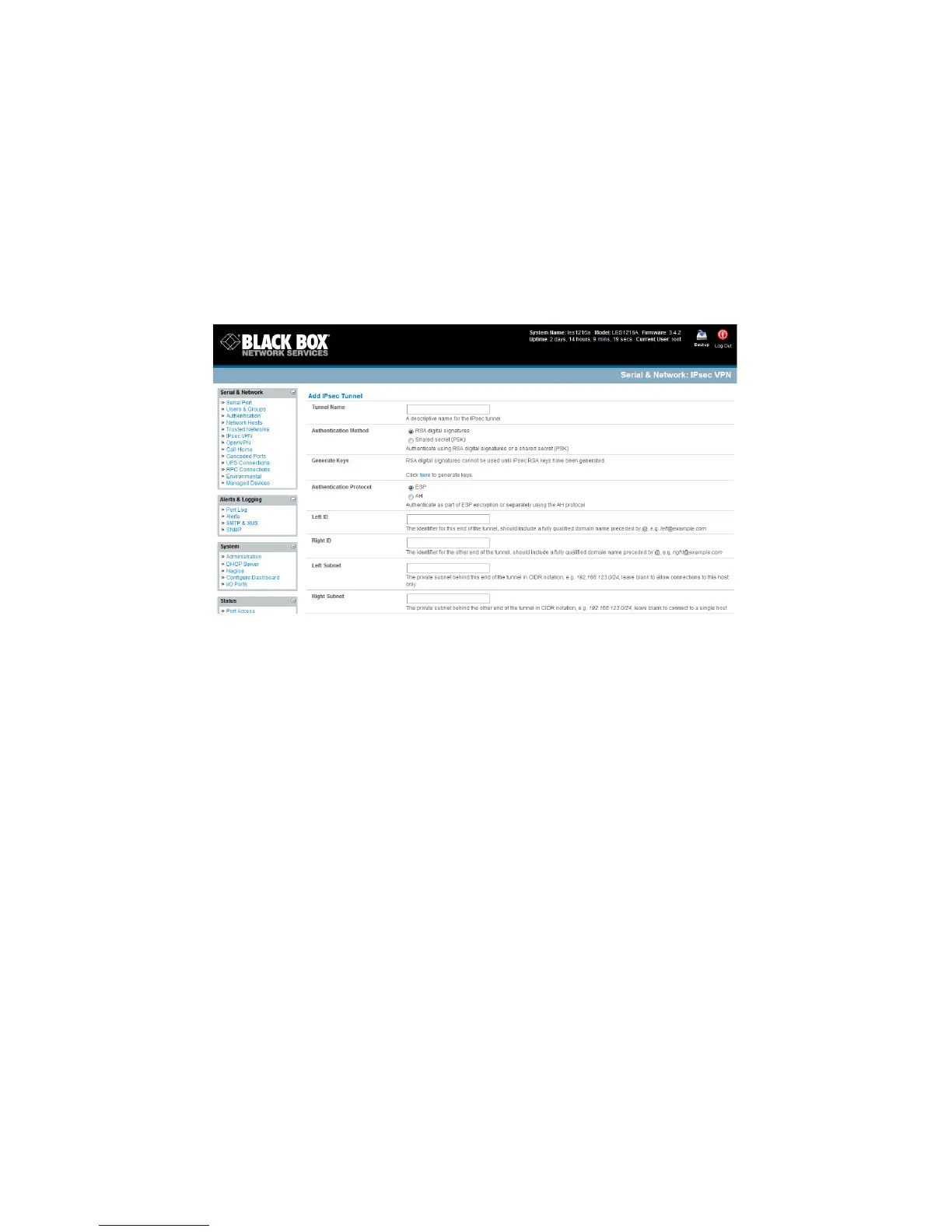
Select IPsec VPN on the Serial & Networks menu.
Click Add and complete the Add IPsec Tunnel screen.
Enter any descriptive name you wish to identify the IPsec Tunnel you are adding such as
WestStOutlet-VPN.
Select the Authentication Method to be used, either RSA digital signatures or a Shared secret
(PSK).
o If you select RSA, you will asked to click here to generate keys. This will generate an
RSA public key for the console server (the Left Public Key). You will need to find out the
key to be used on the remote gateway, then cut and paste it into the Right Public Key.
o If you select Shared secret, you will need to enter a Pre-shared secret (PSK). The PSK
must match the PSK configured at the other end of the tunnel.
In Authentication Protocol, select the authentication protocol to be used. Either authenticate as
part of ESP (Encapsulating Security Payload) encryption or separately using the AH
(Authentication Header) protocol.
Enter a Left ID and Right ID. This is the identifier that the Local host/gateway and remote
host/gateway use for IPsec negotiation and authentication. Each ID must include an ‘@’ and can
include a fully qualified domain name preceded by ‘@’ (e.g. left@example.com).
Enter the public IP or DNS address of this console server VPN gateway (or enter the address of
the device connecting the console server to the Internet) as the Left Address. You can leave this
blank to use the interface of the default route.
In Right Address enter the public IP or DNS address of the remote end of the tunnel (only if the
remote end has a static or dyndns address). Otherwise, leave this blank.



 To Next Page