45
Formatting
Font
BMP71 User’s Manual
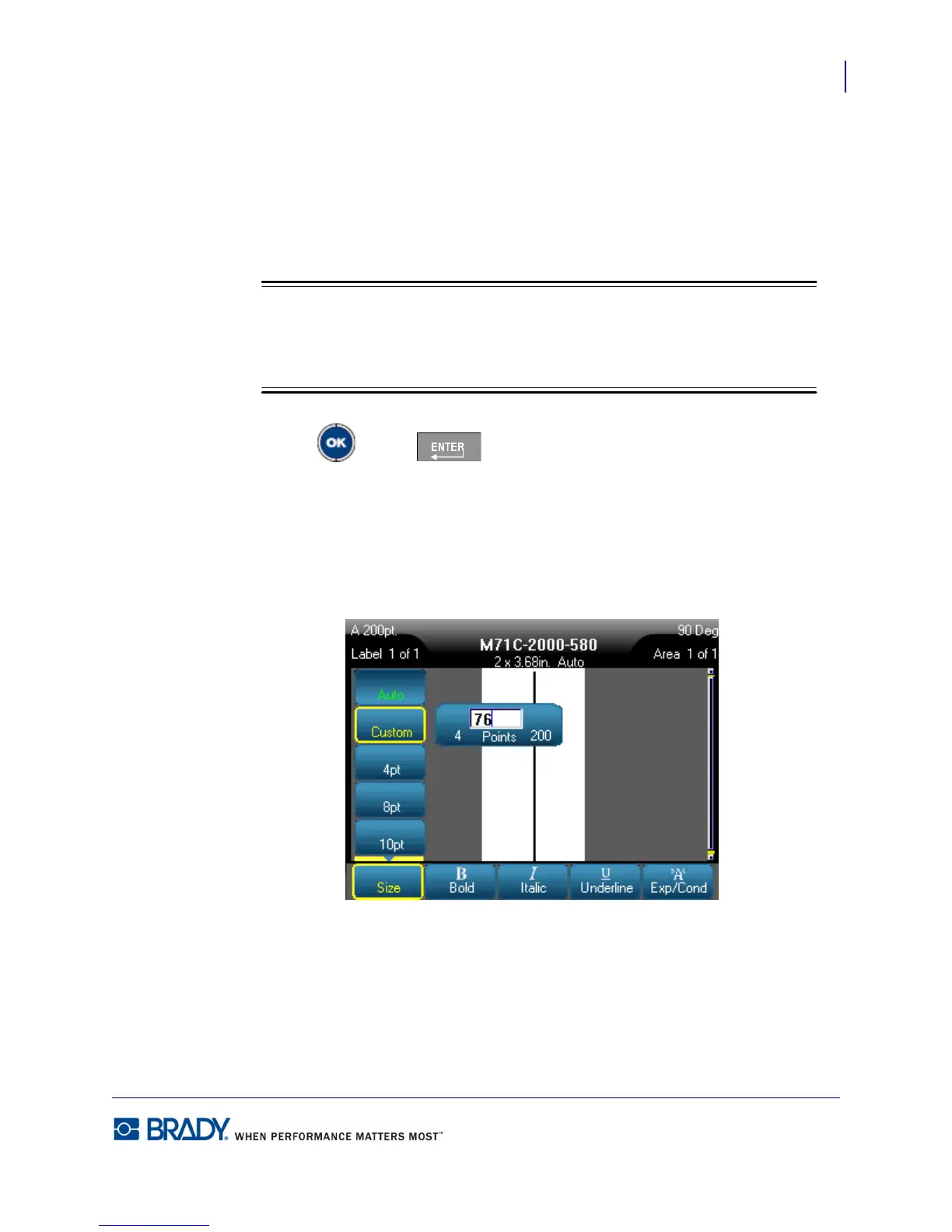
If the desired size is not displayed, you can manually enter a font size within the valid size
range. This option is available under “Custom” of the Size menu.
To manually enter a font size:
1. Choose Custom and enter the font size.
OR
Type the first number of the desired font size.
When you begin entering a font size, the system automatically jumps to the Custom
entry box, where you can complete the font size entry.
2. Press OK or Enter .
When entering a custom font size, a minimum/maximum range is presented to accommodate
the label size loaded in the printer. The minimum size reflects readability and the maximum
size accommodates proper fit on a label. If you enter a size smaller than the minimum or larger
than the maximum, an error message displays indicating the entered size exceeds lower or
upper limits.



 To Next Page