Operation Manual
FT1020G3 Rev 2.4
85
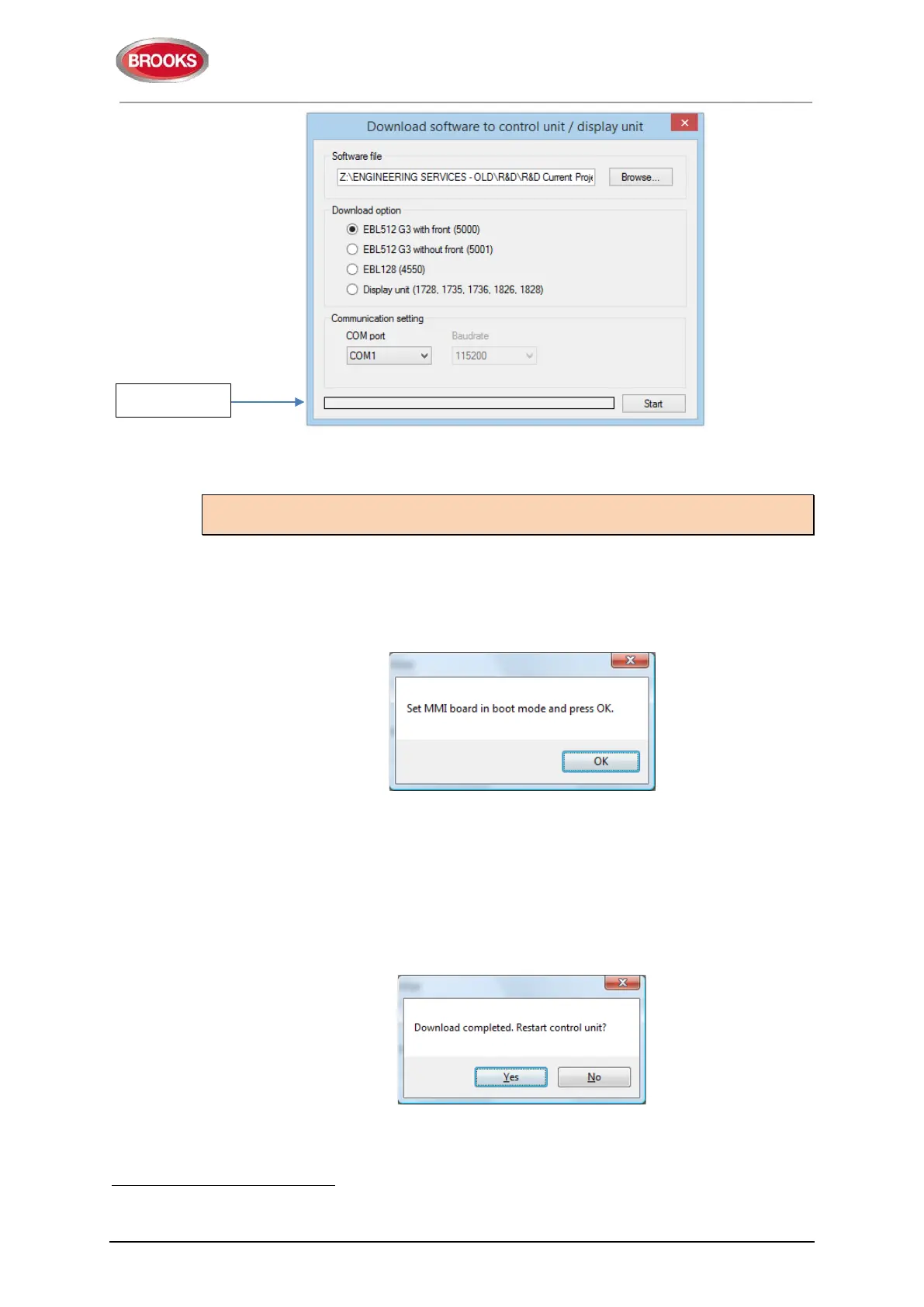
6. Select the COM port to be used on your PC
61
. Do not click “Start” yet.
A tip: Check in Control Panel / Device Manager / Ports (COM & LPT) | EBL512 G3 Serial
Port (COMx).
7. Set the main board 5010 in "boot" mode, i.e. press and hold the "Boot" button
(SW2) then press the "RESET" button (SW1) momentarily. Release the "BOOT"
button. The Main board LED "D24" is turned off while the Main board is in "boot"
mode.
8. Click "Start" to start the download. Another dialog box opens when display is fitted.
6. Set the MMI board 5011 in "boot" mode, i.e. press and hold the "BOOT" button
(SW2) and press the "RESET" button (SW1) momentarily. Release the "BOOT"
button. The MMI board LED "D18" will be turned off and the buzzer is turned on
while the MMI board is in "boot" mode.
7. Click "OK", the buzzer is turned off and the download continues. The download
status is indicated by the progress bar.
8. When the progress bar has gone from "red to green", the download will be
completed and the following dialog box opens:
9. Click "Yes" and the Control Unit will restart.
After the restart, the following messages will be shown:
61
If several USB ports are used on your PC, and you want to find which COM port is connected to the panel, go to Device Manger
and look for EBL G3 Serial Port (COM#) under Ports (COM & LPT). # will be the COM port number.



 To Next Page