Brooks Automation 5. Software Reference
Part Number: 603988 Rev. A
Updating GPL (System Soft-
ware) or FPGA (Firmware)
Updating GPL (System Software) or FPGA (Firmware)
Both GPL (the system software) and the FPGA firmware may be upgraded in the field. To perform
an upgrade, follow this procedure:
Step Action
1.
Get the appropriate upgrade software from Brooks in the form of a .bin file. Email support_pre-
ciseflex@brooksautomation.com.
2.
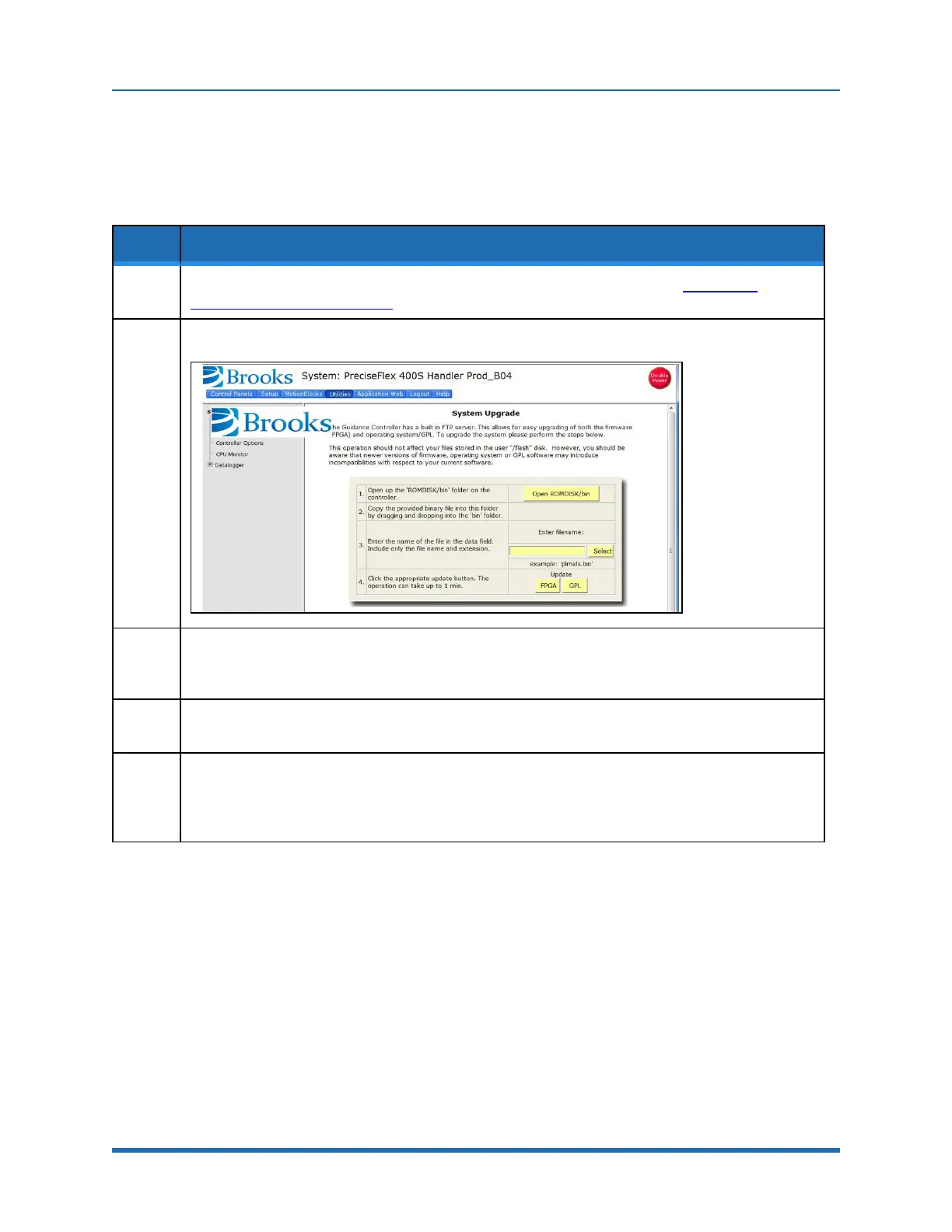
In the Operator Interface, go to the Utilities/System Upgrade menu.
3.
Click Open ROMDISK/bin. This will open an FTP window. Select Page in the browser, scroll to the
bottom of the page menu, and click Open site in Windows Explorer. This will open a second ftp
window in Windows. Paste the appropriate GPL or FPGA .bin file into this window.
4.
Under item 3 in the System Upgrade menu, click Select. A pick list will open up. Highlight the upgrade
code in this pick list and click Select again. The name of the file will appear in the Filename field.
5.
In the menu, click on either FPGA or GPL to upgrade the appropriate file. The banner in the Upgrade
menu will start flashing for about 10 seconds while the flash RAM is being written with the new file.
Wait about 10 additional seconds after this banner stops flashing, then reboot the robot, and the new
code will be installed.
Copyright © 2023 Brooks Automation, Inc.
73



 To Next Page