Chapter3 NAS Navigator 2
LinkStation User Manual 148
Mac OS
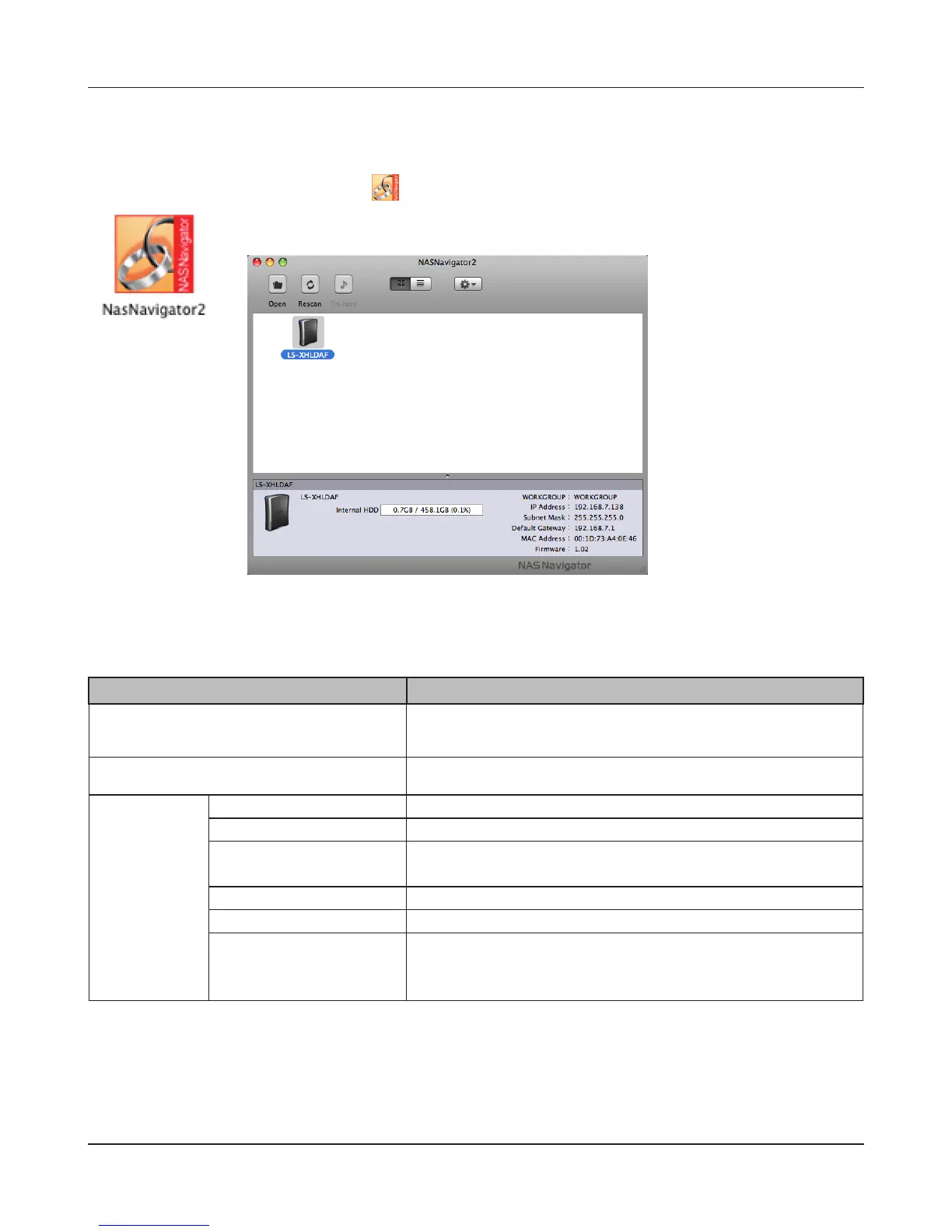
If you installed the LinkStation with the LinkNavigator CD, NAS Navigator2 was installed
automatically. To launch it, click the icon in the Dock.
Click on a LinkStation’s icon to display its total capacity, used capacity, [WORKGROUP], [IP Address],
[Subnet Mask], [Default Gateway], [MAC Address], and [Firmware] version. Double-click to open a
share on the LinkStation.
Name Descriptions
Open Opens the default shared folder for a selected LinkStation.
Rescan Refreshes list of NAS devices.
Tool Menu Open Folder Opens the LinkStation shared folder.
Open Web setting Opens the selected Web Admin interface.
Congure Displays the screen to open the Web Admin interface or
change an IP Address.
Color Label Selects the color of the name displayed below the icon.
Show View Options Sets the orders of icon sizes, label positions, and icons.
Shutdown This is displayed when using a LS-XL series LinkStation.
The LS-XL series does not have a power switch on the
case. Use this command to turn o the power.











 To Next Page