LinkStation User Manual 186
Appendix
Mapping Additional Shares
When you installed the LinkStation, a share was mapped as a network drive on the computer that
was used for installation. You can map additional shares, or map shares to dierent computers.
Windows
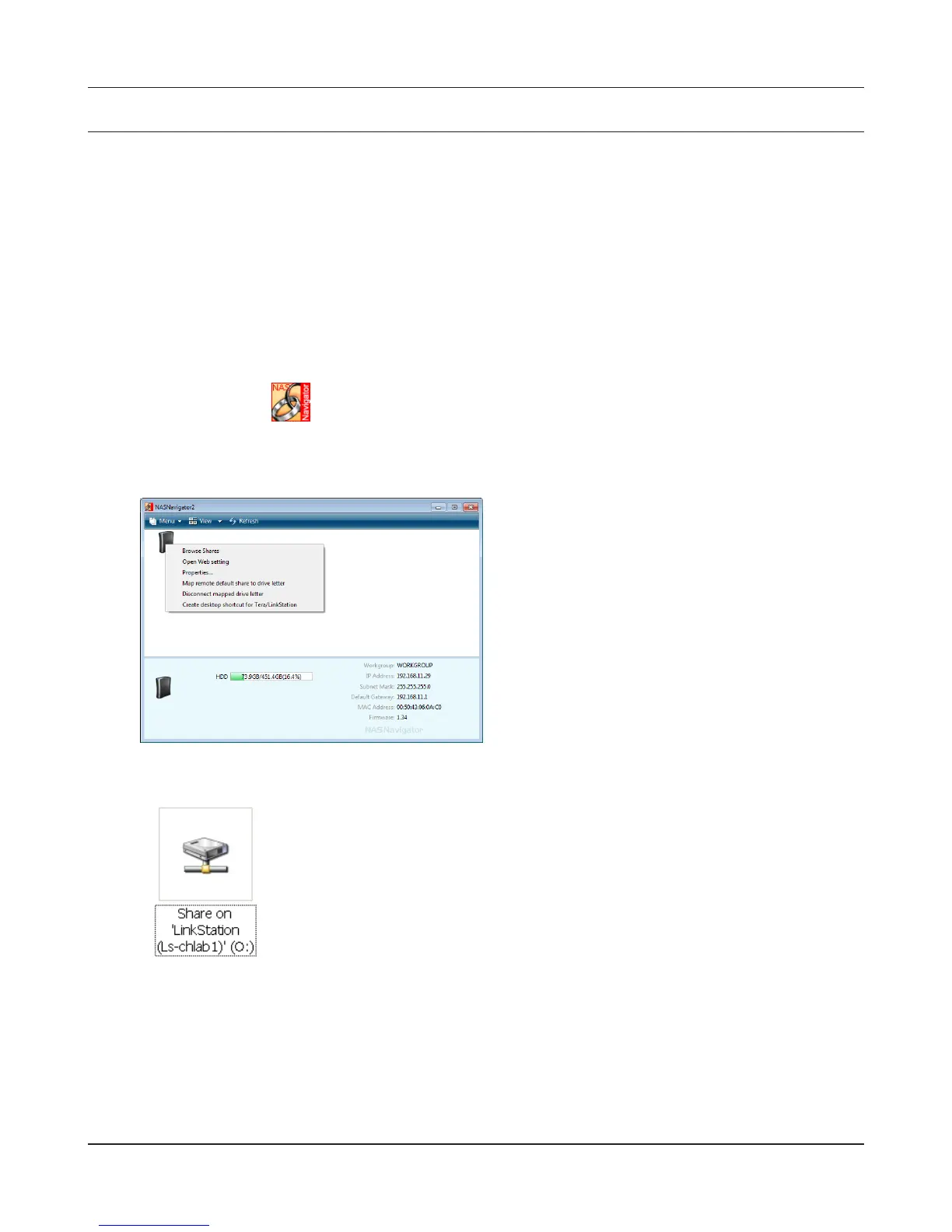
With Windows 7/Vista/XP/2000 or Windows Server2003/Server2008, use NAS Navigator2 to map a
driveletter to a shared folder on the LinkStation.
Double-click the icon on the desktop.
NAS Navigator2 will launch.
3
Right-click on the LinkStation's icon and choose
[Map remote default share to drive letter].
1
2
An icon for the mapped share will appear in [Computer] or [My
Computer] . You can use this network drive just like other hard drives.
You’ve now mapped a driveletter to the network share. If the LinkStation is disconnected or o
when your computer is booted, the message "The network path could not be found. The connection
was not established" will be displayed.











 To Next Page