Using your LinkStation
LinkStation User Manual 50
Disk Quotas
Notes:
• When using quotas, disable the recycle bin or empty the trash folder. The limited space includes
the space used for trash.
• Quotas apply per drive or per array. If a Quota is set to 1 GB, each drive or array can use maximum
of 1 GB.
• Quotas can’t be set for external USB hard drives connected to the LinkStation, only internal drives.
• The LS-CHL LinkStation doesn’t support disk quotas in the US and the EU.
Disk space quotas for users
To limit the space of shared folders that each user can use, follow the procedure below.
1
2
Notes:
• Username and password must be the same one that the user logs into Windows with. If these
values are dierent, shared folders with access restrictions cannot be accessed.
• Deleting or adding users repeatedly may cause quotas to not work properly.
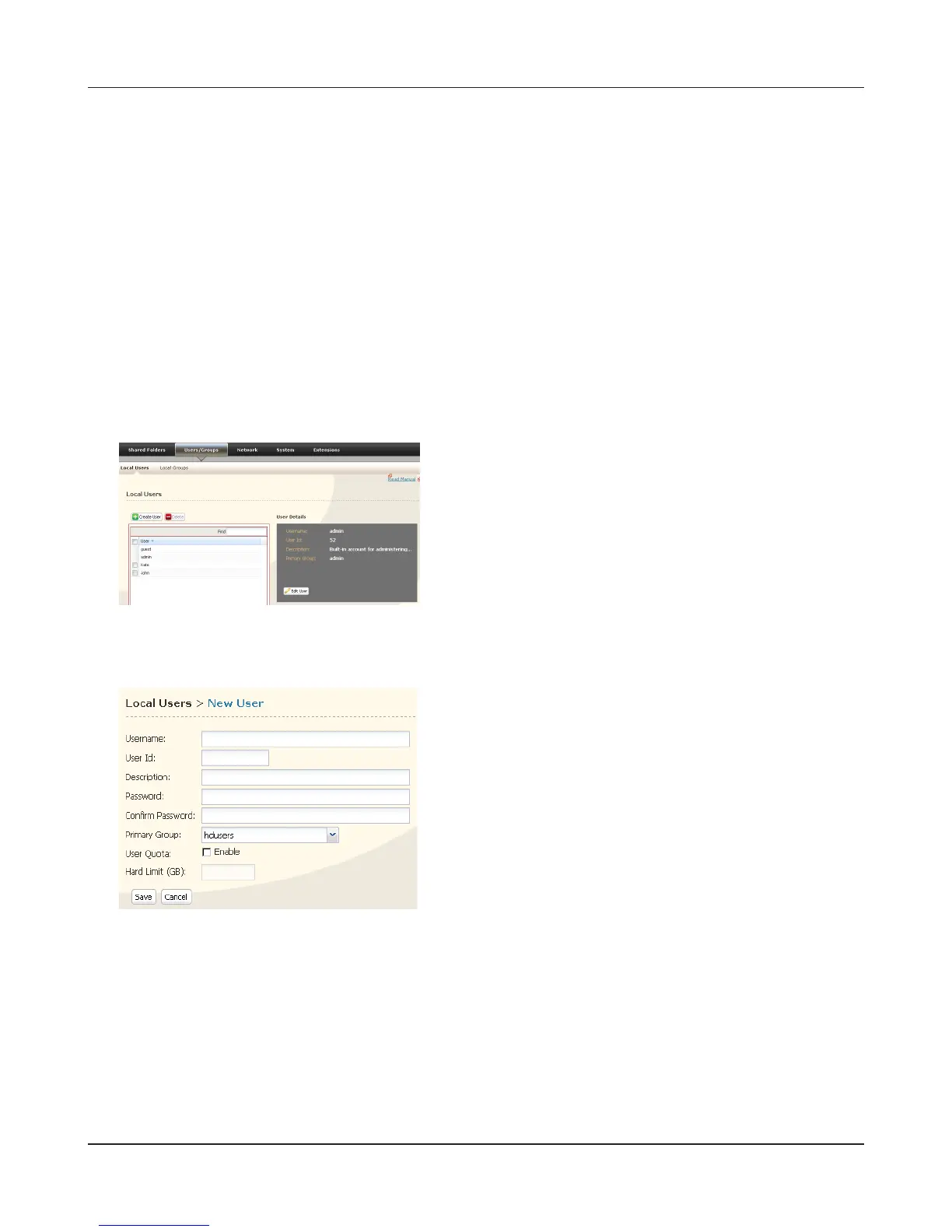
1 In the Web Admin interface, navigate to [Users/
Groups] - [Local Users].
2 Click [Create User].
1 Enter [Username], [User Id], [Password], and
[Description].
Note: User IDs may be between 1000 and 1999. Do
not duplicate user IDs.
2 Check [Enable] for [User Quota].
3 Enter the maximum space this user is allowed for
the [Hard Limit (GB)].
4 Click [Save].











 To Next Page