Chapter1 Setup
LinkStation User Manual 7
1
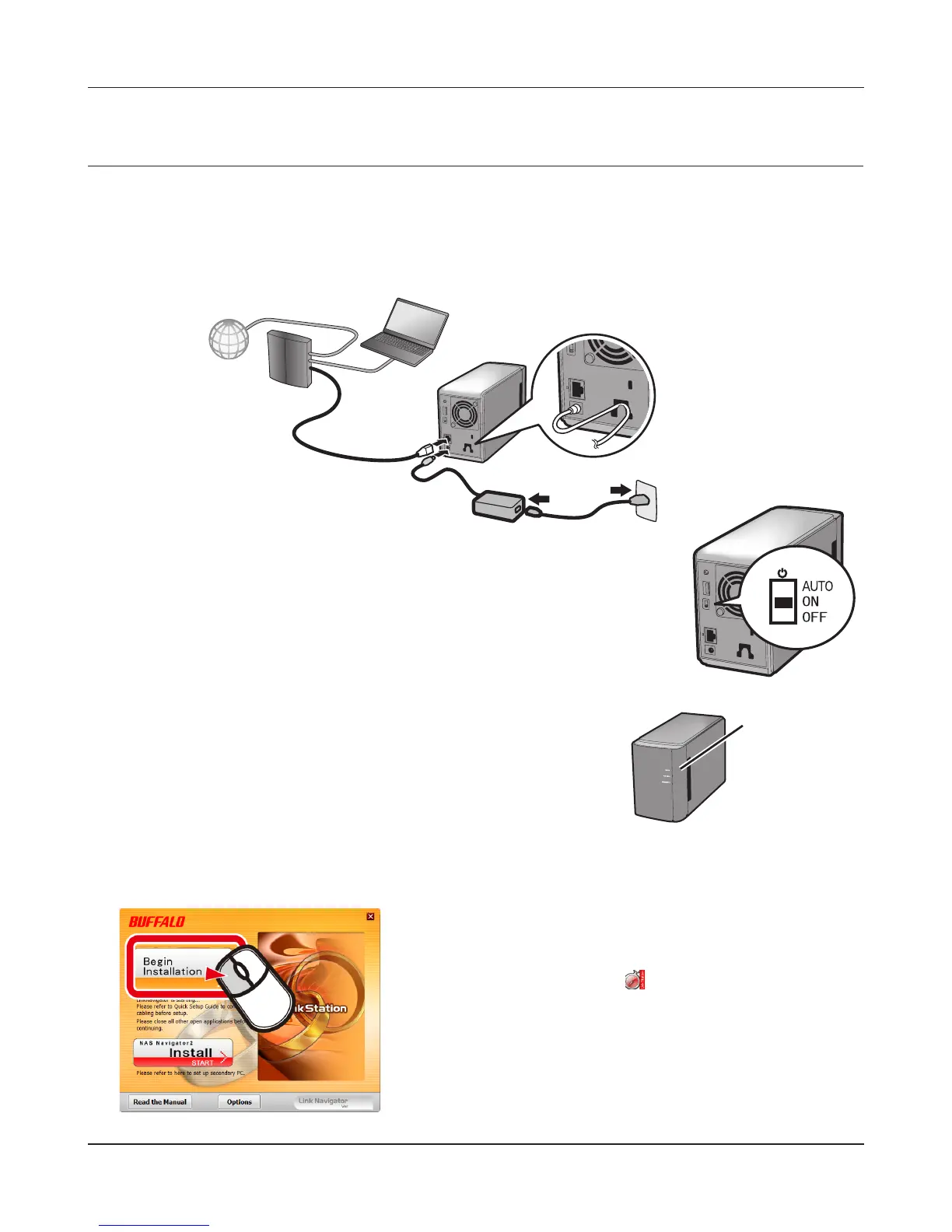
Connect the LinkStation with an Ethernet cable and the included AC adapter. Plug the power
cord into a surge protector or power outlet. Connect the Ethernet cable to a router, hub,
or switch on your network. The Ethernet cable will “click” and lock in place when inserted
properly.
2
Move the Power Mode Switch on the back of the LinkStation to the
ON position.
Note:
Do not set the Power Mode Switch to AUTO at this time. After the
initial installation is complete, then the Auto Power Mode may be
used.
3
Wait until the power LED stops blinking and glows a steady blue.
4
Insert the Utility CD in your computer’s CD drive. LinkNavigator will launch.
Click [Begin Installation]. The wizard will guide you through installation.
LinkNavigator Setup (LS-WVL, LS-WXL)
ໃʳʽʡ
If LinkNavigator does not launch automatically, open the
Utility CD and double-click [LSNavi.exe].
This example shows a LinkStation Pro Duo (LS-WVL). Your
screen may be slightly dierent.
Power LED
LinkStation











 To Next Page