Chapter1 Setup
LinkStation User Manual 14
LinkNavigator Setup (LS-XL)
1
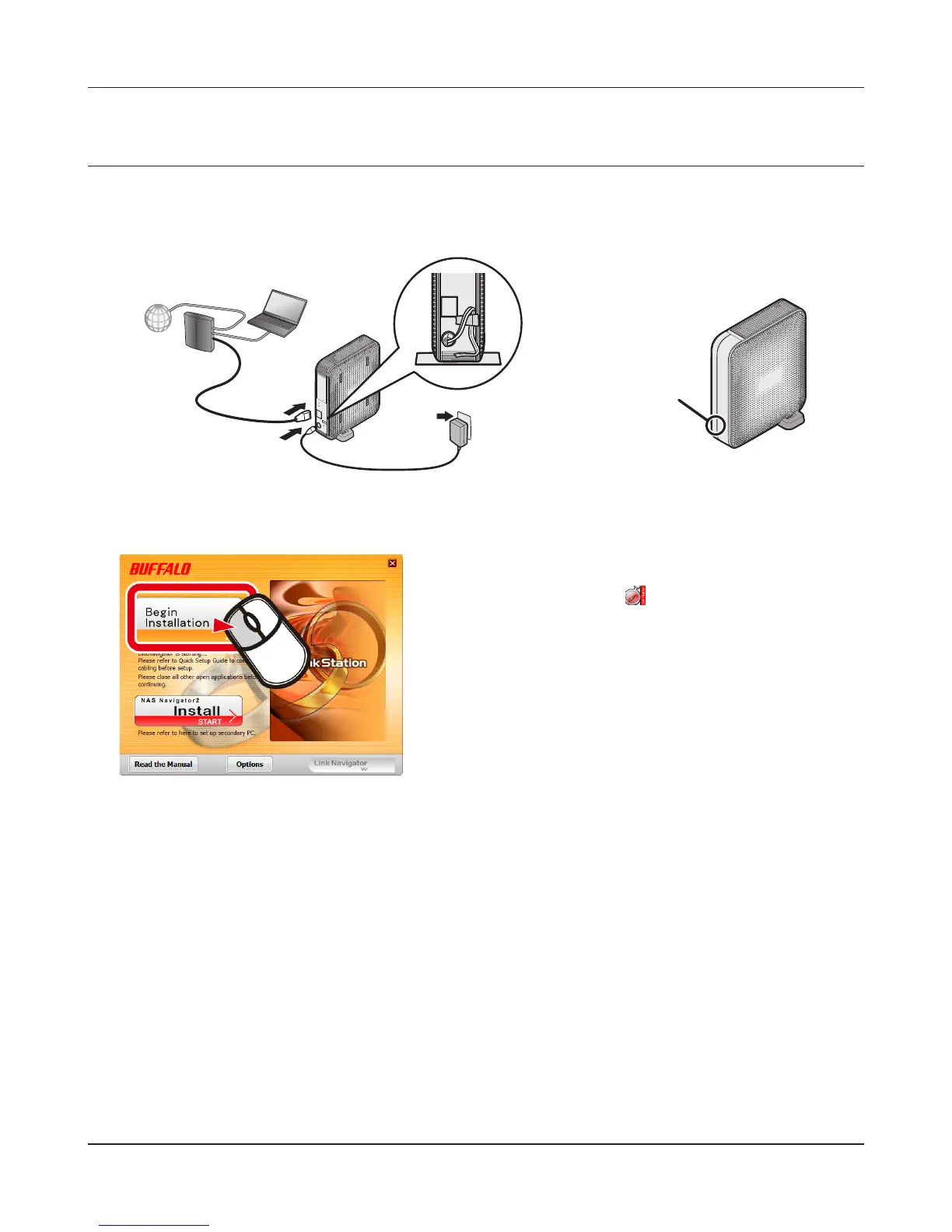
Connect the LinkStation with the Ethernet cable and the AC adapter. It will power on
automatically. Wait until the blue Power LED stops ashing and glows steadily.
2
Insert the LinkNavigator CD into your computer. LinkNavigator will launch. Click [Begin
Installation]. The wizard will guide you through installation.
Notes:
• If you are using Windows 7 or Vista, the autoplay screen may appear. Click [Run LSNavi.exe].
• If “Do you want to allow the following program to make changes to this computer?” is
displayed in Windows 7, please click [Yes].
• If “A program needs your permission to continue” is displayed in Windows Vista, please click
[Continue].
• For Mac OS X, double-click on the LinkNavigator icon in the utility CD.
• If you have problems installing, temporarily disable your anti-virus software and software
rewall. After setup is complete, re-enable the software.
• If your computer does not have a CD drive, you may download the LinkNavigator software
from www.bualotech.com.
If LinkNavigator does not launch automatically, open the
Utility CD and double-click [LSNavi.exe].
Power LED











 To Next Page