25
Run Mode
After the initial configuration of VisionView, Run Mode is the default
mode that launches when VisionView is powered up. When
VisionView enters Run Mode, it attempts to connect to each of the
sensors selected in Setup Mode. VisionView displays a status
message while connection is in progress, and if it fails to connect to
a sensor, it displays a connection failure message. When a
connection fails, or if an existing connection is lost, VisionView
automatically attempts to re-establish the connection every 10
seconds. It is possible to connect multiple VisionView devices
and/or PCs running Intellect or Framework software to a DVT
sensor. In-Sight sensors only support one connection at a time;
only one VisionView device can connect to the In-Sight sensor and
this connection may be forcibly interrupted by connecting to the
sensor from a PC running In-Sight Explorer.
The appearance of the Run Mode screen varies depending on the
operator controls that are enabled, the image display mode and the
job pass/fail status. There are two image display modes: Tiled
Image Mode and Single Image Mode.
Tiled Image Mode
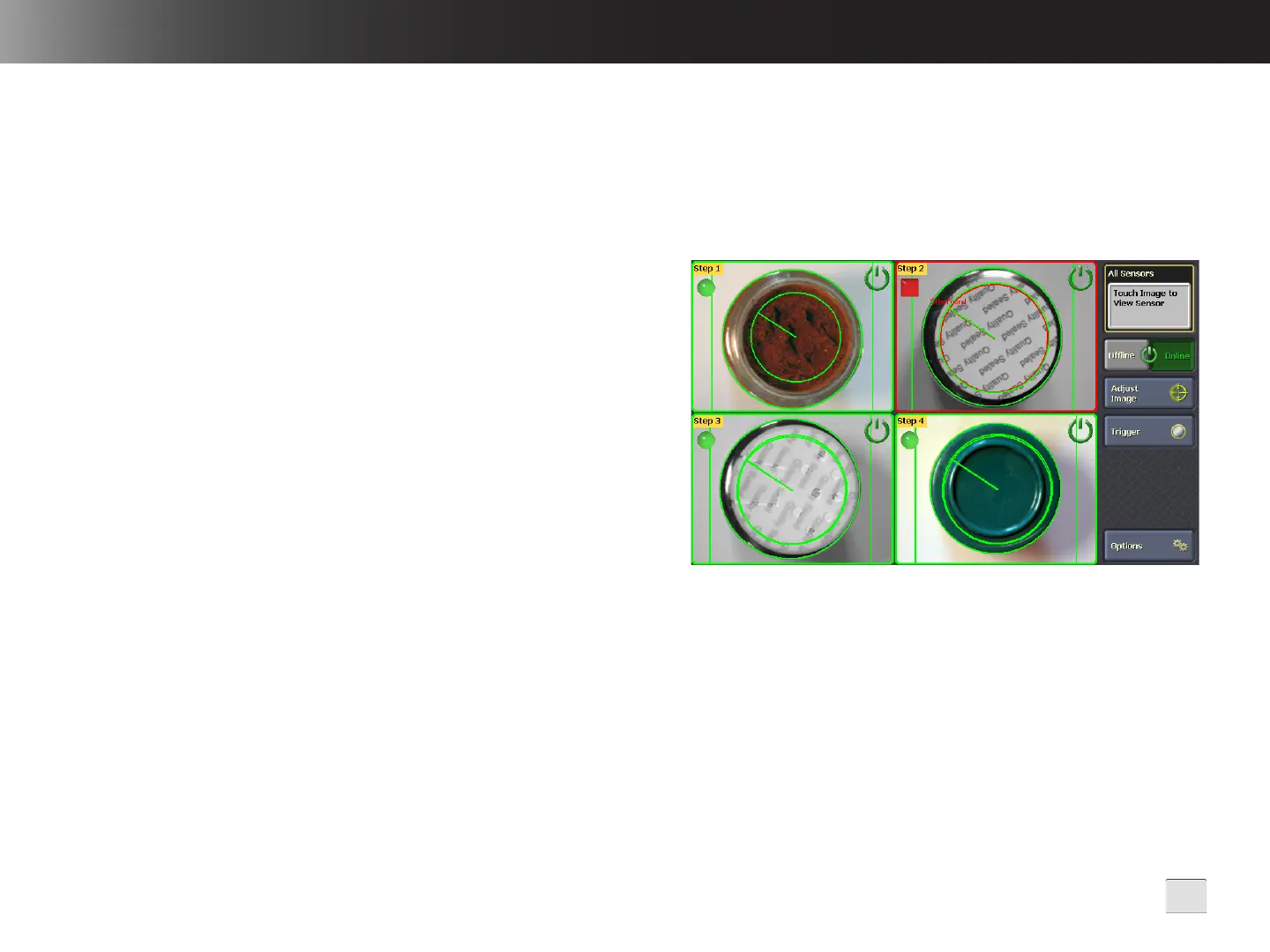
In Tiled Image Mode, the image area displays images for all
sensors simultaneously and displays only the controls that are
supported by all sensors. The sensor images are automatically
arranged and resized based on the number of sensors selected
during Setup Mode.
Figure 4-1: Tiled Image Mode
Tiled Image Mode is only available if more than one sensor was
selected during Setup Mode. To transition from Tiled Image Mode
to Single Image Mode, touch the sensor’s image.


 To Next Page