9
Setup Mode
When VisionView is initially powered up, you must calibrate the
touch screen if it has never been calibrated, if the firmware has
been updated or if the factory default settings have been restored.
To calibrate the touch screen, carefully press and hold the center of
the target icon. Repeat as the target icon moves around the screen.
When the correct calibration settings have been measured, the
target icon disappears. Press the touch screen once more to
continue.
After calibrating the touch screen, you must specify the language.
After specifying the language and clicking OK, you are taken to
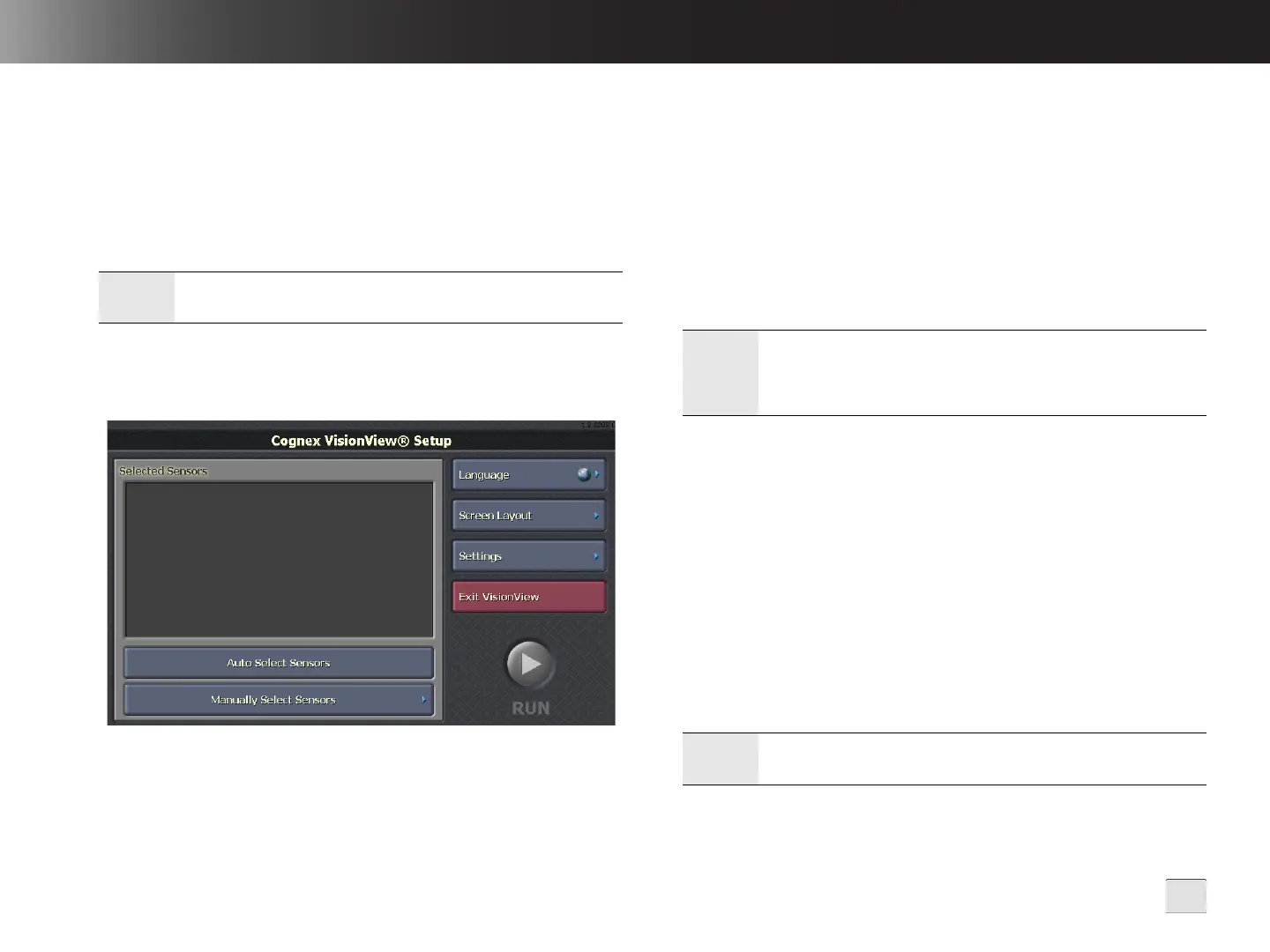
Setup Mode to configure the Run Mode operator interface.
Figure 3-1: Setup Screen
Note:
If the administrator's touch is not accurate, calibration
continues until the correct settings have been measured.
Auto Select Sensors: Automatically detects In-Sight and DVT
sensors and populates the Selected Sensors list.
• If a sensor is directly connected to VisionView, the sensor
is populated in the Selected Sensors list, sorted by port
number. If other sensors are detected on the network,
these sensors must be manually added.
• If no sensors are directly connected to VisionView, up to 9
sensors detected on the network are populated in the
Selected Sensors list, sorted in alphabetical order. If more
than 9 sensors are detected, the first 9 are selected.
Manually Select Sensors: Opens the Manually Select Sensors
screen and detects all In-Sight and DVT sensors on the network,
allowing you to manually add up to 9 sensors or emulators to the
Selected Sensors list.
Language: Opens the Language screen to specify the language to
use in the VisionView interface.
Screen Layout: Opens the Screen Layout screen, allowing the
administrator to define the Run Mode operator controls.
Settings: Opens the Settings screen, allowing the administrator to
configure VisionView settings and manage backup and restore
operations.
Exit VisionView: Exits the VisionView PC software.
Note:
The first time VisionView is powered up, sensors are
automatically detected and displayed in the Selected
Sensors list, without pressing the Auto Select Sensors
button.
Note:
The Exit VisionView button is only available when using the
VisionView PC software.


 To Next Page