36
Interactive Graphics Mode
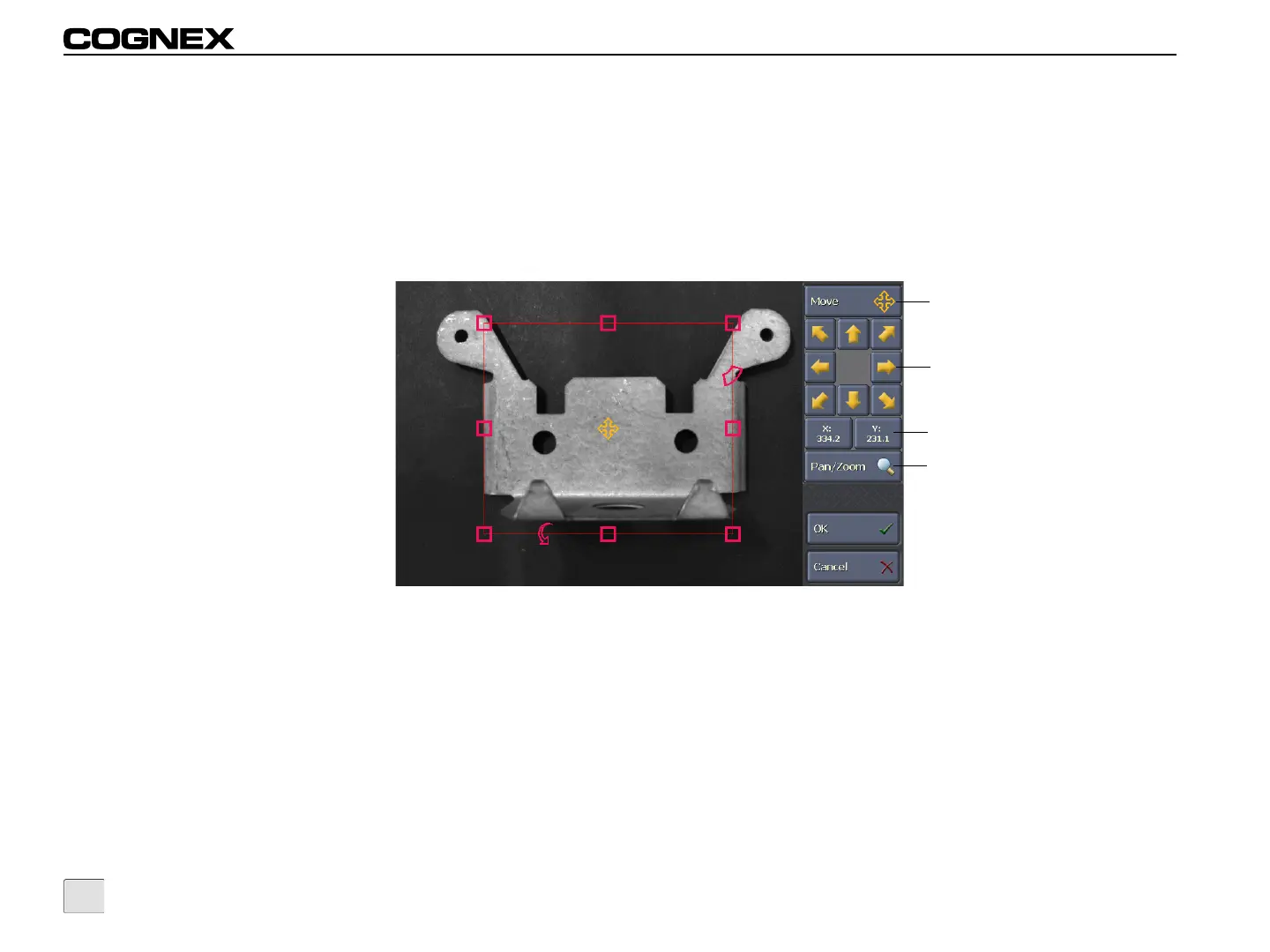
To enter Interactive Graphics Mode, press an interactive graphic control. The current view is replaced by the image, the interactive graphic, the
handle adjustment buttons and the Pan/Zoom button. In the image area, touch the appropriate handle to make it the active handle. Alternately,
use the Handle Selection button to select a handle. Then, either manually drag the handle to a new position, use the Nudge buttons to
incrementally adjust the position of the handle or press a Handle Edit button to manually enter the position. The types of handles available
depend on the control being modified and whether the handle was enabled when originally configured in In-Sight Explorer. If needed, press the
Pan/Zoom button to pan and zoom the image.
Figure 5-3: Interactive Graphics Mode
Handle Selection Button
Displays the name of the active handle. Within the image area, the active handle is displayed in yellow; inactive handles are displayed in
magenta. Pressing the Handle Selection button cycles through the available handles clockwise, as they appear in the graphic.
Nudge Buttons
Handle Selection Button
Handle Edit Buttons
Pan/Zoom Button


 To Next Page