19
Setup Mode
• Sensor Password (optional): Click Edit to enter the
connection password. This password is used to connect to
all selected sensors and must correspond with an existing
password on all sensors. If the password is left blank,
VisionView automatically selects an appropriate default
password for the sensor(s). For In-Sight and DVT sensors,
the default password is blank.
• Require User Authentication: If the Require User
Authentication checkbox is checked, the user is restricted
from performing most Run Mode actions. If the user
attempts to perform a restricted Run Mode action, the user
is prompted to re-enter the Sensor Password. Once logged
in, the user has permission to perform the restricted action
and the login state is in effect for all Run Mode sensors.
Once the user has completed the action, the user can click
the Log Off button from the Options screen to return to the
restricted access mode. If the user does not manually log
off, the session will automatically timeout after the duration
of the Idle Timeout (refer to Security Settings on page 18).
Note:
If the Sensor Password field is blank, the Require User
Authentication checkbox is disabled.
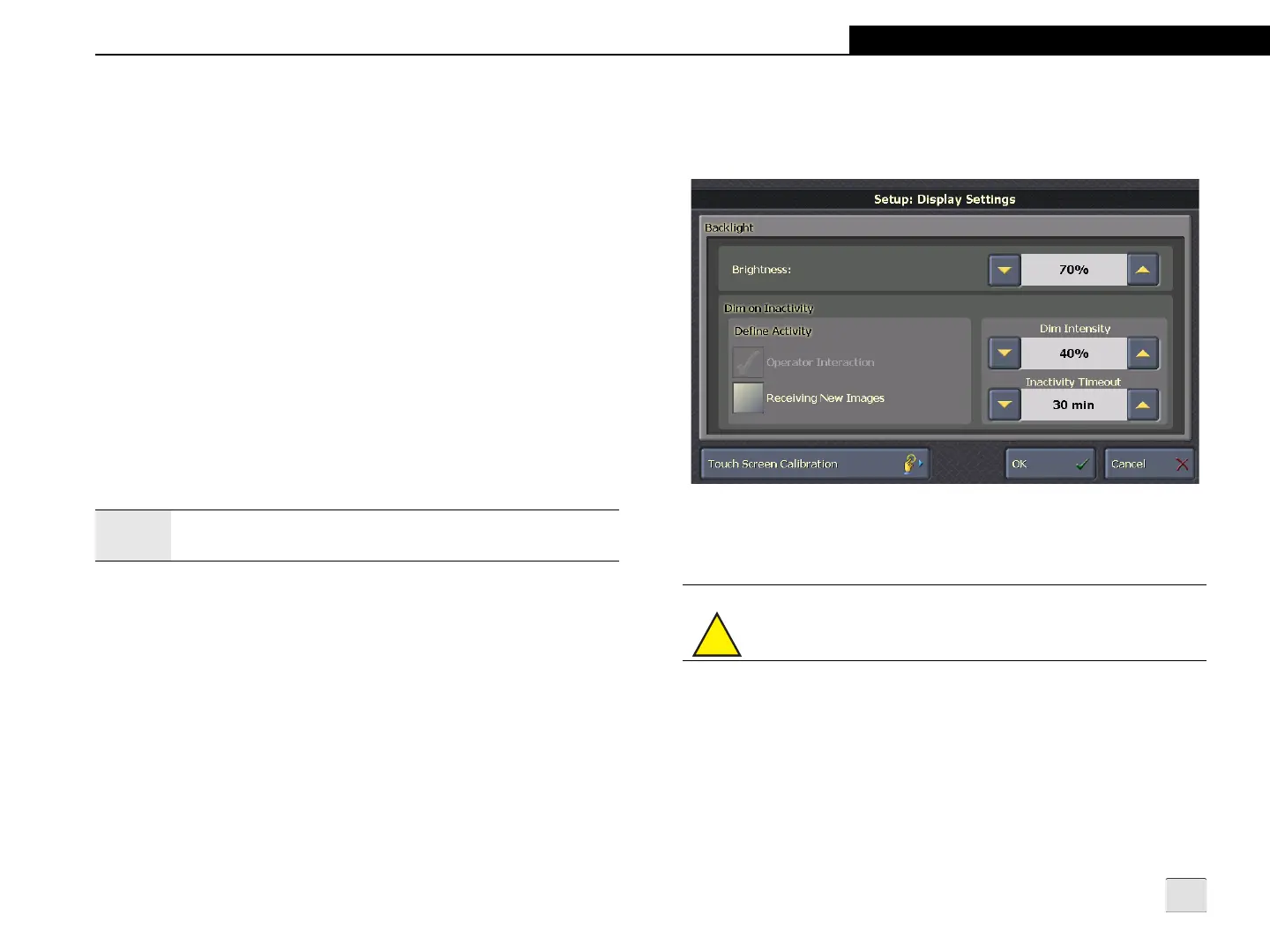
Display Settings - VisionView Operator
Interface Panel
Figure 3-15: Display Settings Screen
Brightness: Increases or decreases the backlight intensity. (10% to
100%; default = 70%)
Dim on Inactivity
• Define Activity:
• Operator Interaction: If no operator interaction occurs
for the duration of the specified Inactivity Timeout, the
display dims to the specified Dim Intensity. This option
is always enabled by default and is grayed out.
!
Caution: Specifying a Brightness level above 70% may reduce
backlight life expectancy.


 To Next Page