In-Sight Custom View and EasyView
37
Move Handle
Repositions the graphic on the image. The Move handle is located at the geometric center of the graphic. When using the Nudge buttons or a
keyboard to reposition the graphic, the handle is nudged one pixel in the specified direction. When the Move handle is active, the X- and Y-
coordinates of the Move handle are displayed.
Resize Handle
Resizes the graphic on the image. When using the Nudge buttons or a keyboard to resize the graphic, the handle is nudged one pixel in the
specified direction. When the Resize handle is active, depending on the type of control being modified, either the width and height, radius, or X-
and Y-coordinates of the handle are displayed.
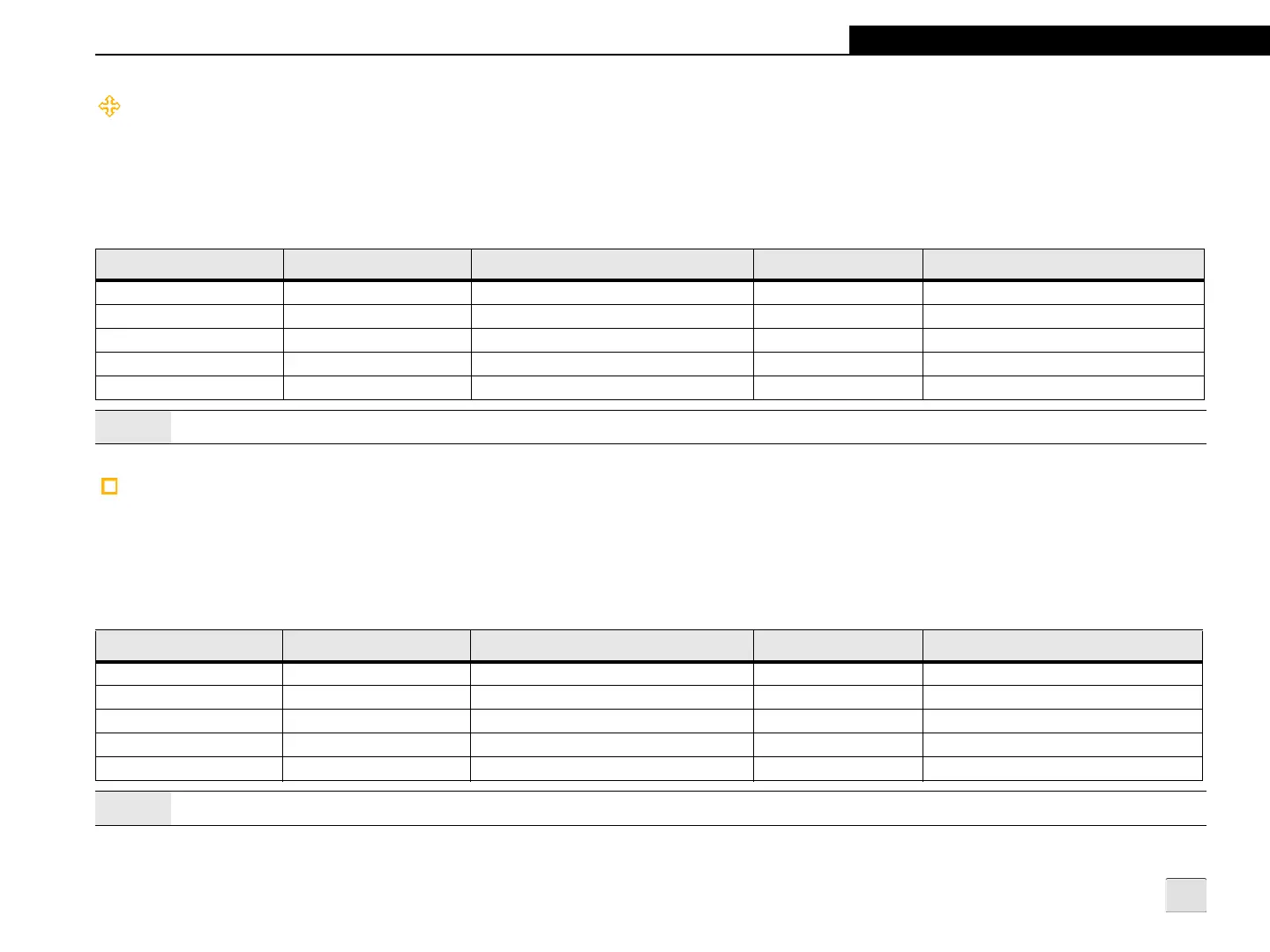
Table 5-1: Move Actions
Action Nudge Button Touch Screen Keyboard Mouse
Move left Left arrow Select and drag the Move handle to the left. Left arrow Click and drag the Move handle to the left.
Move right Right arrow Select and drag the Move handle to the right. Right arrow Click and drag the Move handle to the right.
Move up Up arrow Select and drag the Move handle upward. Up arrow Click and drag the Move handle upward.
Move down Down arrow Select and drag the Move handle downward. Down arrow Click and drag the Move handle downward.
Move diagonally Diagonal arrow Select and drag the Move handle diagonally. N/A Click and drag the Move handle diagonally.
Note:
When using a keyboard to reposition the graphic, pressing SHIFT+ ARROW KEY will move the active handle 10 pixels in the specified direction.
Table 5-2: Resize Actions
Action Nudge Button Touch Screen Keyboard Mouse
Move left Left arrow Select and drag the Resize handle to the left. Left arrow Click and drag the Resize handle to the left.
Move right Right arrow Select and drag the Resize handle to the right. Right arrow Click and drag the Resize handle to the right.
Move up Up arrow Select and drag the Resize handle upward. Up arrow Click and drag the Resize handle upward.
Move down Down arrow Select and drag the Resize handle downward. Down arrow Click and drag the Resize handle downward.
Move diagonally Diagonal arrow Select and drag the Resize handle diagonally. N/A Click and drag the Resize handle diagonally.
Note:
When using a keyboard to reposition the graphic, pressing SHIFT+ ARROW KEY will move the active handle 10 pixels in the specified direction.


 To Next Page