20
• Receiving New Images: If no new images are received
for the duration of the specified Inactivity Timeout, the
display dims to the specified Dim Intensity.
Dim Intensity: The backlight intensity during inactivity. (10% to
100%; default = 10%)
Inactivity Timeout: The amount of time the display can remain
inactive before the backlight automatically dims. (Never to 60
minutes; default = 30 minutes)
Touch Screen Calibration: Opens the touch screen calibration
screen. To calibrate the touch screen, carefully press and hold the
center of the target icon. Repeat as the target icon moves around
the screen. When the correct calibration settings have been
measured, the target icon disappears. Press the touch screen once
more to continue.
Note:
If the administrator's touch is not accurate, calibration
continues until the correct settings have been measured.
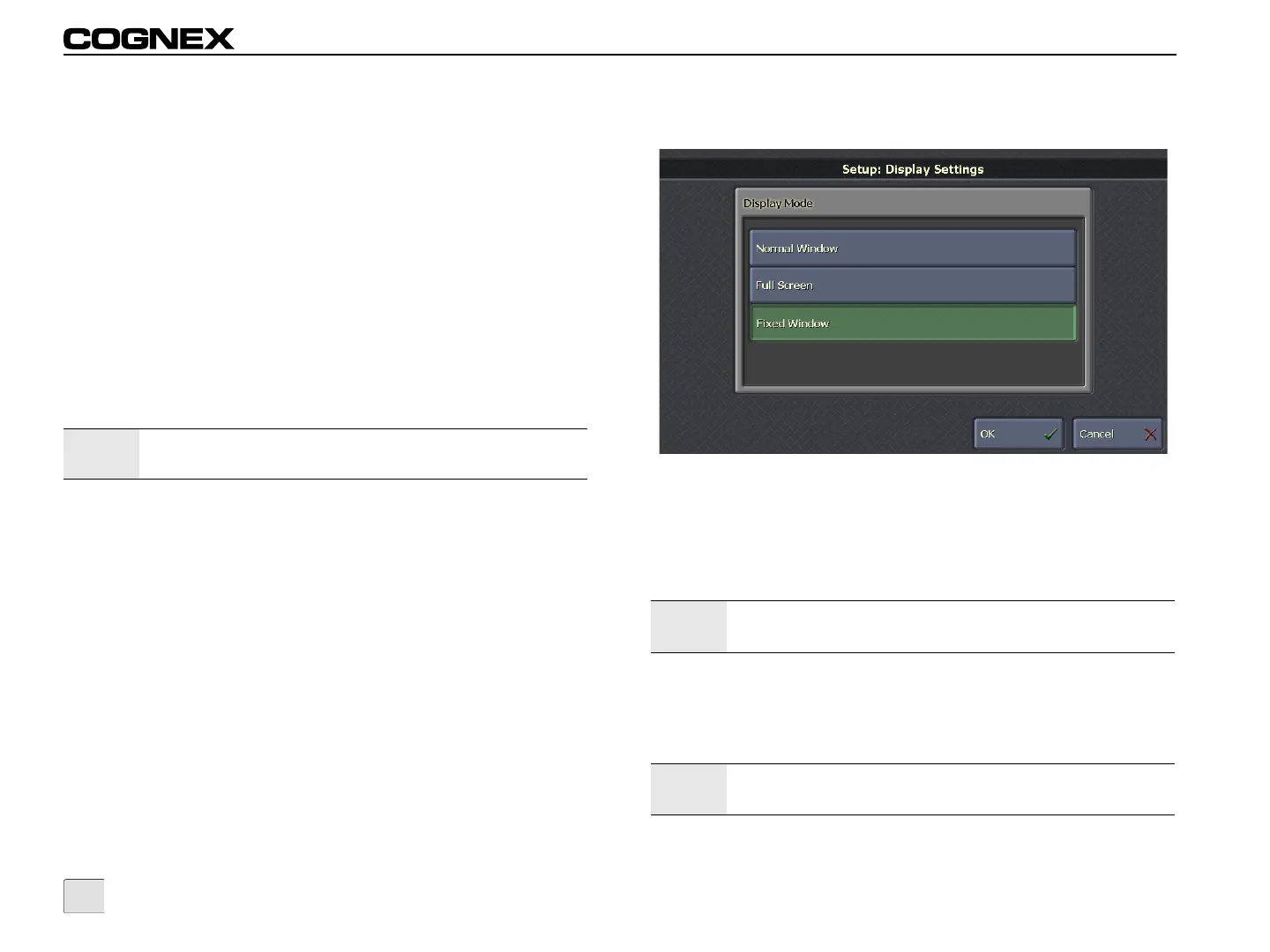
Display Settings - VisionView PC Software
Figure 3-16: Display Settings Screen
Display Mode: Defines the display mode of the VisionView
application on the PC. When the application is exited, the size and
position of the application are saved, and these settings are
restored the next time the application is started.
• Normal Window: The application appears in the default
mode, with the title bar and frame visible.
• Full Screen: The application fills the entire screen; the title
bar and frame are hidden.
Note:
The Display Mode options are disabled in the VisionView PC
Demo.
Note:
If two monitors are installed, the application will appear on
only one monitor when in Full Screen mode.


 To Next Page